

Overview
Within the iDetail iOS App User Interface there are several ways to update content
Content Item - Refresh Button
Content Update Button
Manage Details - Refresh Button
Content Item - Refresh Button
All content items have a small menu bar at the top of the content item thumbnail. The icon on the far right of the small menu bar is the Info Screen icon. The Info Screen icon when selected will display the Info Screen. From the Info Screen in the upper right, there is a Refresh Button. Selecting the Refresh Button will delete and update all the file assets and metadata associated with the content item.
Steps to update a individual content item - refresh button
Open iDetail App
Select content item info button
Select refresh button from Info Screen
Select OK to confirm action
a popup will appear
showing the status of items being download
will change to show metadata being updated
When completed, the popup will disappear
Content Update Button
iDetail has a unique feature called Automatic Content Download or ACD, which utilizes Apples Background Fetch Technology in iOS. Based on Members' use of their iPad, iOS will determine the best time of day to download new content. The iDetail iOS App while running but not in focus will periodically check the iDetail Web Service for updated content. When the member returns to the iDetail and new content items have been downloaded the Content Update button will display in the top center right of the main navigation bar on the grid view.
Steps to update with Content Update Button:
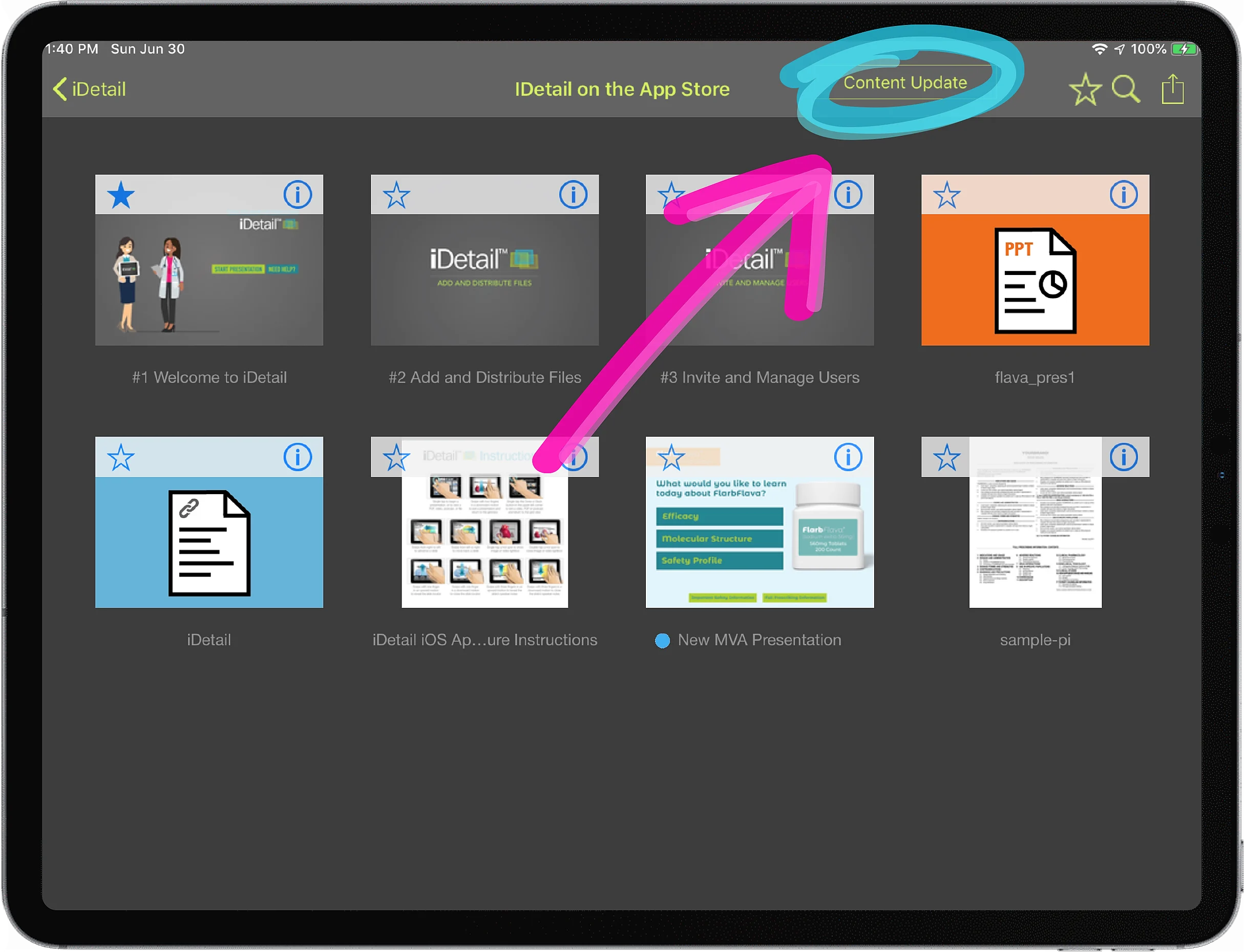
Open iDetail App and if Content Update Button is present
Select content update button
Popup Resource Manager List will appear
Select Refresh button
Popup HUD “Loading” will appear showing the status of download queue being updated
Select Download All button
Popup HUD will appear showing the status of items being download
When complete, the HUD, the Resource List, and the Content Update button will disappear
Manage Details - Refresh Button
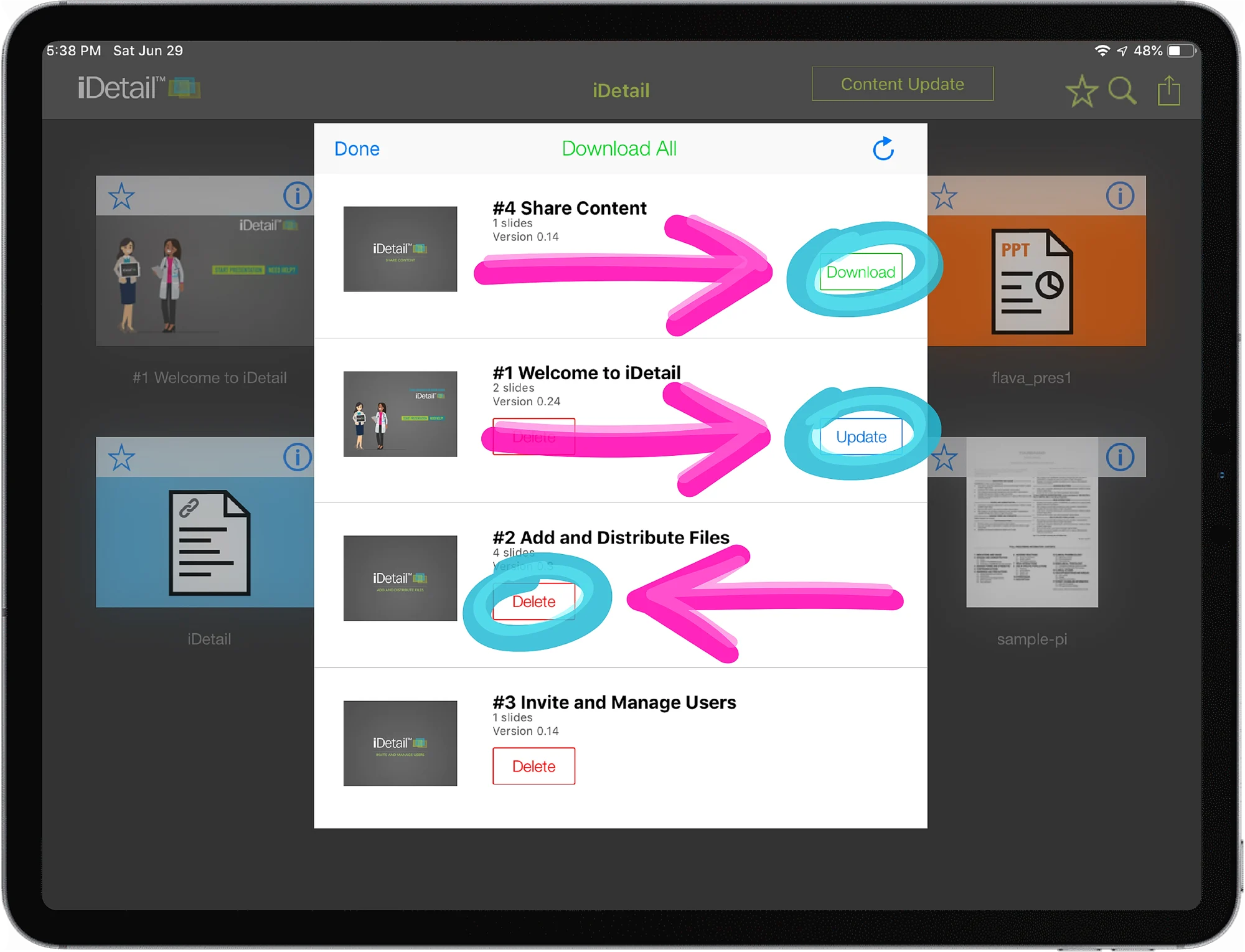
The original feature for updating content is called Manage Details. The Manage Details list popup view appears when Manage Details button is selected from the action button drop down from the main navigation on the grid view. The Resource Manager List displays the active list of content the member has been permissioned to. The list shows content currently available on the iPad as well as content items not yet downloaded. The Resource Manager List will present 3 different actions for a content item depending on the items current state. Download, Update or Delete.
Download - when selected will download just the one content item and all its associated files and data
Update - when selected will download just the updated associated files and data for the one content item
Delete - when selected will delete the content item and its associated files and metadata (note: content permission is controlled by the web service, therefore a member deleted content item will redownload through one of the 3 methods)
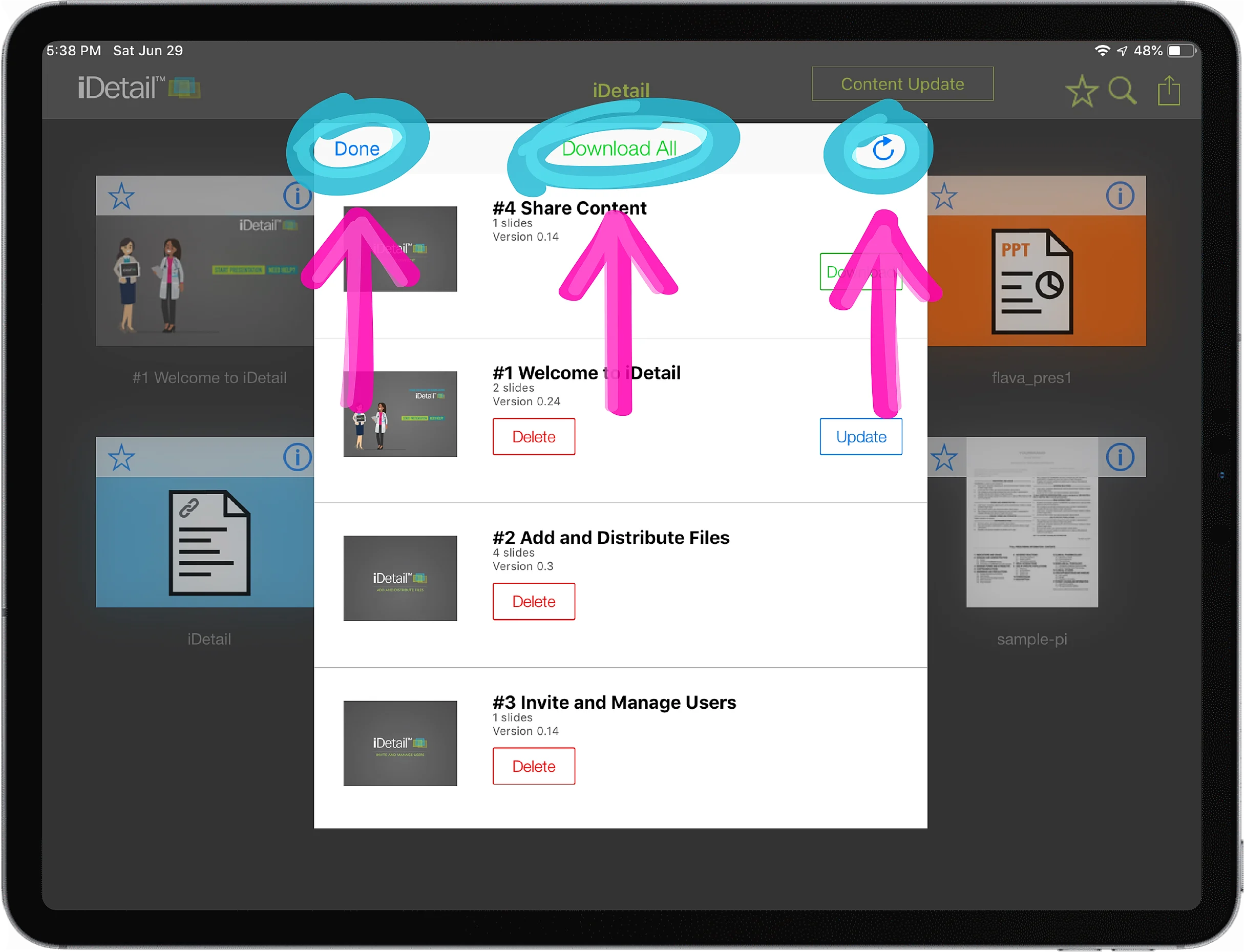
There are 3 buttons on the top bar of the Manage Content list: Done, Download All, and Refresh
Refresh - when selected will connect to the web service and update the Manage Content list with any new items not yet downloaded. The new items will display at the top of the list.
Download All - when selected will start to download only those items that are not already on the iPad and will not check the web service for any additional available content items (note: it is a good practice to select the refresh button to insure the most current items are available for download)
Done - will close the Resource Manager List
Steps to update content from the Manage Details list:
From the Grid View tap the Action icon
(upper-right corner)
A drop down list will appear, tap the Manage Details link
A popup view will appear with the list downloaded items
Select the Refresh icon
 (upper-right corner)
A popup with “Loading” will appear showing the status of download queue being updated
When finished, tap the Download All text link
Another Popup will appear “Downloading all available iDetail Presentations” showing the status of items being download
When the download is complete the popup and Content Update button will disappear
The grid view will refresh showing the new content items.