

The iDetail on the App Store (iDAS) app for the iPad is an easy-to-use presentation platform that has a basic set of gestures for accessing and presenting content.
After you’ve logged in to the app with your organization, email name, and password, and downloaded your presentations and files, you can get started using the app by following the steps below.
How to get around in the iDAS app
Launch presentations and view files
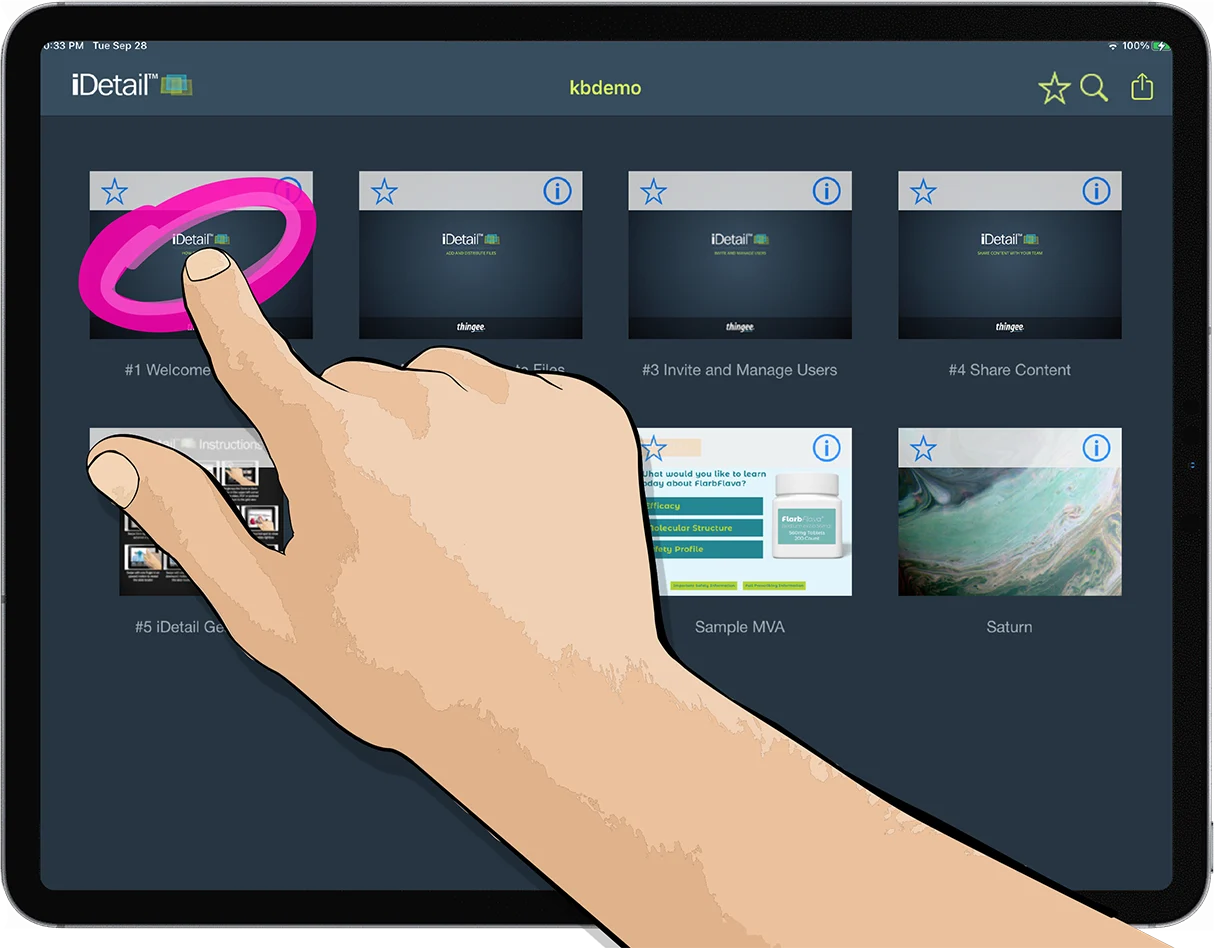
Single-tap one of the thumbnails in the grid view to begin a presentation, or to view a PDF, video, podcast, or other files
Close a file view
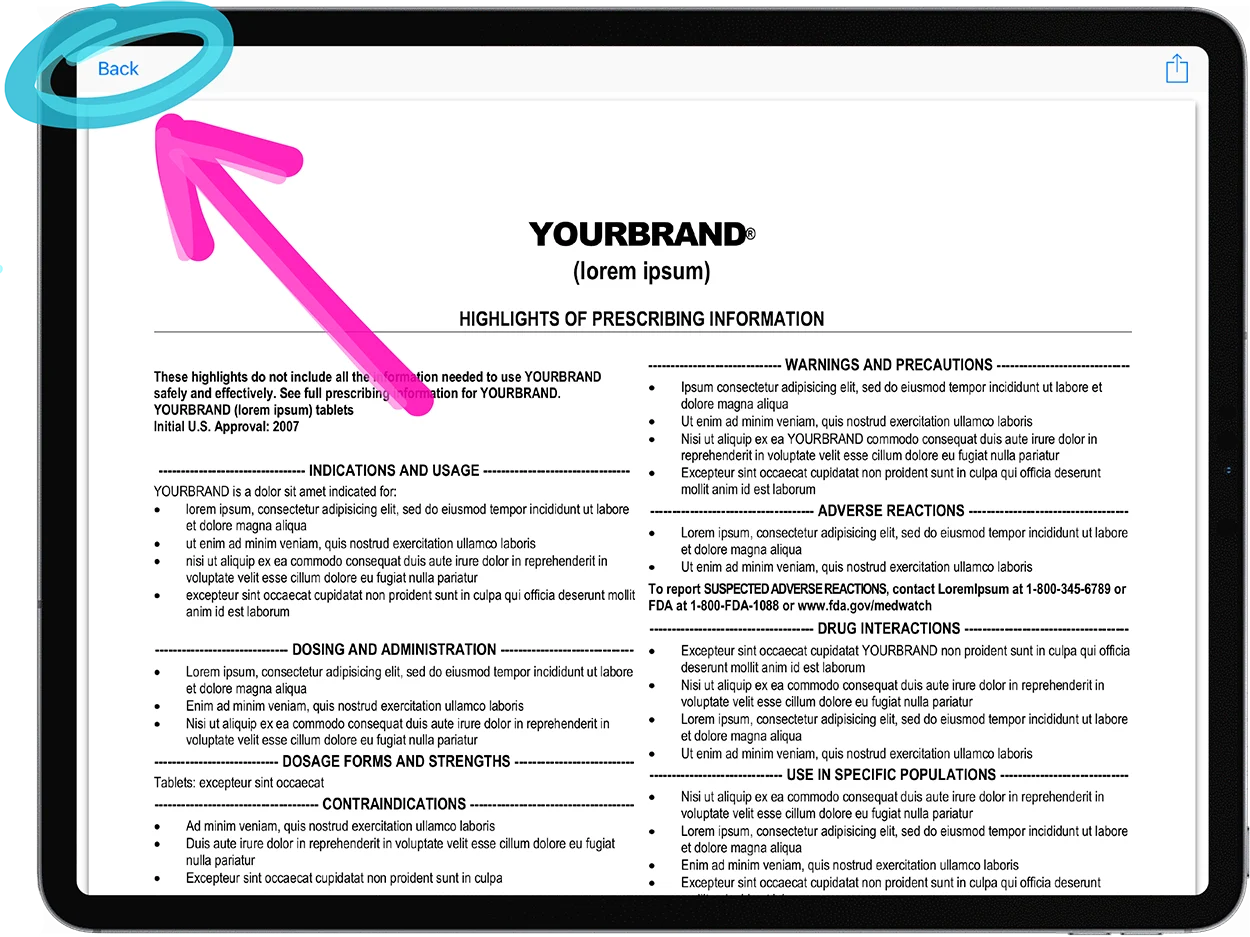
Single-tap the Back or Done button in the upper left corner to exit a PDF, podcast, or other file and return to the grid view
Exit a slidedeck presentation or video
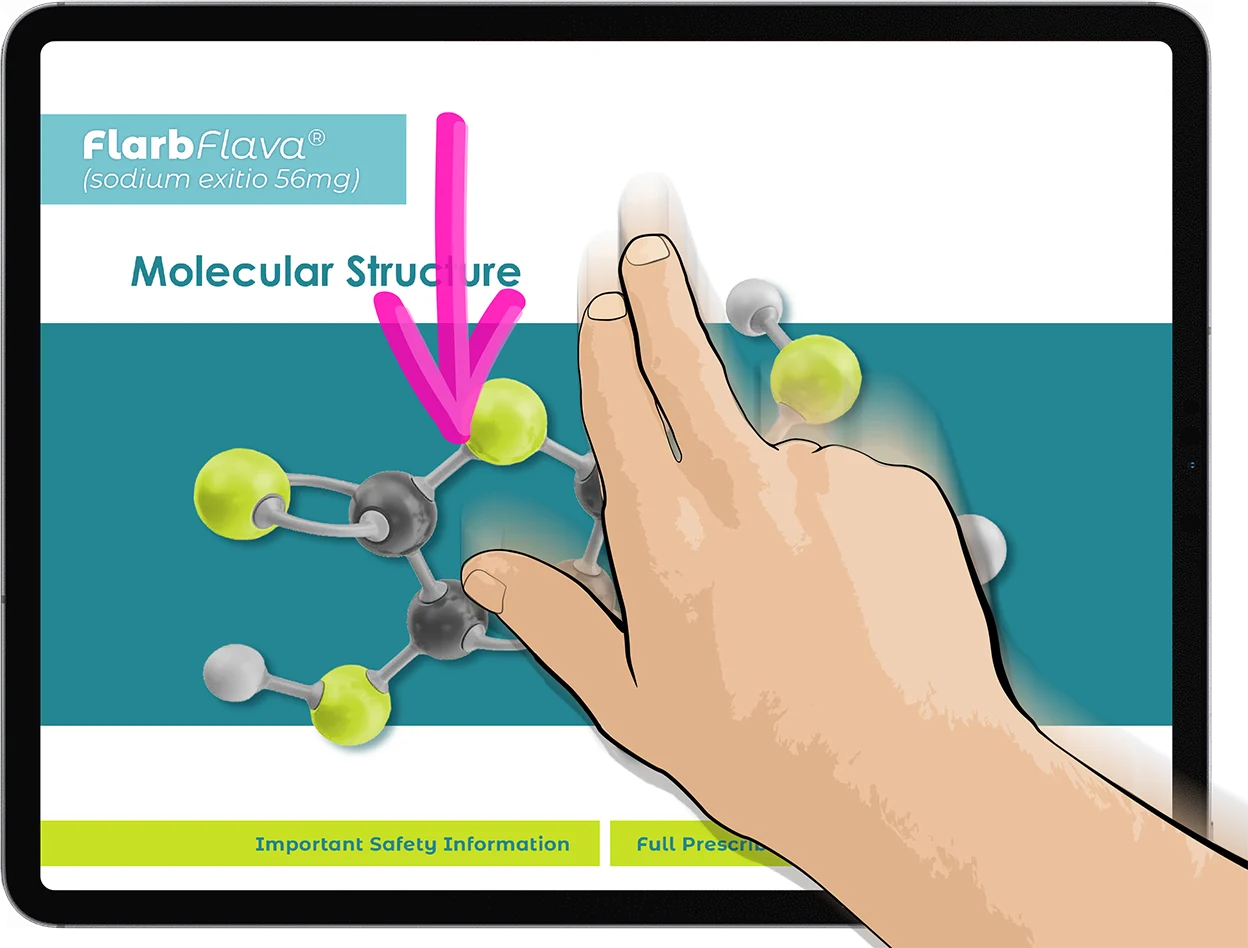
Swipe with two fingers in a downward motion to exit the presentation or video and return to the grid view
View the next slide (move forward) in a slidedeck presentation
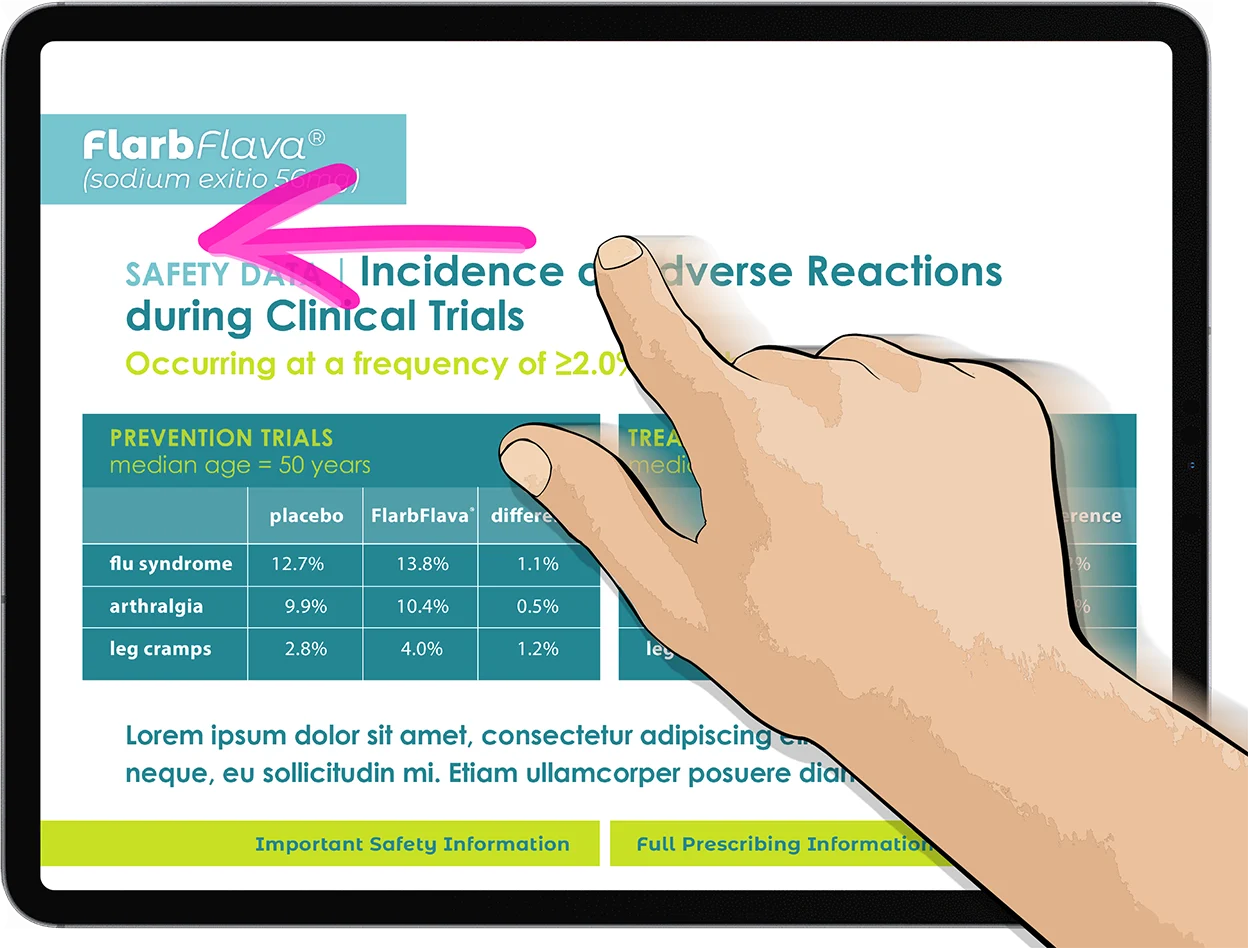
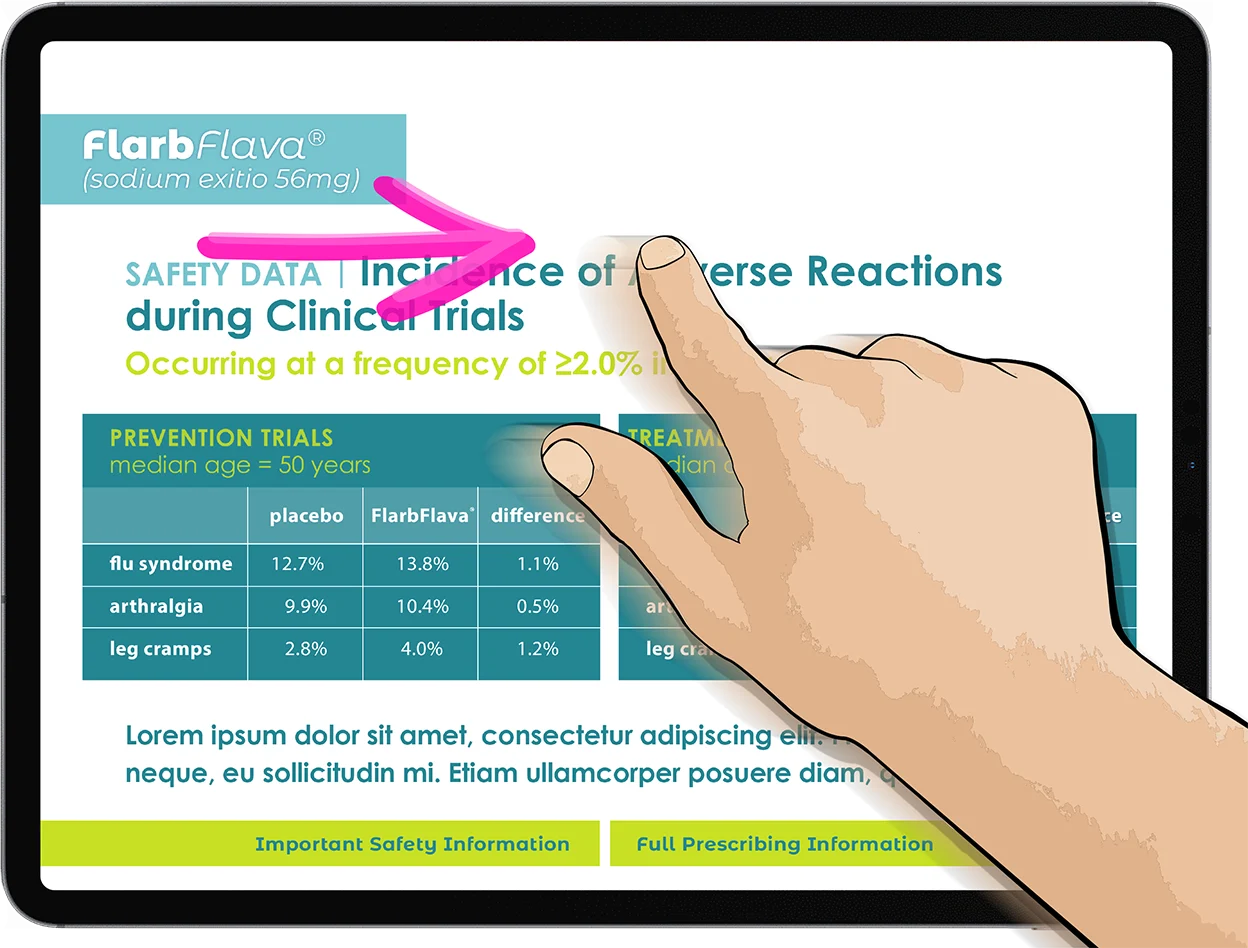
Swipe from right to left to advance a slide:
View the previous slide (move backward) in a slidedeck presentation
Swipe from left to right to move back a slide:
Jump to another slide in a slidedeck presentation
Single-tap the hotspot to go to the new location:

Open the Slide Locator in a slidedeck presentation
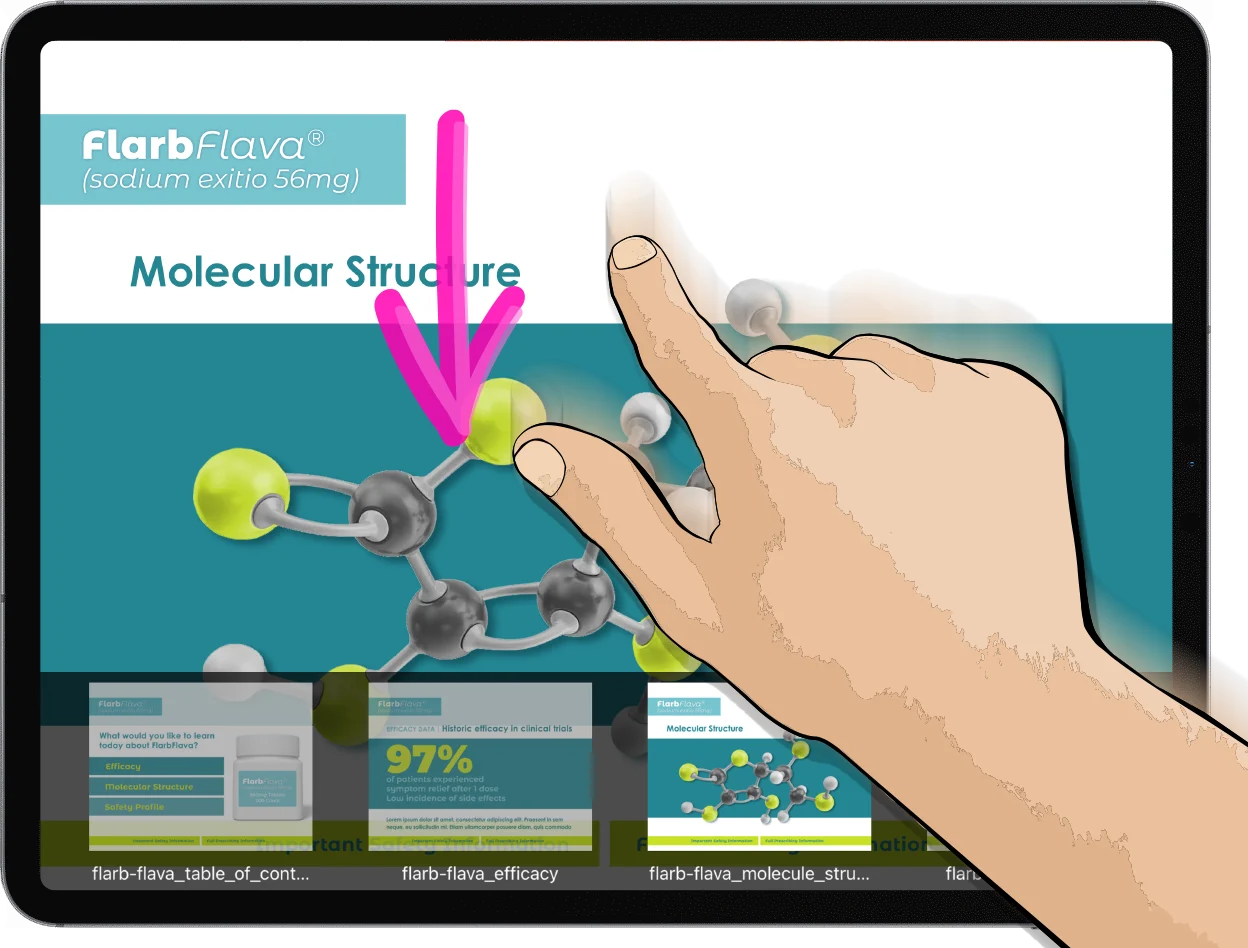
Swipe with one finger in an upward motion to reveal the Slide Locator:

To close the Slide Locator in a slidedeck presentation
Swipe with one finger in a downward motion to close the Slide Locator:
Open Speaker Notes in a slidedeck presentation
Swipe with three fingers in an upward motion to reveal the slide’s Speaker Notes:

Close Speaker Notes in a slidedeck presentation
Swipe with three fingers in a downward motion to close the slide’s Speaker Notes: