

Follow the steps below to view iDetail presentation content items on the Web Service via the Content page.
How to use the Content tab
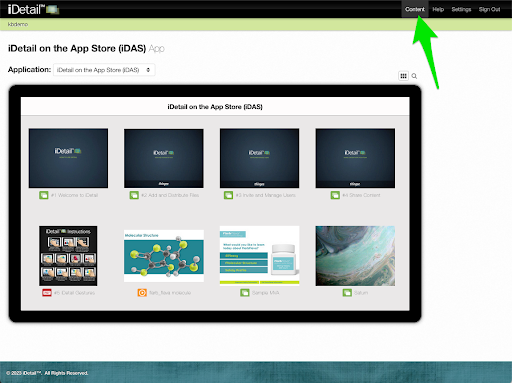
Sign in to the iDetail Web Service and choose Content in the menu at the top of the screen if you are not already viewing the Content grid view
001
View Content from the Grid View
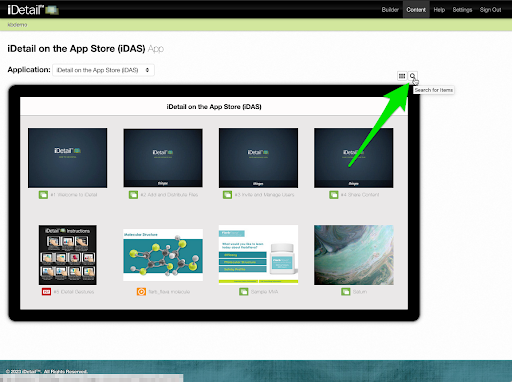
The Grid View is the default view on the Content page.
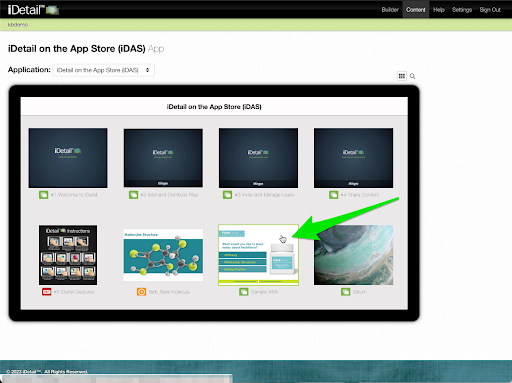
Choose a file to view from the grid view and click it
002
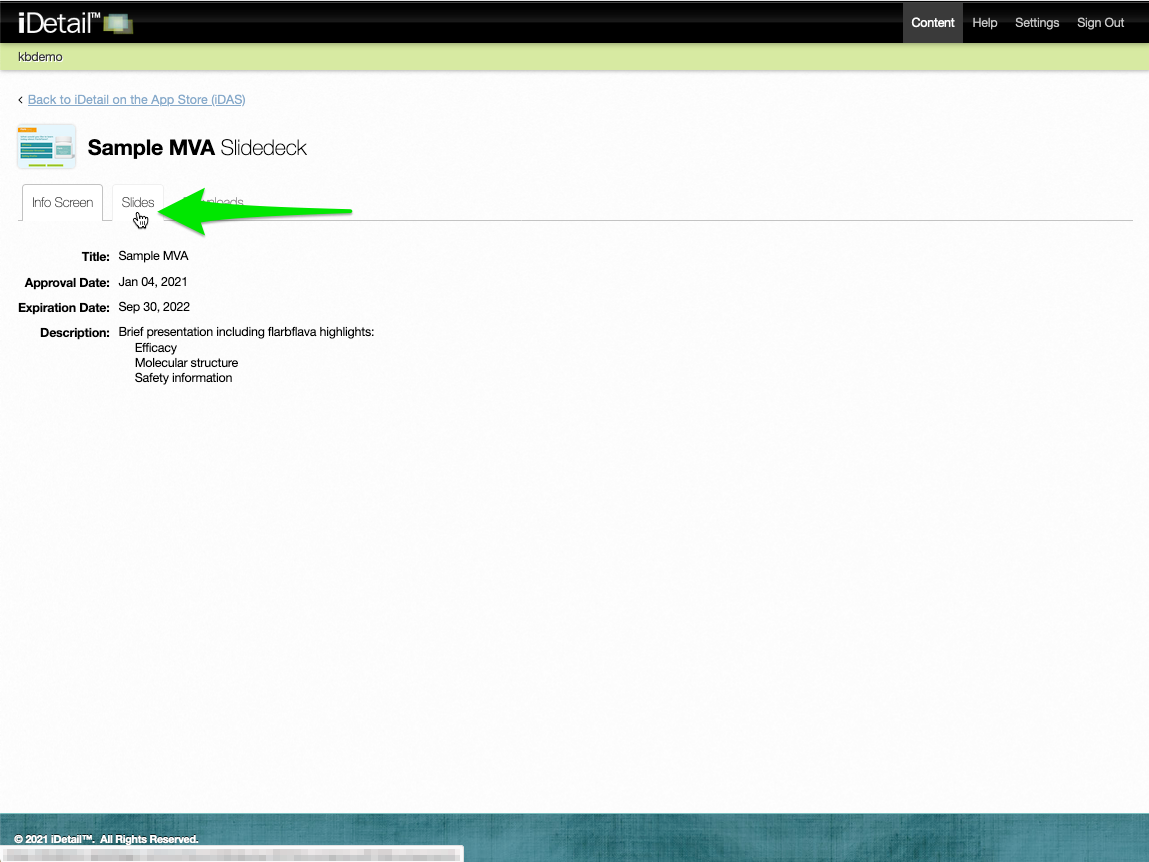
The presentation’s Info Screen tab appears. This screen may contain information the presenter needs to know about the file, such as the approval date, expiration date, and other relevant information provided by the organization.
If the presentation is a slide deck, click on the Slides tab for more details
003
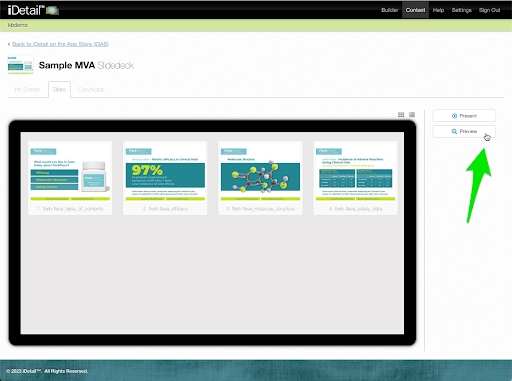
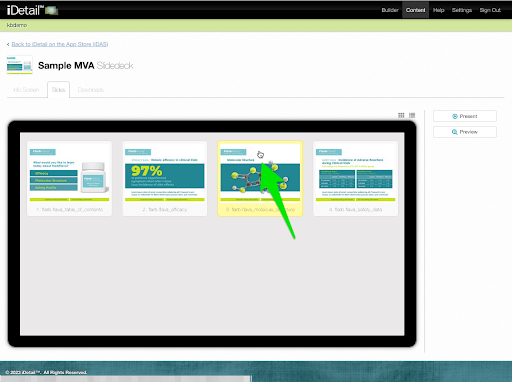
The Slides tab shows thumbnails of all the slides in the presentation
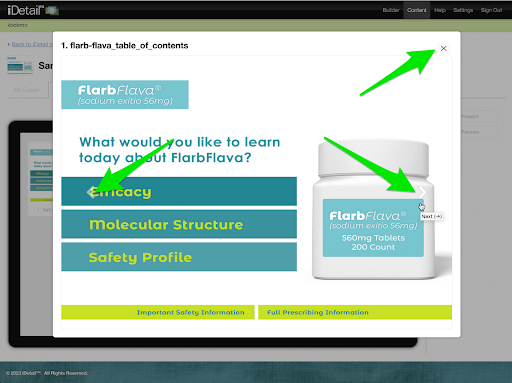
Click on the Preview button to see a larger view of the presentation starting with the first slide
004
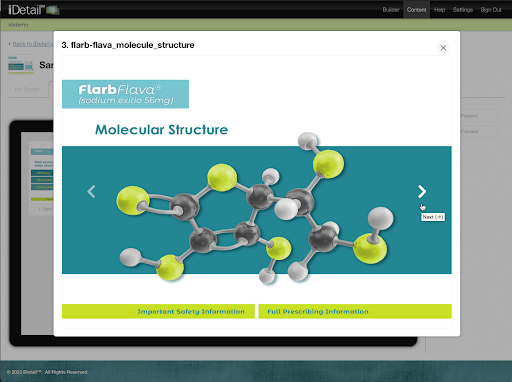
Click the arrows on either side of the slide preview to advance to the next slide or return to the previous slide
Click the "x" in the upper right of the slide preview to close the Preview mode
005
Click on an individual slide thumbnail to start the Preview mode with that particular slide
006
007
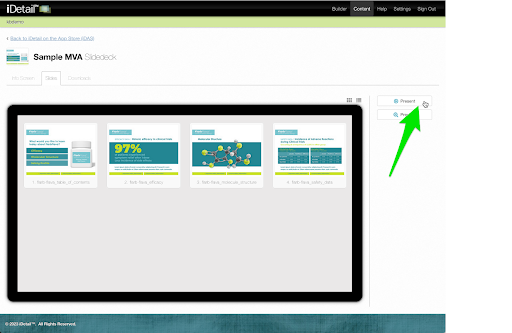
Click the Present button to view the presentation in fullscreen mode. For more details about viewing in this mode, see “How do I present from my laptop?”
009
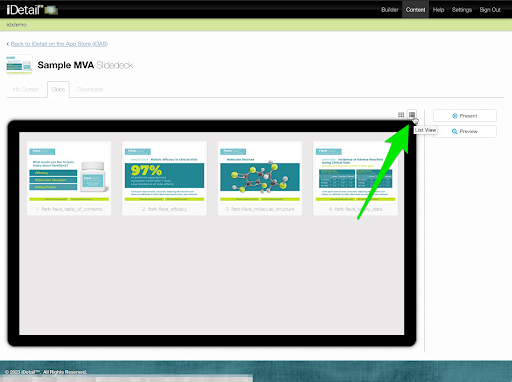
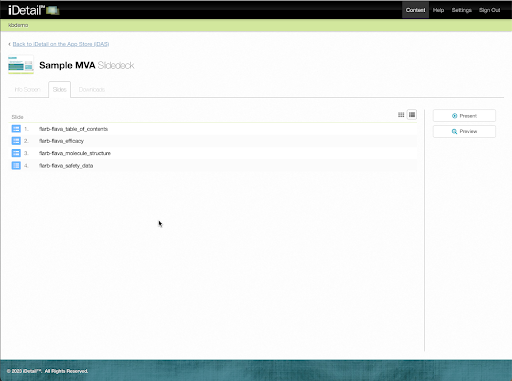
The Slides tab for slide deck presentations also has an option for viewing slides as a list
Click the List View icon to see the slide list
013
014
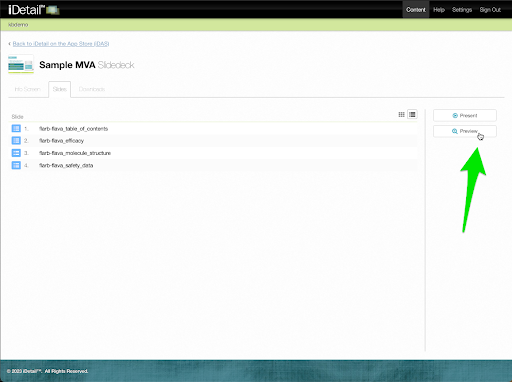
The Present and Preview buttons function the same as they do when in the Grid View
015
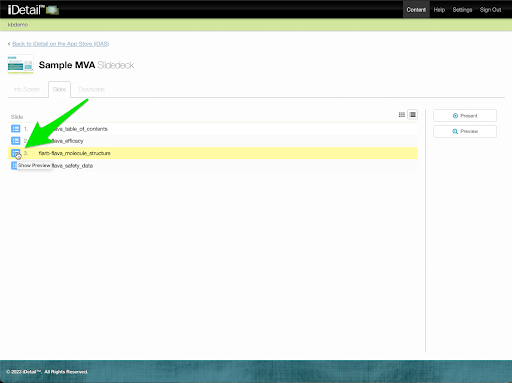
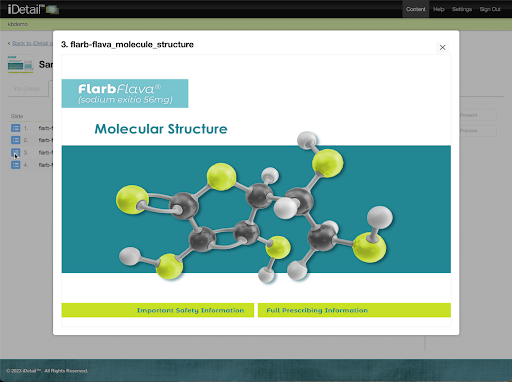
You can also click the icon at the beginning of a slide item line entry to preview the individual slide
017
018
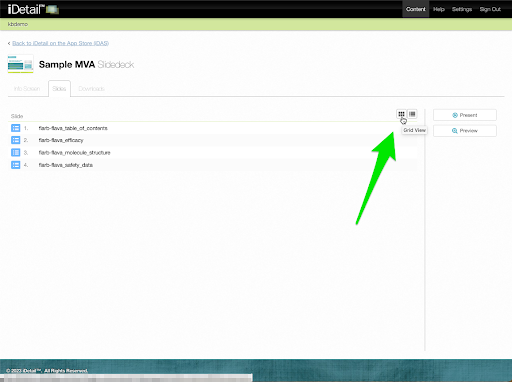
Click the Grid View icon to return to the Slides tab Grid View
019
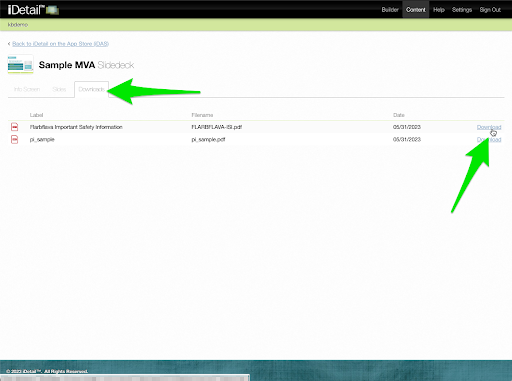
Click the Downloads tab to view any additional content items that are associated with the presentation
Click the Download link to open a file in your browser or to download the file to your computer
008
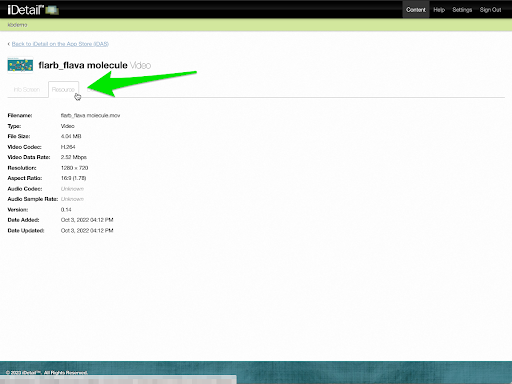
Non-slide deck presentation content items, such as videos, also have a Resource tab with additional information about the file
022
View Content from the Search for Items View
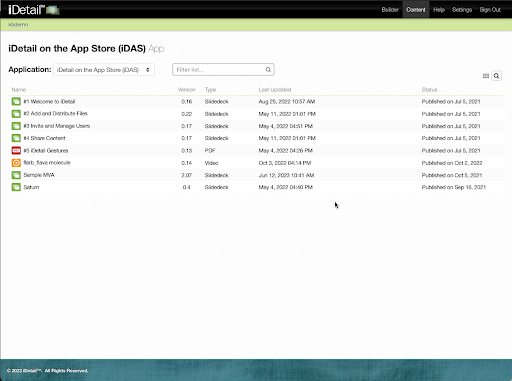
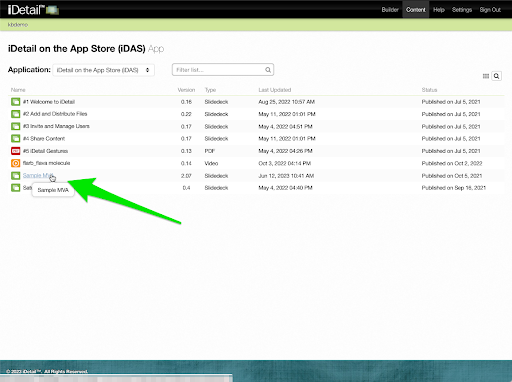
You can also view items on the Content page in a list format.
Click the Search for Items icon at the top right of the grid area to see content items in a list view
010
All content items appear with additional information (version, type, date last updated, published status)
011
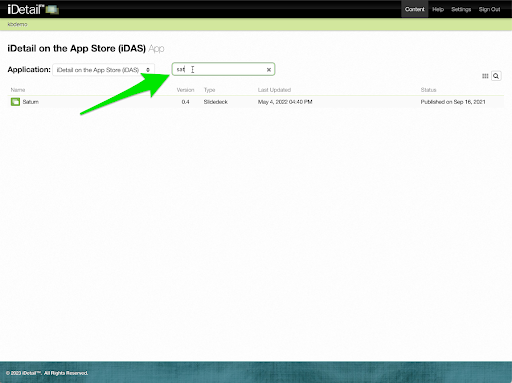
The list view has a “Filter list…” field that allows you to refine searches for content items
You can type in text, numbers, and characters to locate specific items
020
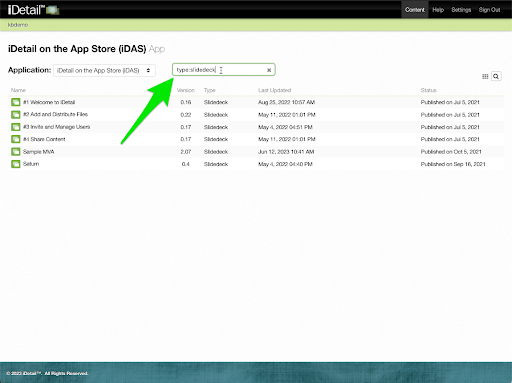
You can also refine results by entering “type:” followed by a file type
021
Each listed content item has a link for access to more information about the presentation (Info Screen, Downloads, a Slides tab for slide decks, and a Resource tab for non-slide deck content items)
012
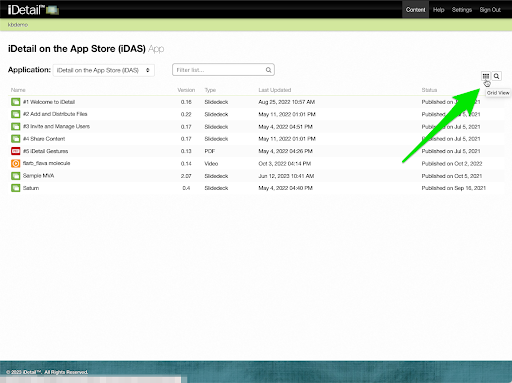
Click the Grid View icon to return to the Content page grid view
023