

Follow the steps below to add a new member to your Organization.
How to add a new member
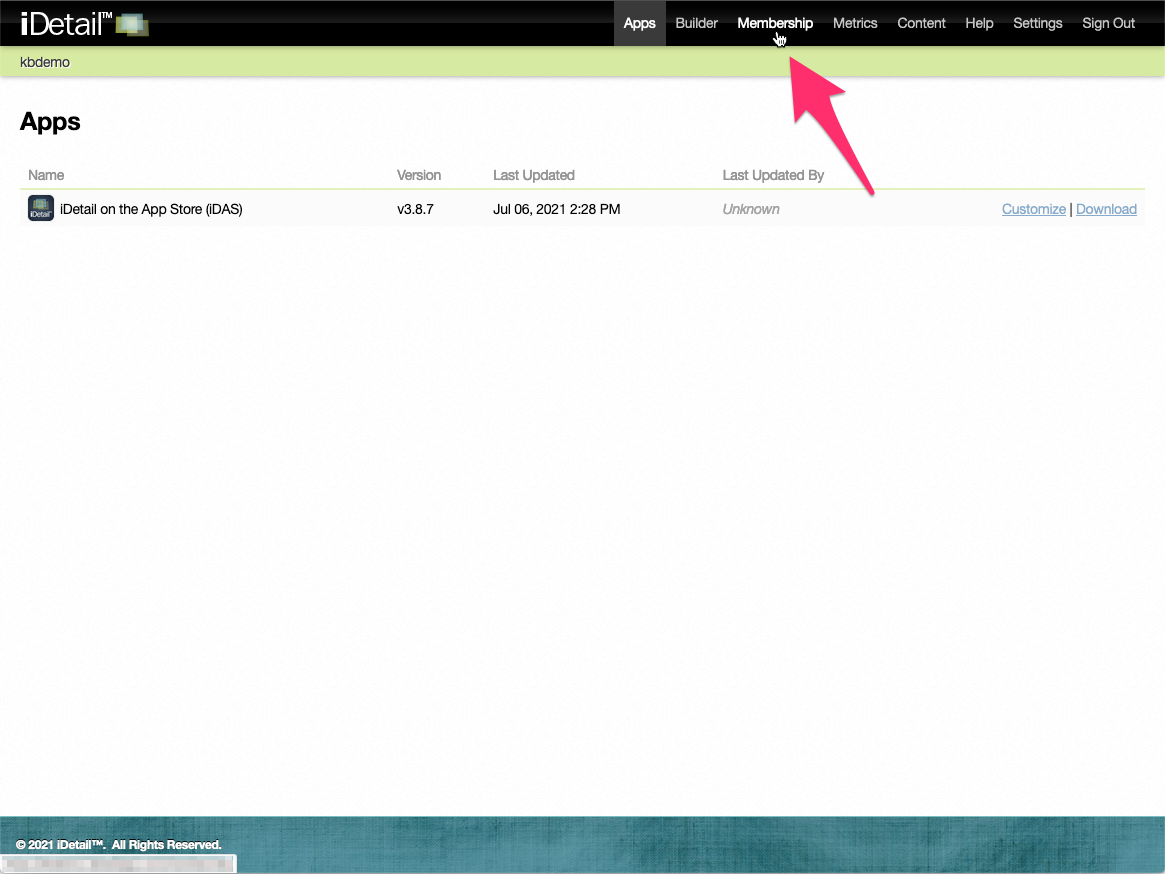
Select the Membership tab at the top of the screen
001
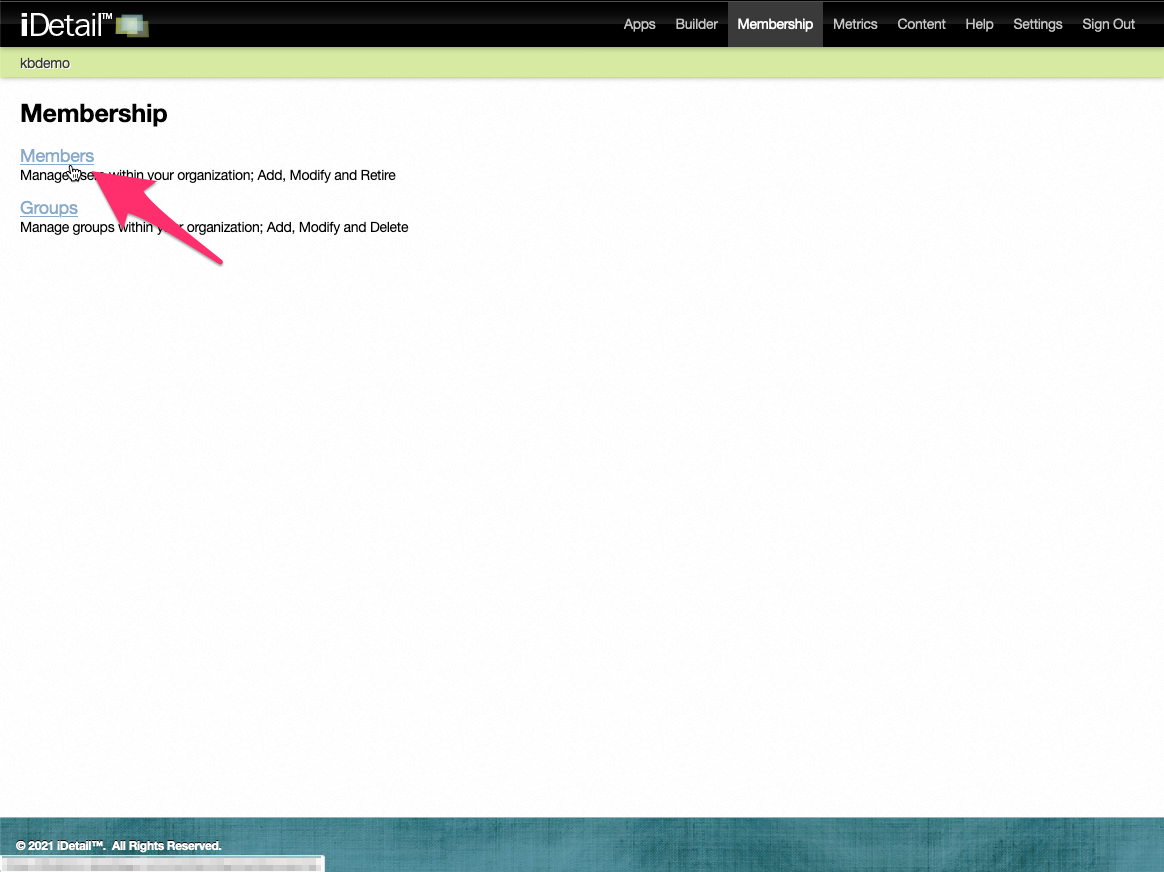
Select the Members link on the Membership screen
002
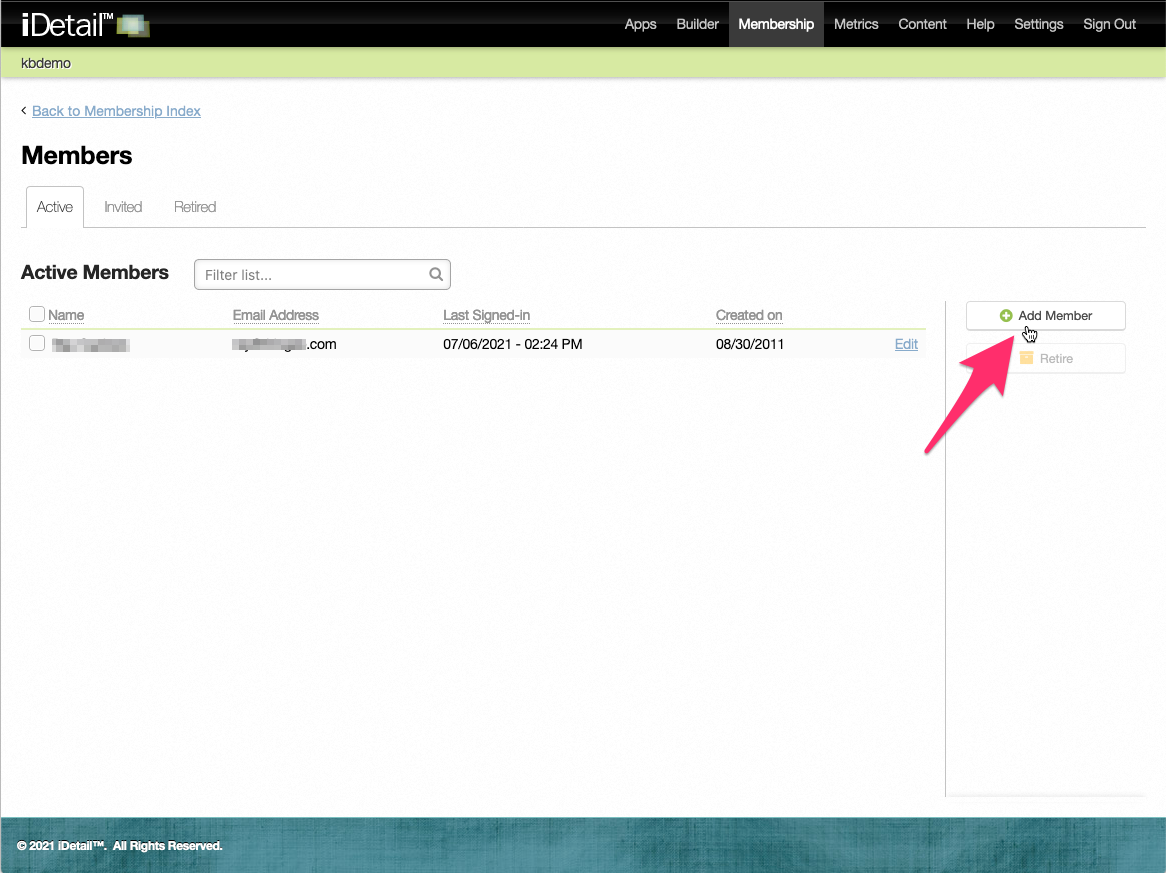
Click the Add Member button at the top of the sidebar at the right of the screen
003
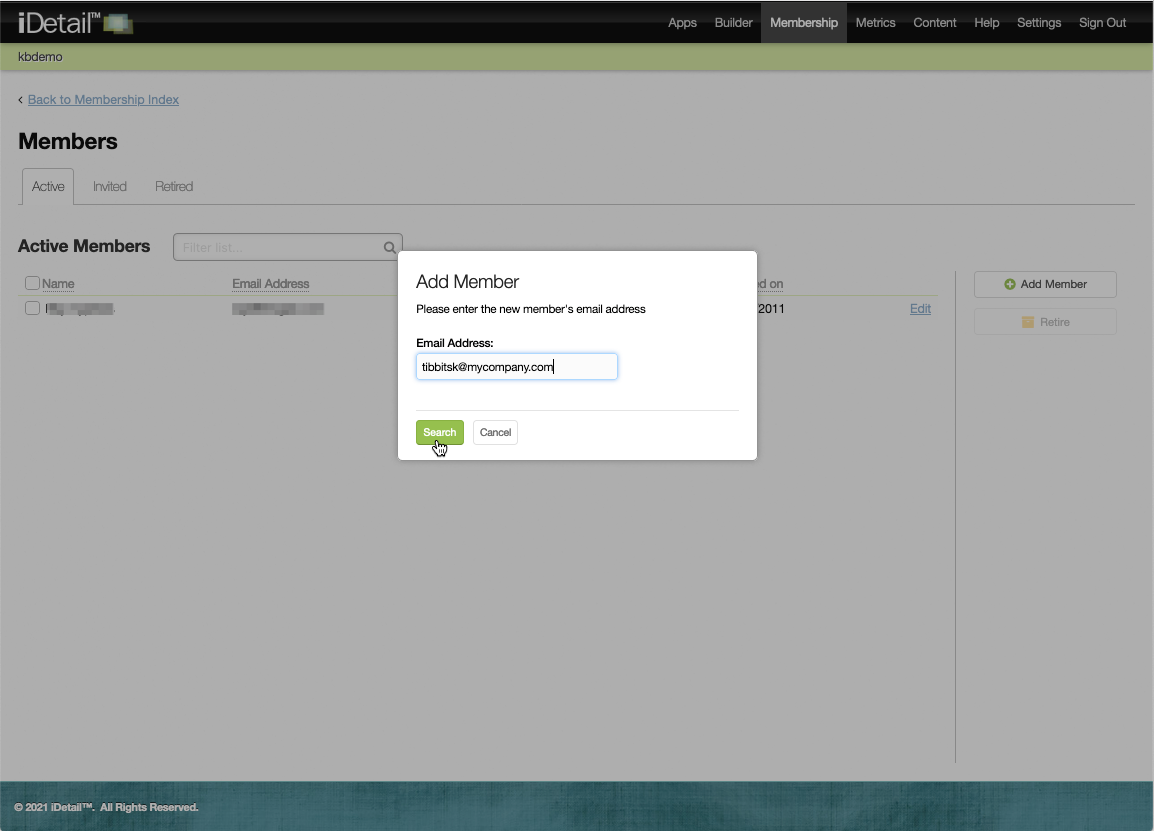
The Add Member dialog box appears
Type in the new member’s email address
Click the Search button
004
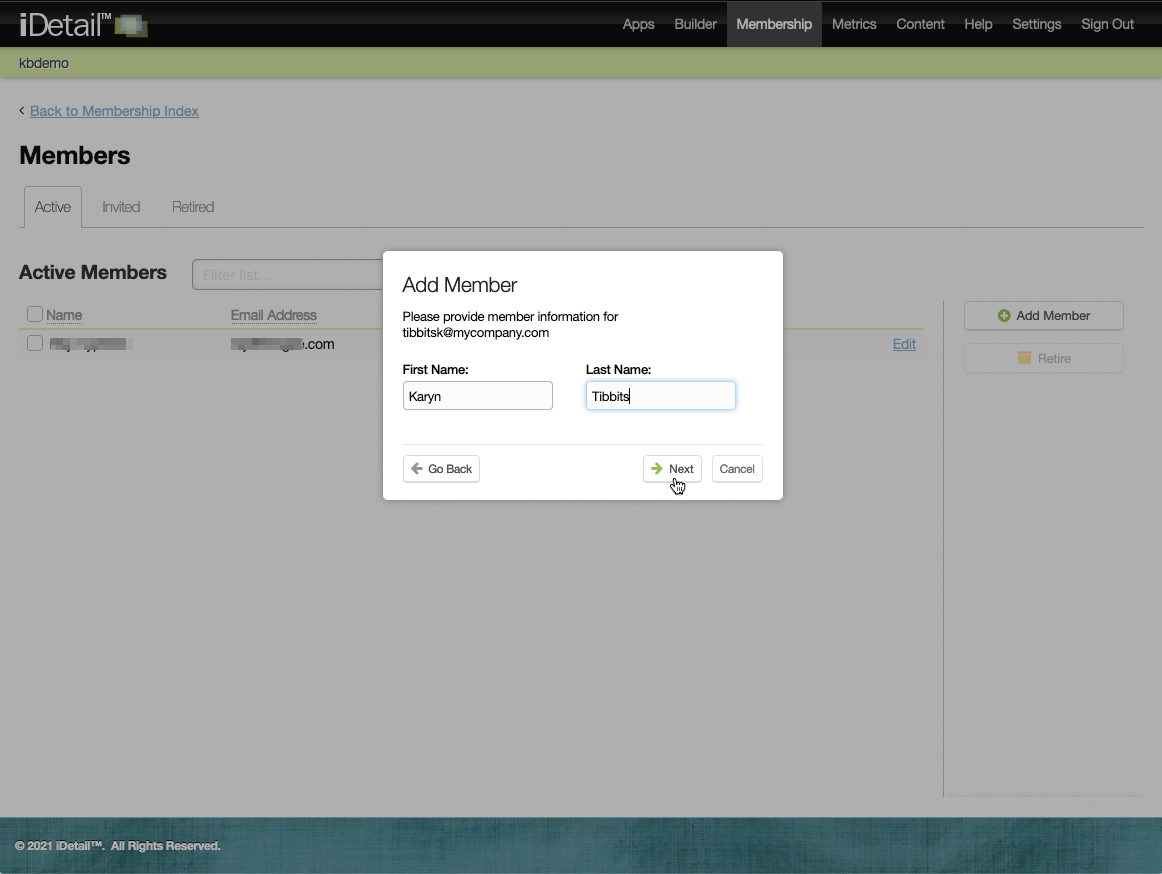
Type in the member’s first and last names
Click the Next button
005
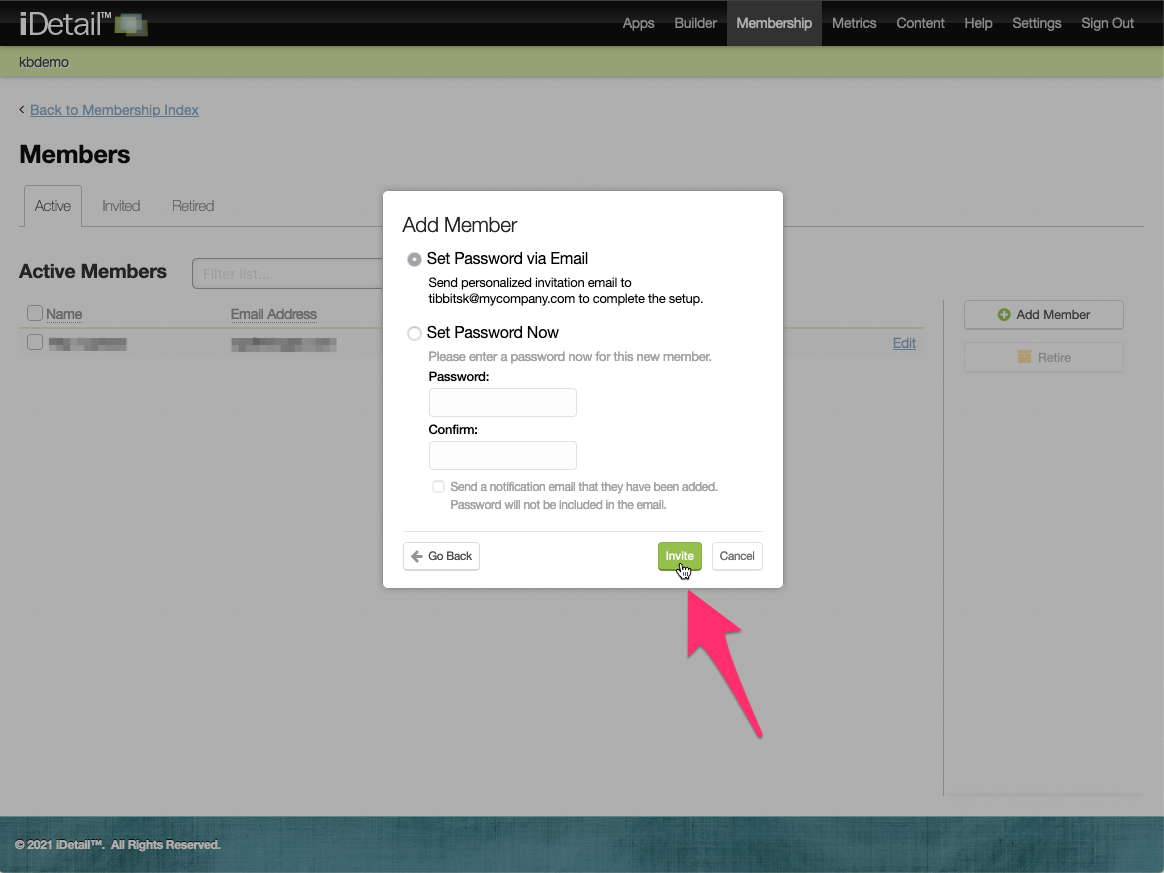
The Service prompts you to set up the new member’s password
Choose Set Password via Email and the new member will receive an email that tells them how to set up their own password
Click Invite to finish adding the member
006
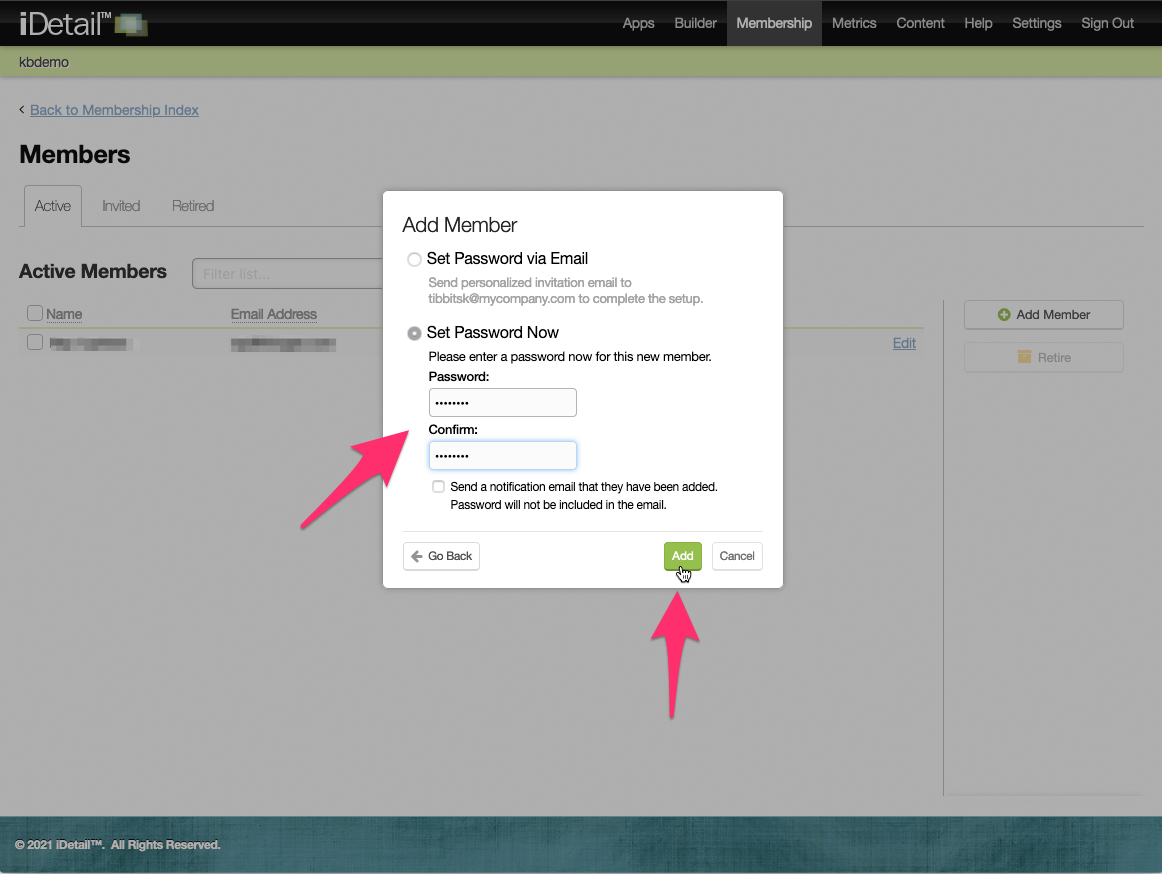
If you want to immediately set up a password for the new member, choose Set Password Now
Type in the password for the new member in the Password field
Retype the password in the Confirm field
You can choose optionally to send an email notifying the new member that they have been added to the organization (the password will not be included in the email)
Click Add to finish adding the member
007
After adding a member, you must set Permissions in order to give them access to features and content.