

When you add a member to your organization and give them the option to set their own password, the new member is placed on the Invited tab pending their acceptance.
How to invite a new member
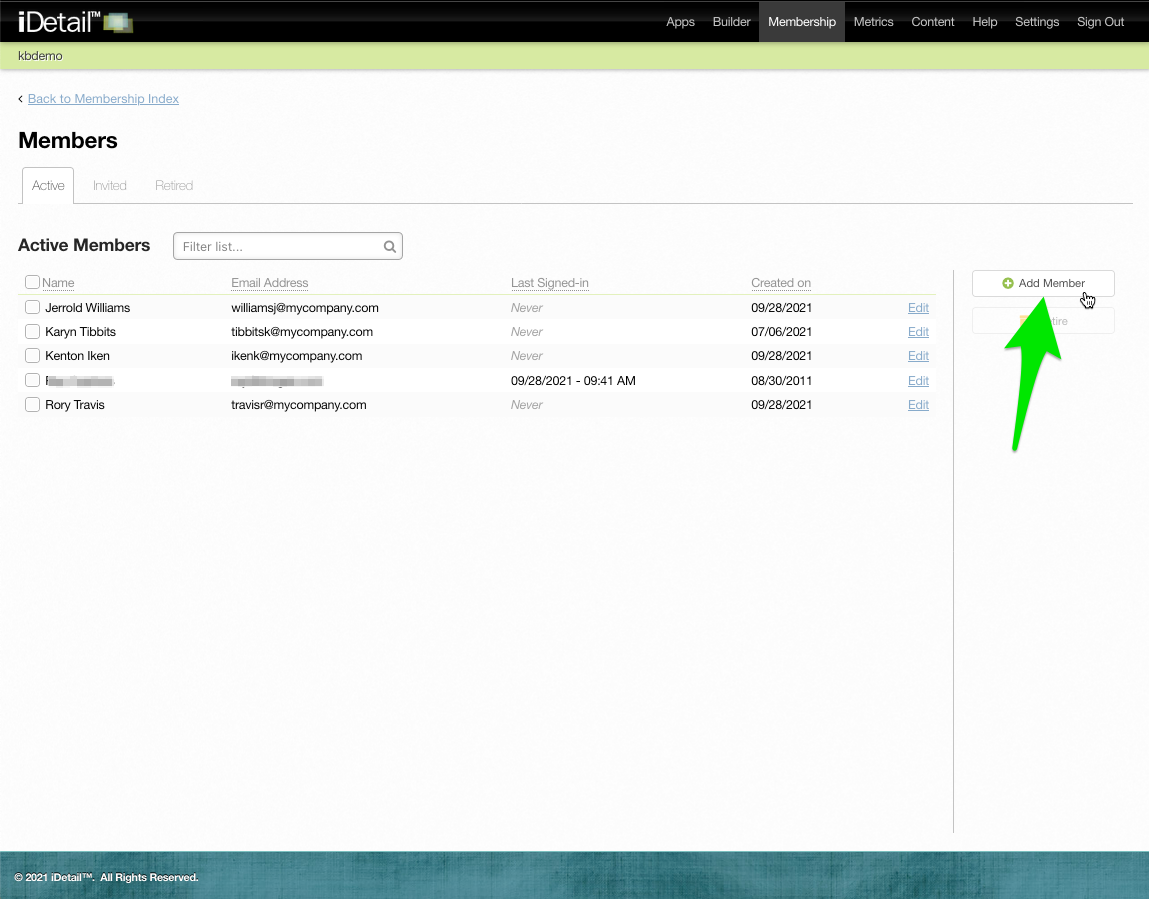
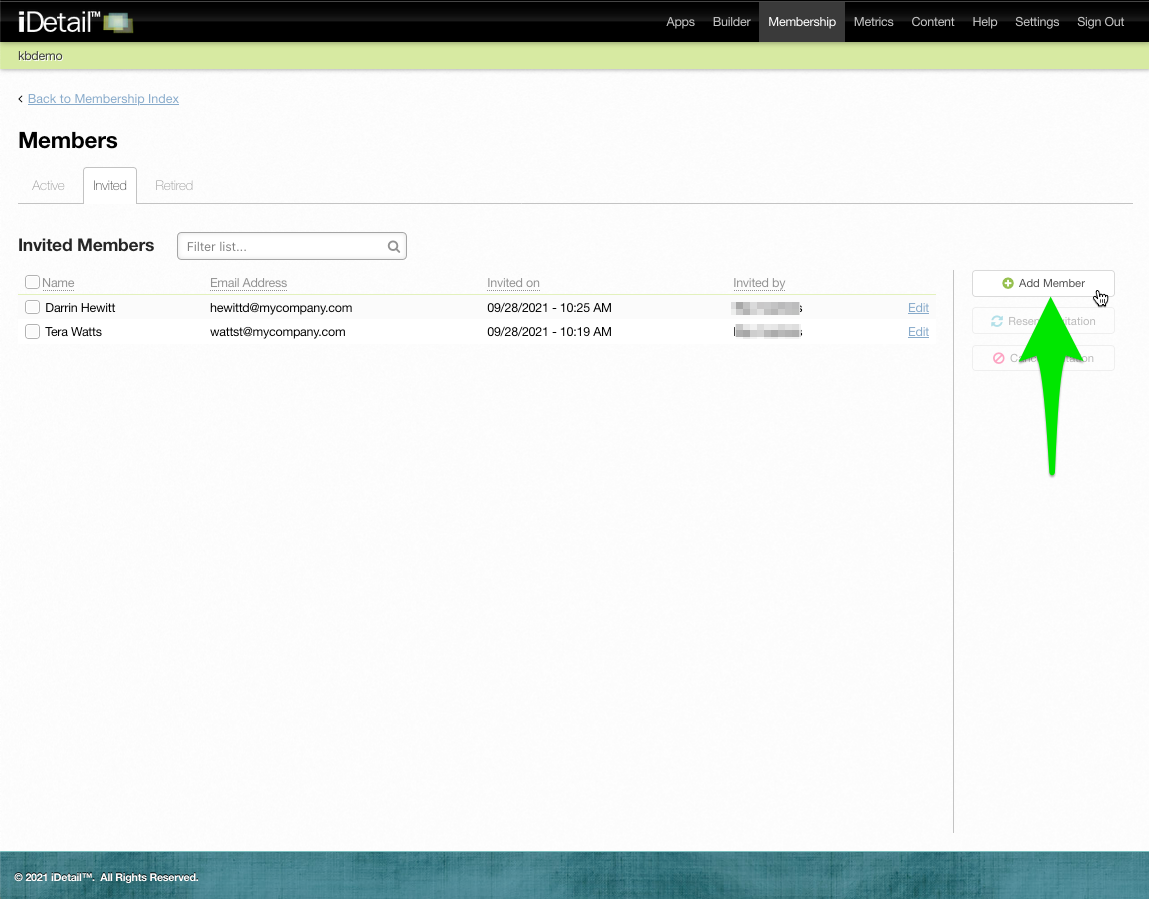
Click the Add Member button on the Active Members or Invited Members tabs
001
002
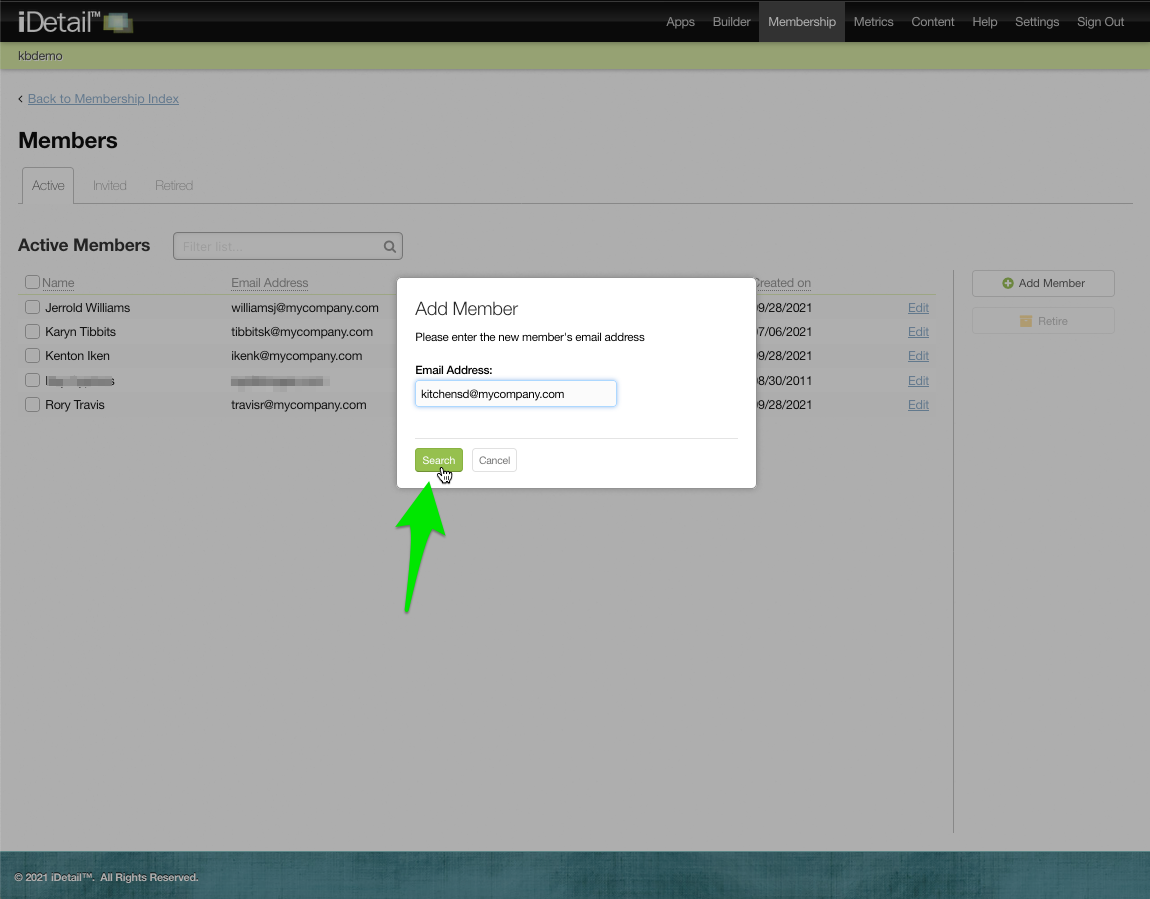
Enter the new member’s email address and click Search
003
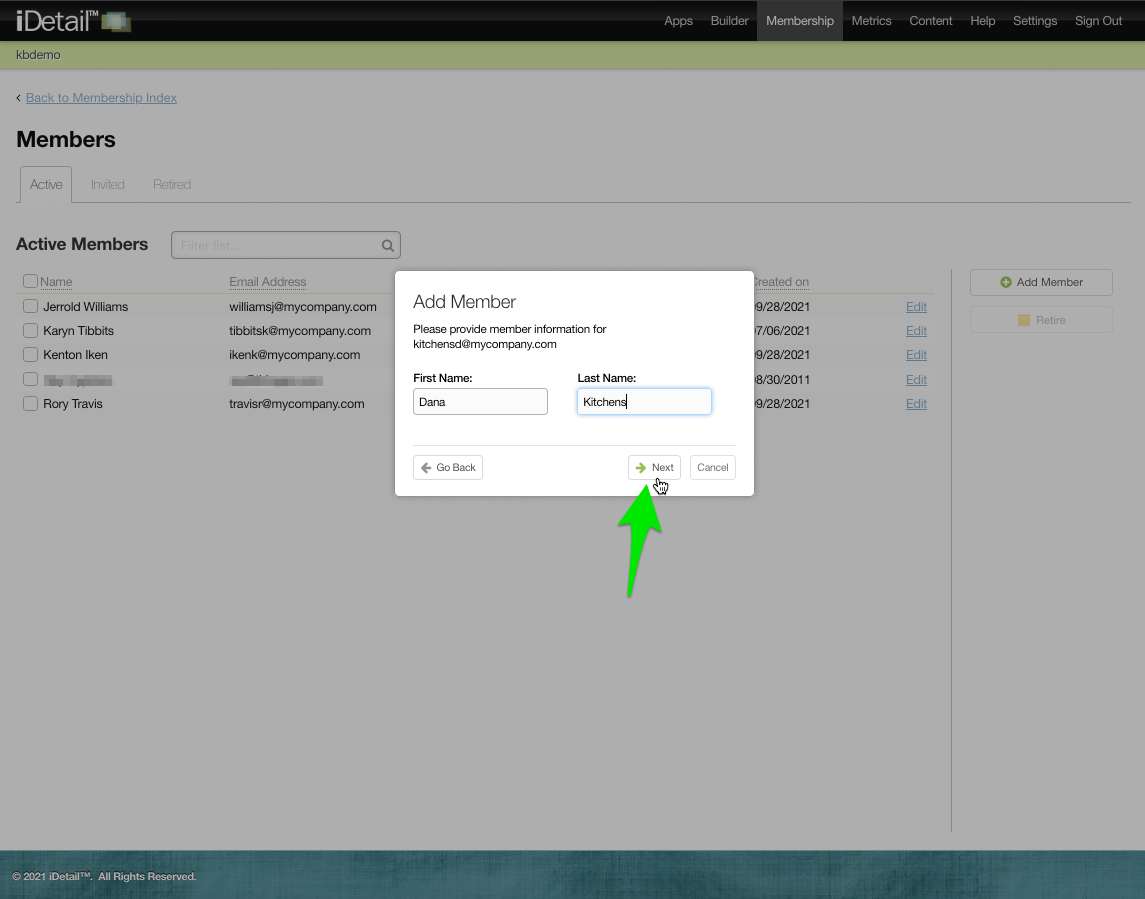
Enter the new member’s name and click Next
004
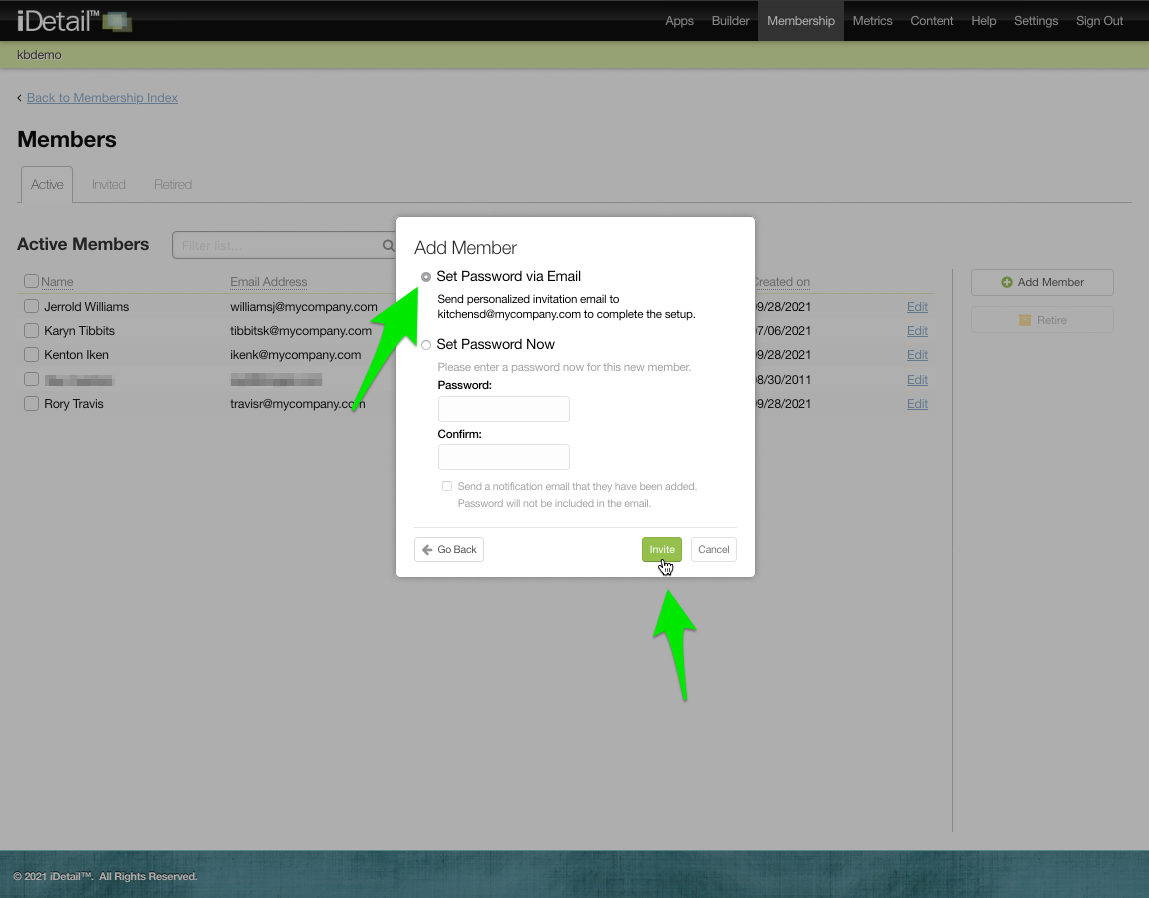
Choose Set Password via Email and click Invite
005
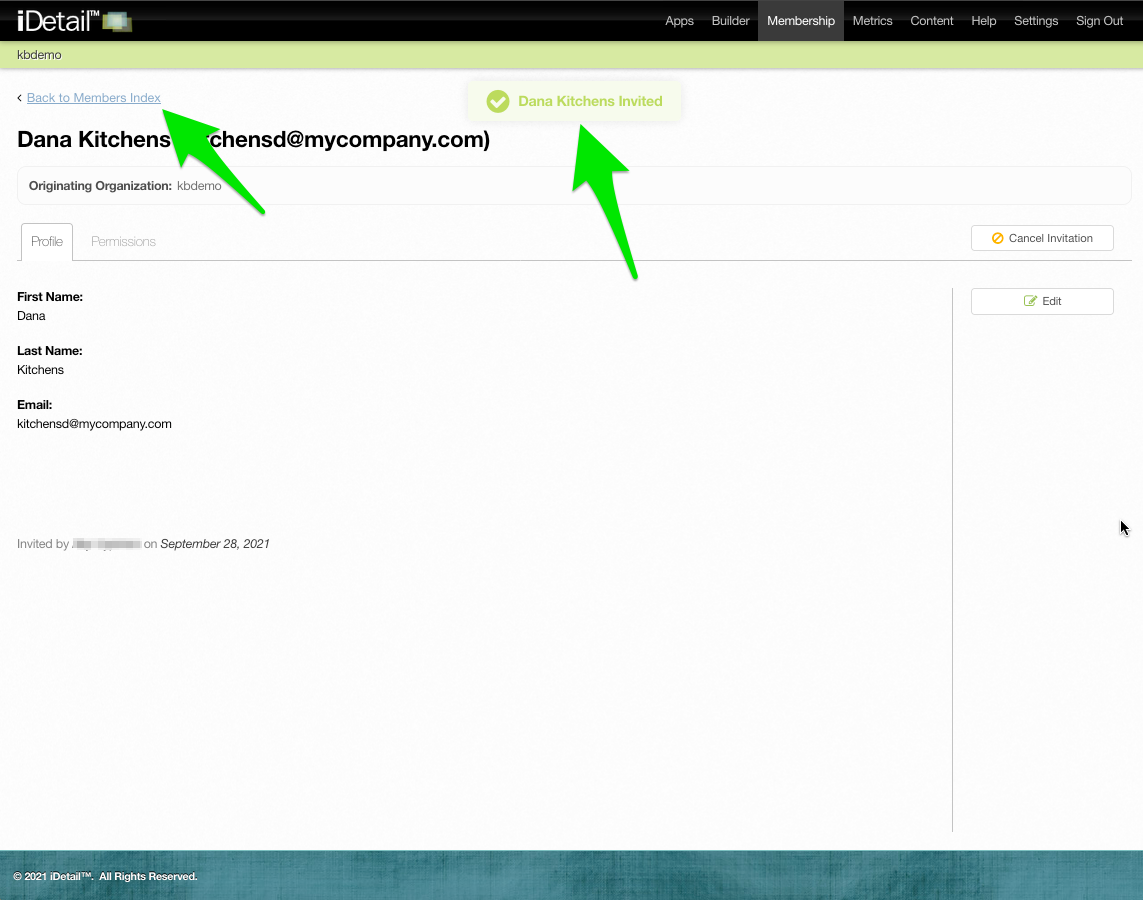
The Web Service shows the new member’s profile screen with a confirmation message
Click the Back to Members Index link to return to the Members index
006
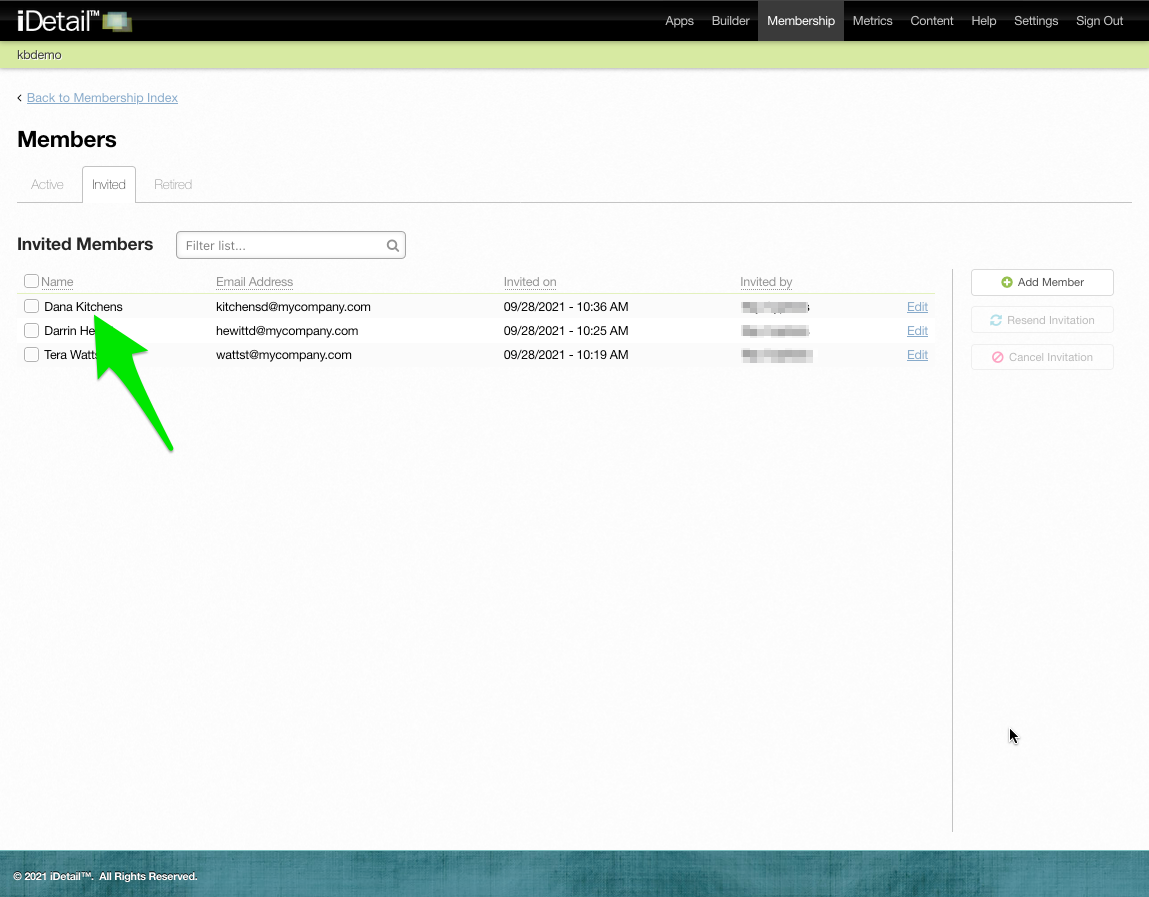
The new member appears on the Invited tab
007
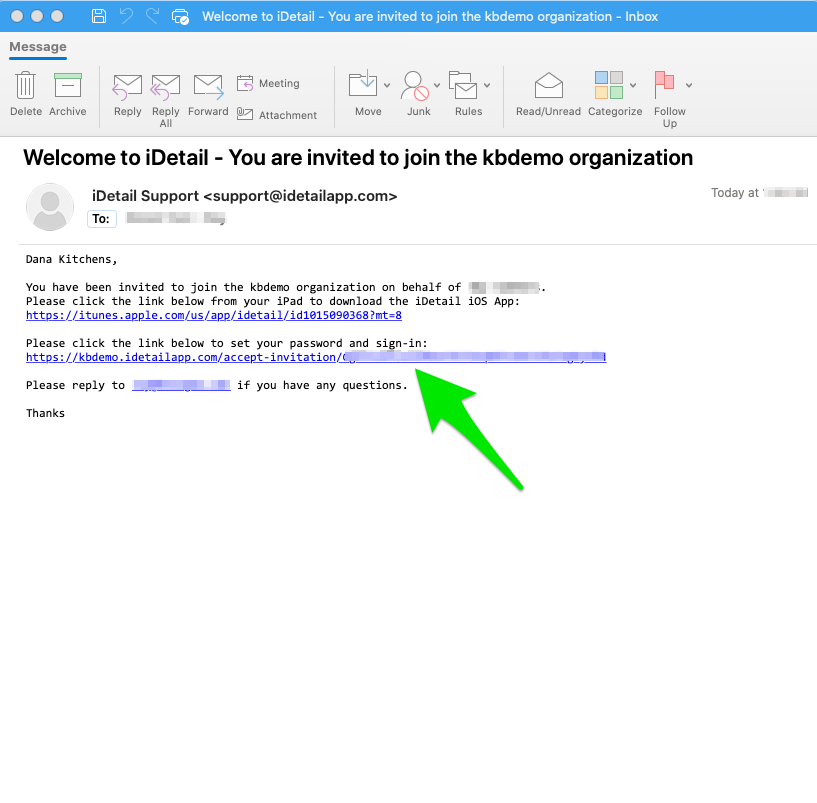
The new member receives an email inviting them to join the organization
The new member can download the iDetail iOS app to their iPad and then click a link to accept the invitation
008
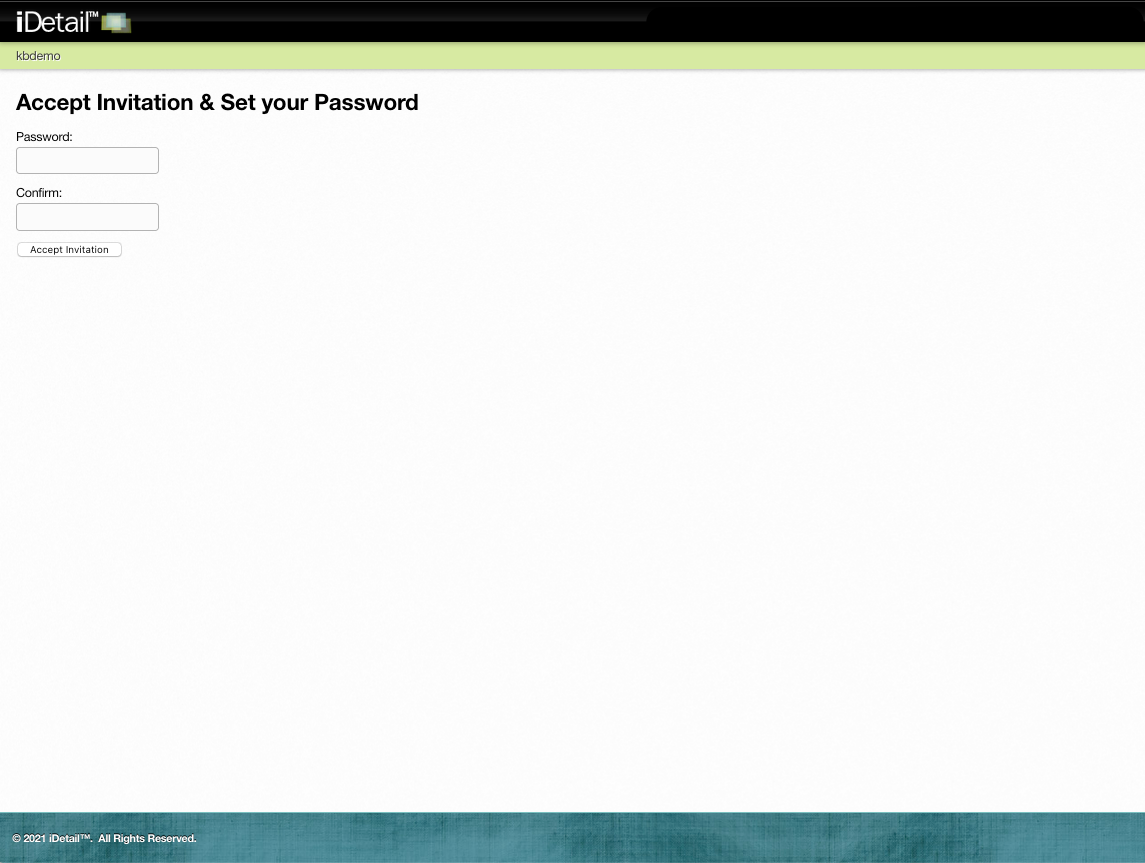
When the new member clicks on the accept invitation link, they are shown a page where they can enter a password
009
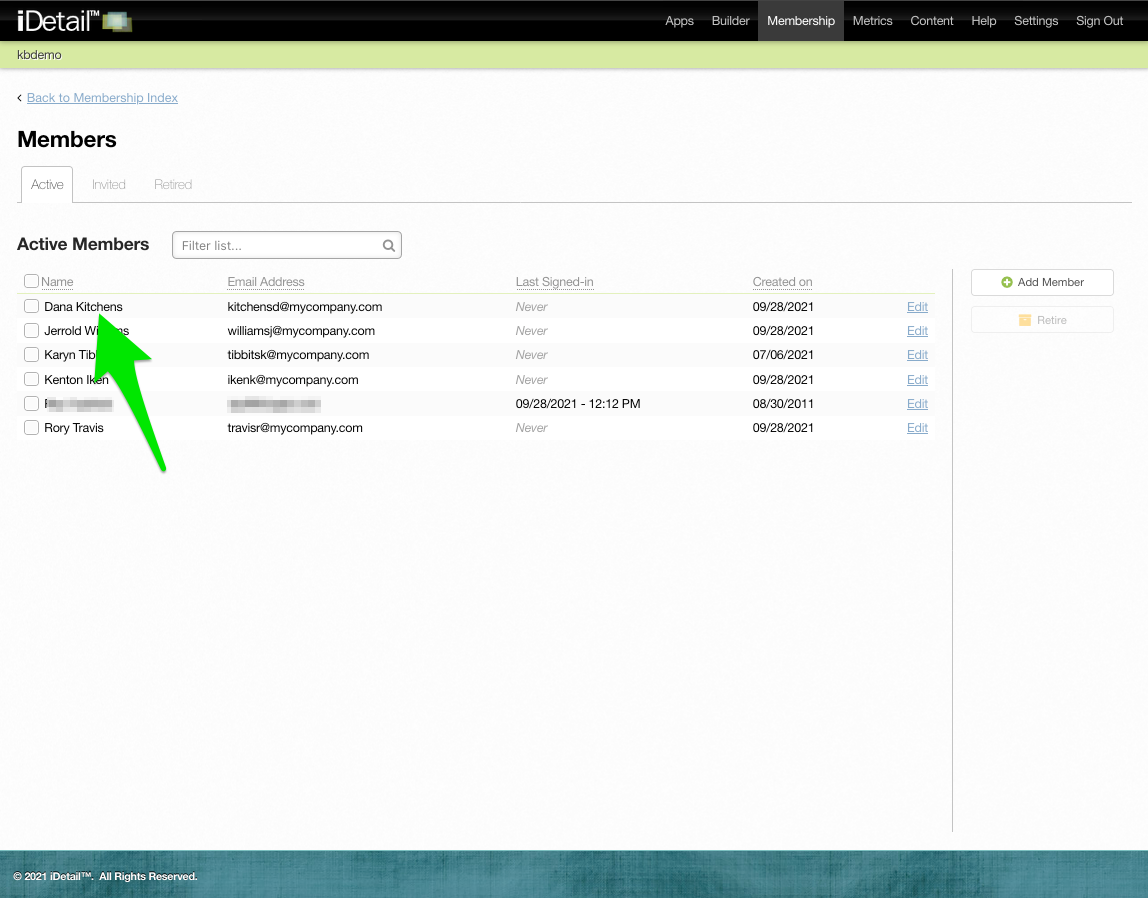
Once the new member accepts the invitation, they are automatically moved to the Active list
010
How to cancel an invitation
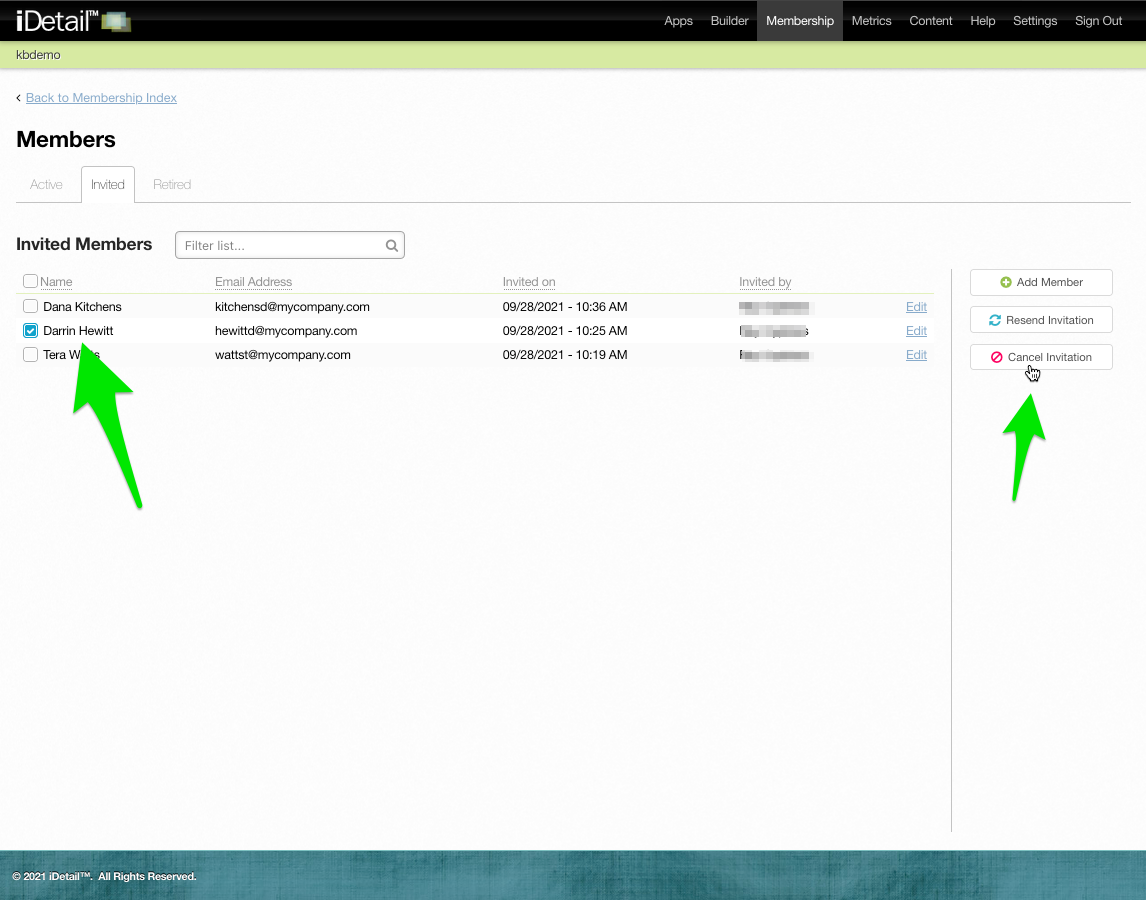
Click the box next to the name of the member whose invitation you want to cancel
Click the Cancel Invitation button
011
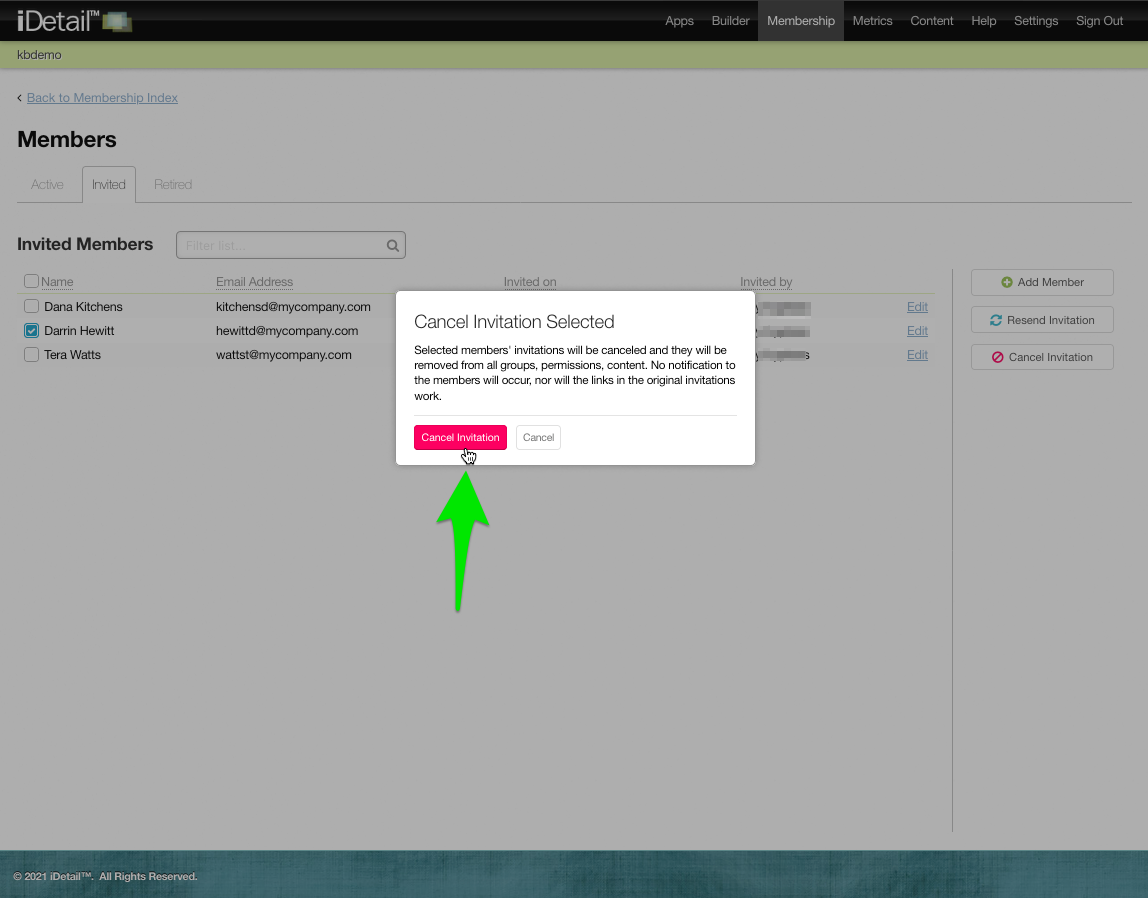
You will see a dialog box explaining the actions that will occur when the invitation is cancelled
Click the Cancel Invitation button
012
A confirmation message appears
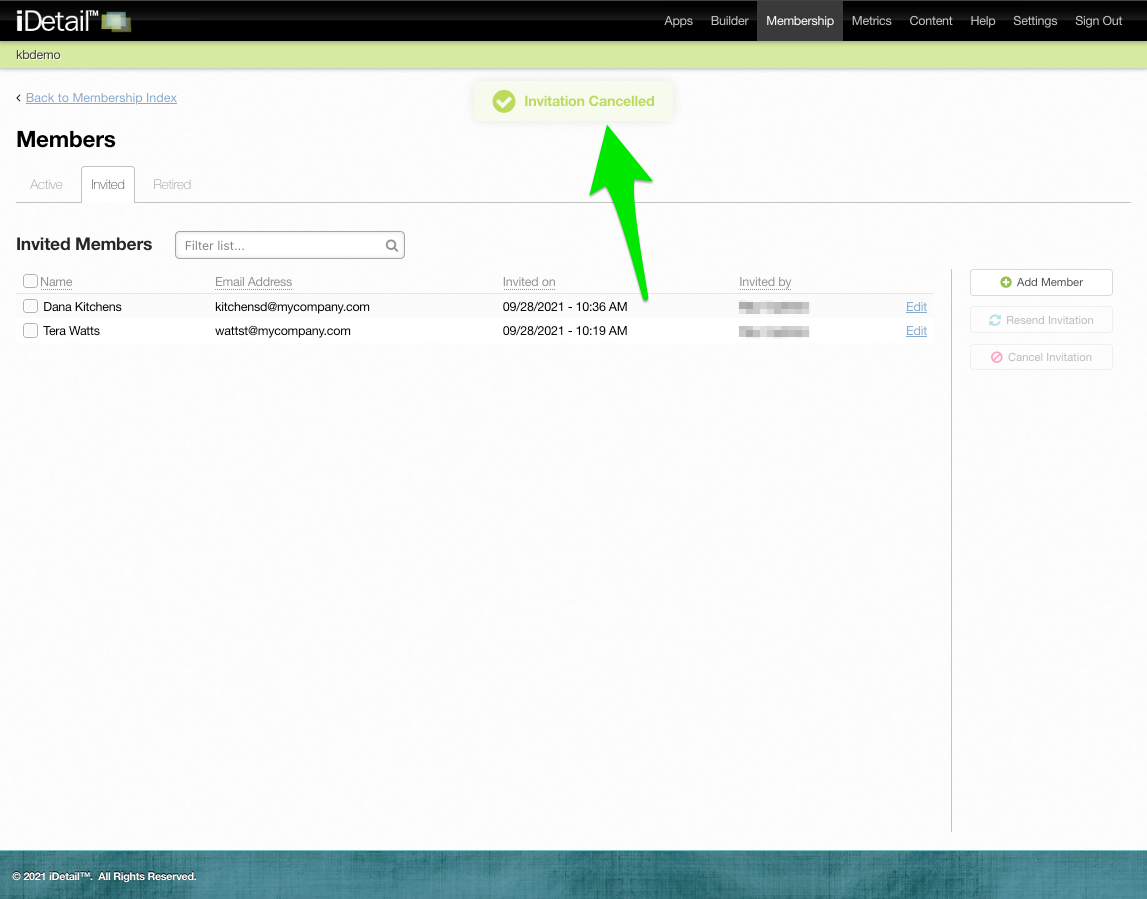
013
Once an invitation is cancelled, the person who received the invitation will no longer be able to access the system
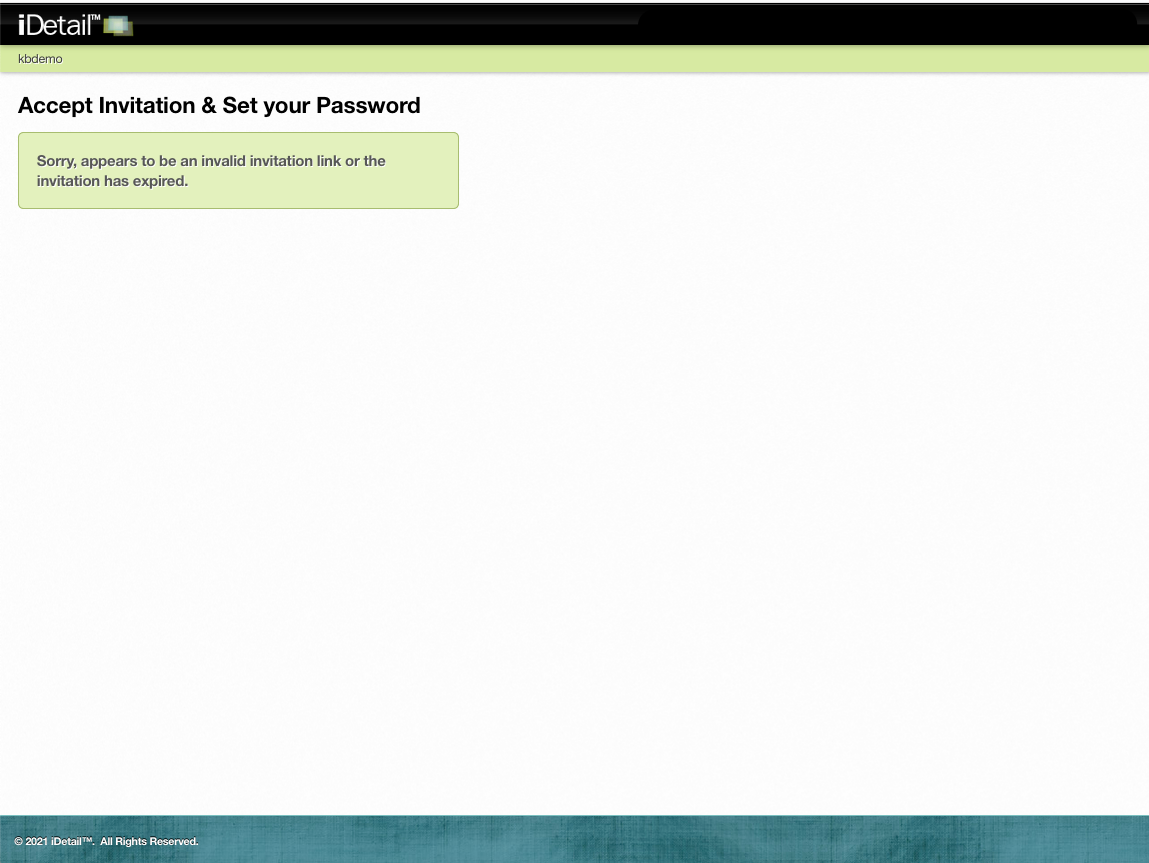
014
How to resend an invitation
Click the box next to the name of the member whose invitation you want to resend
Click the Resend Invitation button
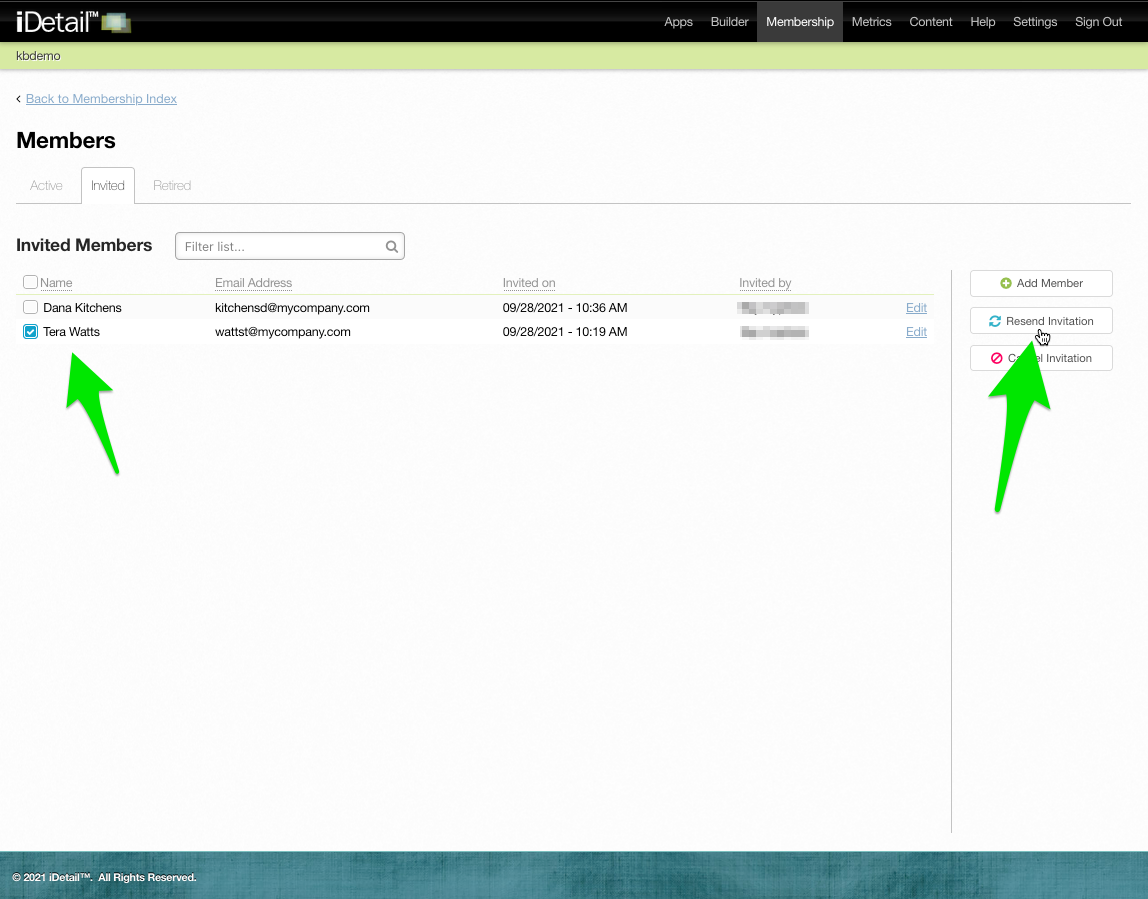
015