

Overview
Within the iDetail Web Service, under the Builder in the top navigation there is the feature to Manage Content - a new Slidedeck Content Item can be created there.
Create a new Slidedeck
A blank interactive presentation can be created, in which content may be added later through the deck interface.
Steps to create a new slide deck:
Open iDetail Web Service: https://launch.idetailapp.com
Select the Builder from the top navigation
Select the Manage Content link
Select the App Name of the Content Library to manage from the drop down
Select the [New Slidedeck] button from the right channel
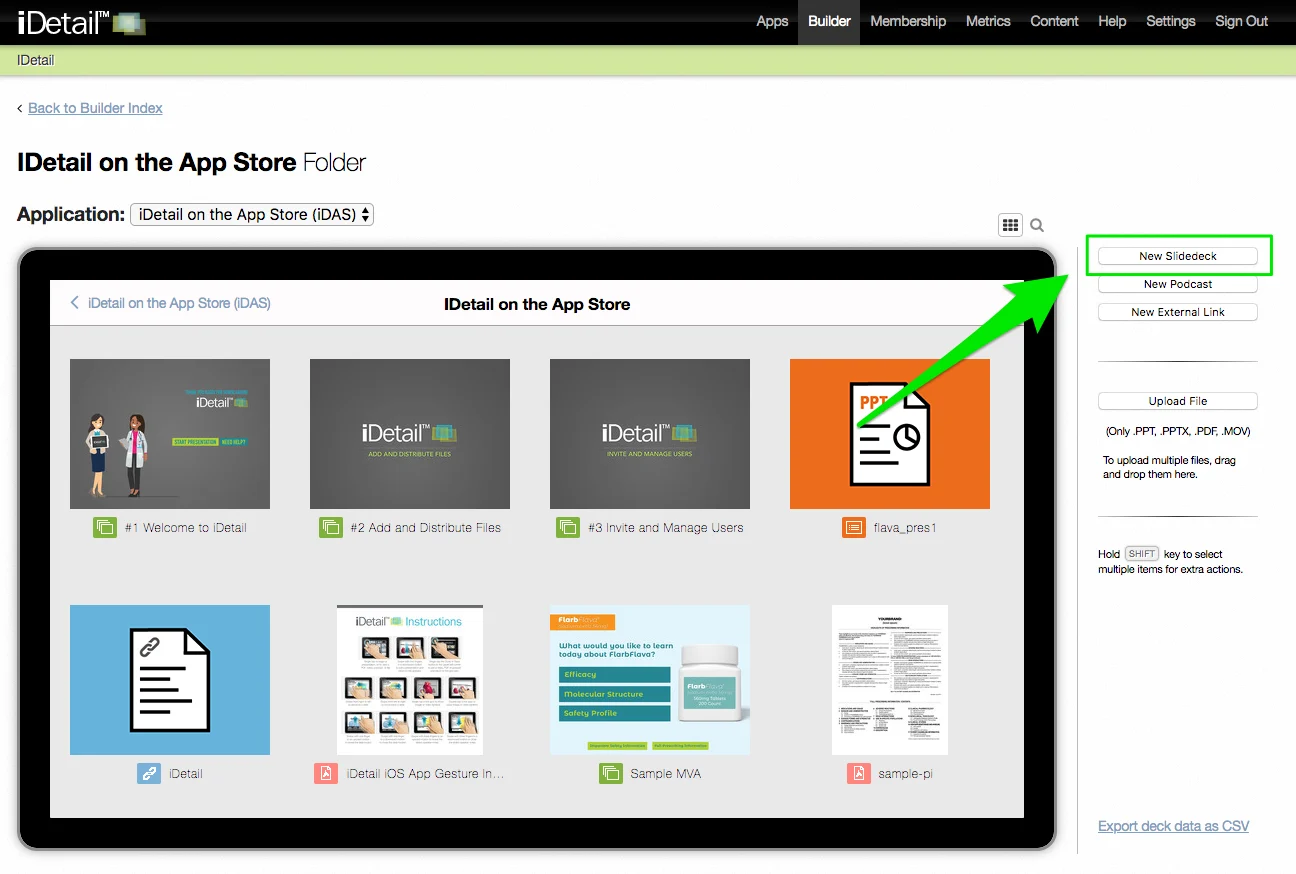
A New Slide deck popup with appear.
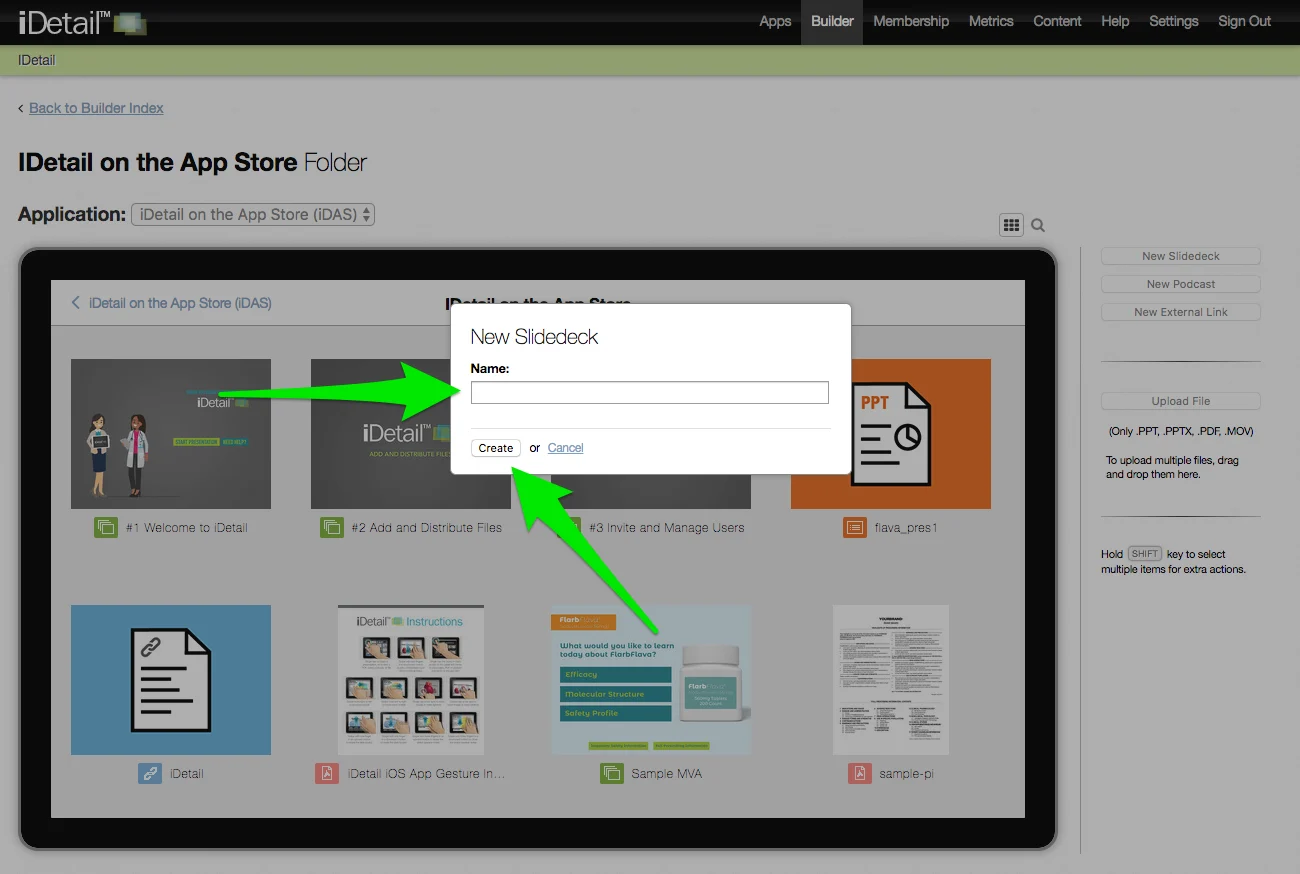
Enter the name for the new slide deck in the “Name” field (for this example I named the new slide deck: "New MVA Presentation")
Click the [Create] button in the popup. The popup will close and add your new slide deck to the grid view.
Edit a Slide Deck
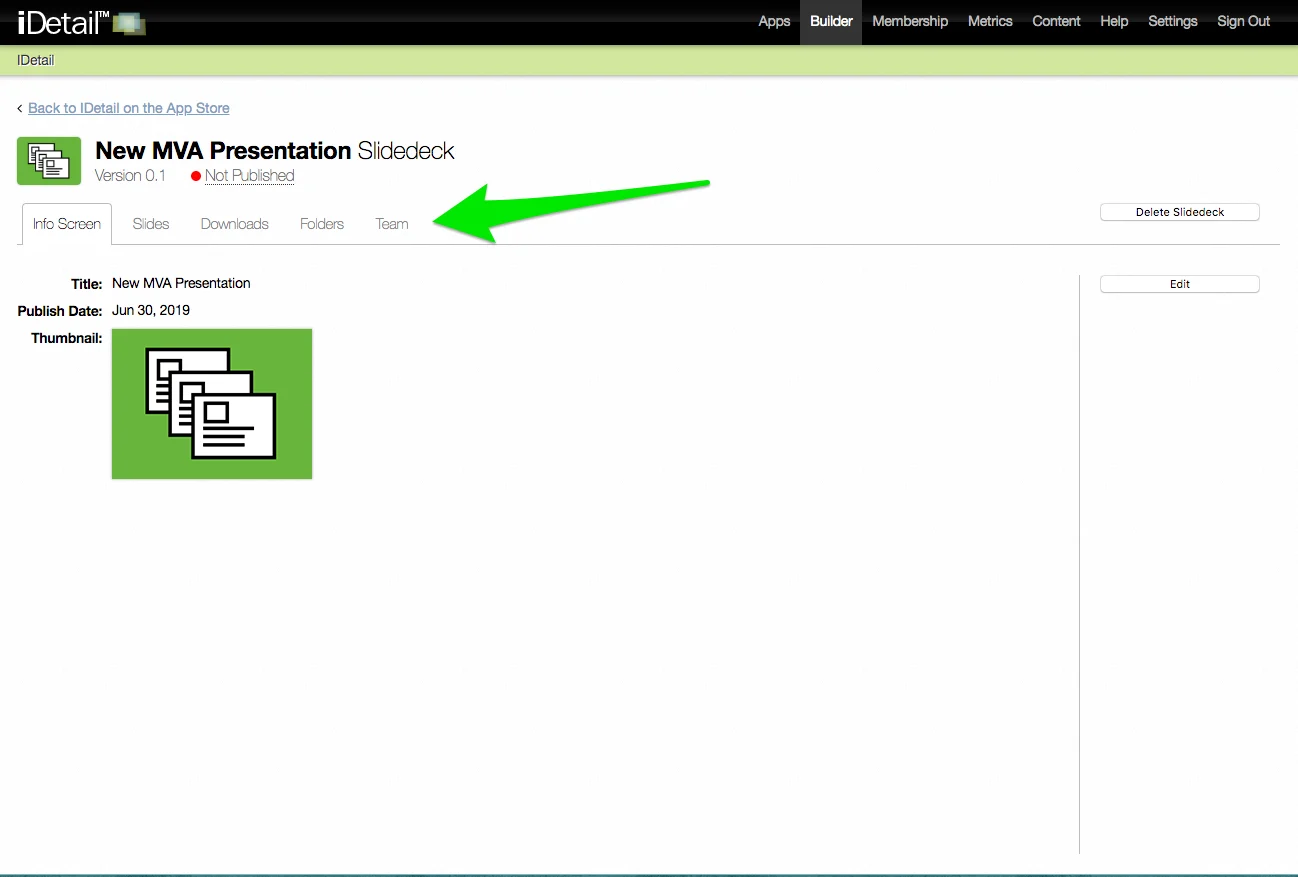
After the slide deck is created, it's placed on the grid view. Select the new slide deck to edit. The Slidedeck Content Item page has set of tabs that allow for the Slidedeck to be modified.
Info Screen - thumbnail, title, publish date, metadata that appears on the info screen
Slides - add or edit slides
Downloads - additional files associate with the content item
Folders - other locations for where this content item can be found
Team - access to view or download the content item
Related Topics