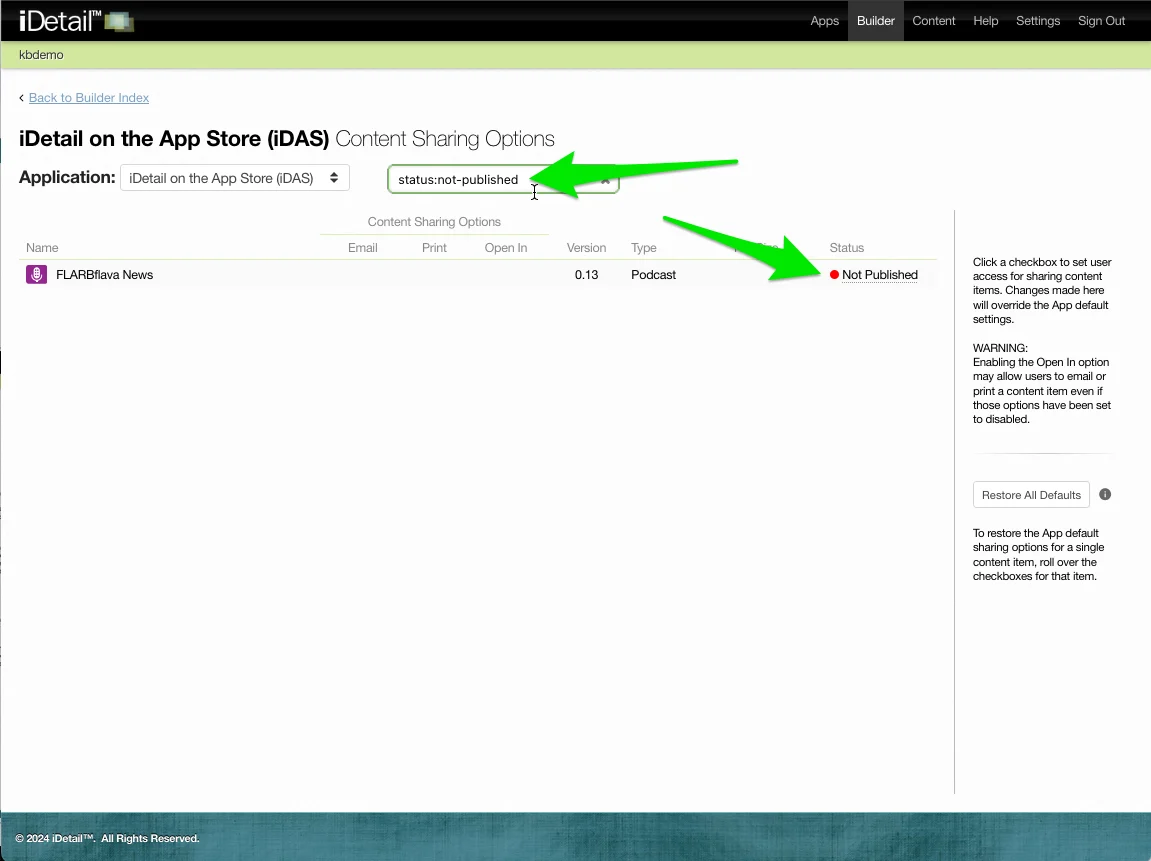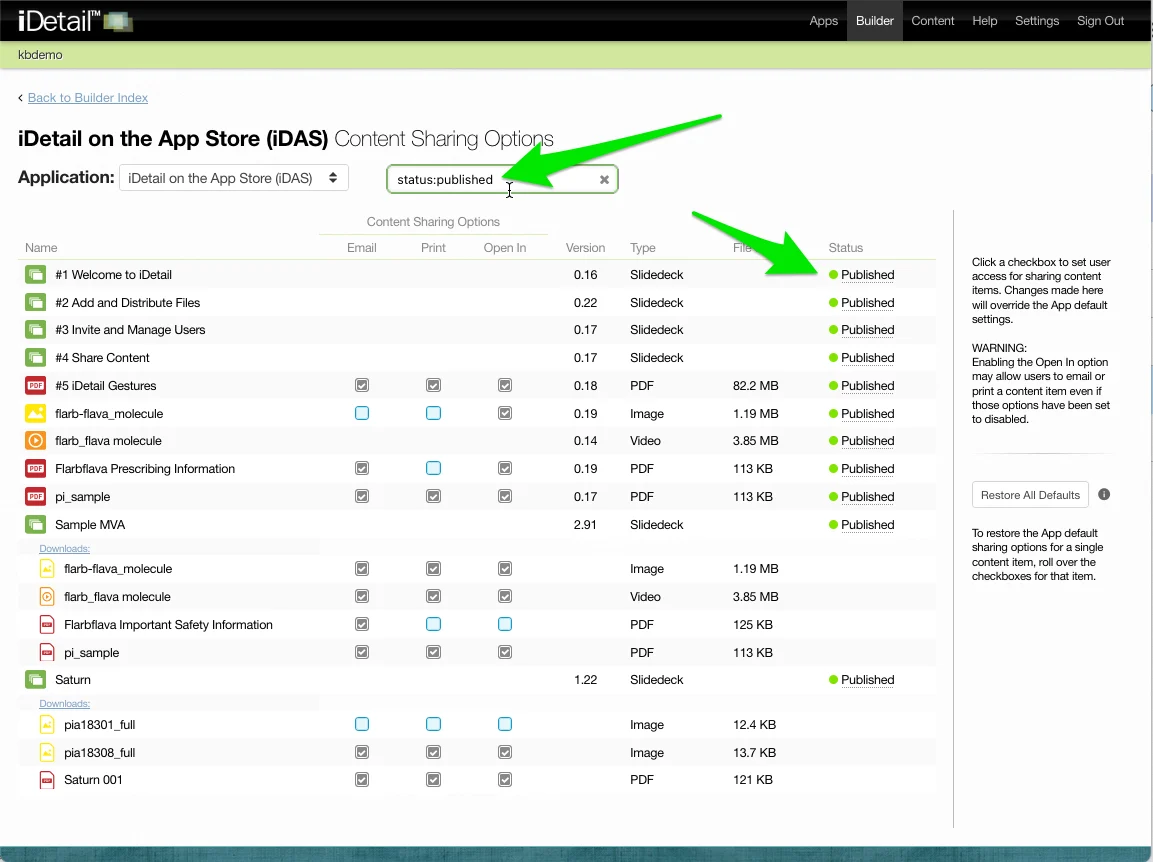

You can use the Filter list… field to search for specific content items on the Content Sharing Options report page.
How the Filter list… field works
Text filtering
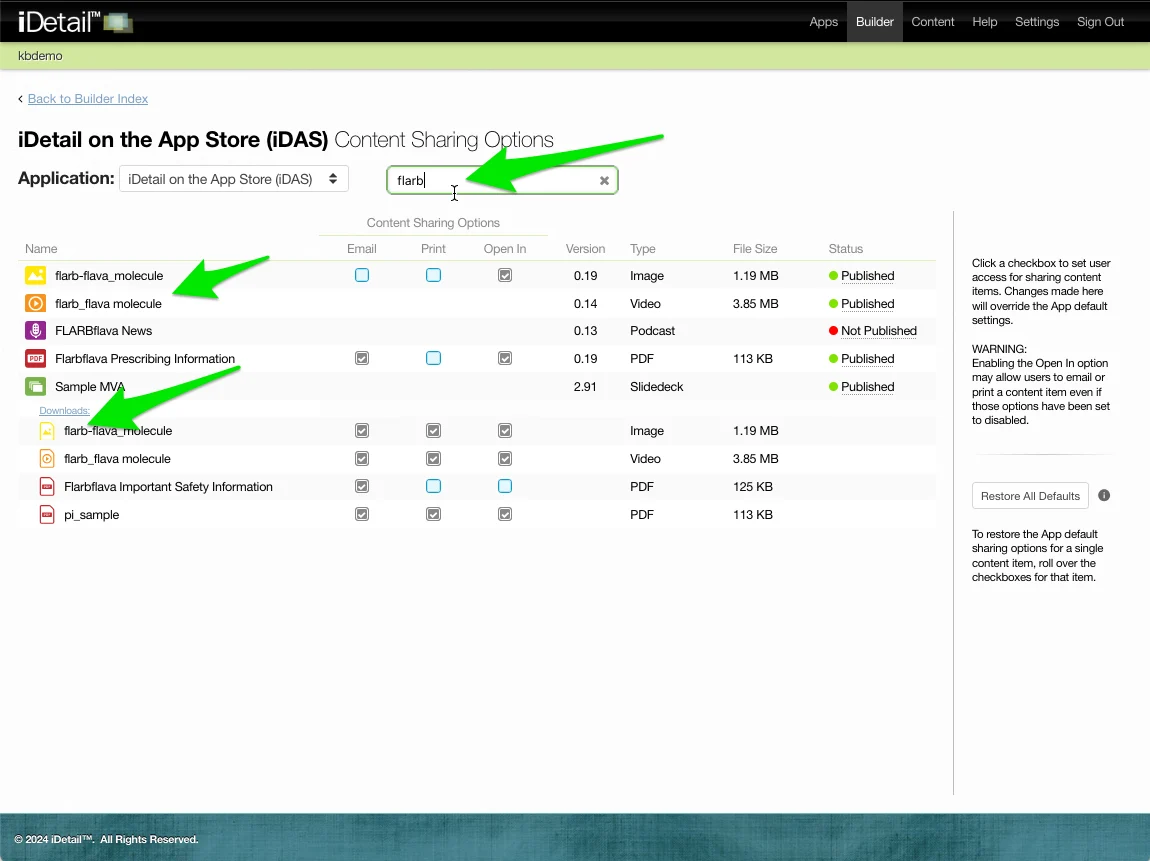
Type any part of the name of a content item in the FiIter list… field to search for content items containing that text.
If the text also appears in the name of a Downloads content item associated with a slidedeck, the slidedeck item and all of its Downloads items will also appear.
Type filtering
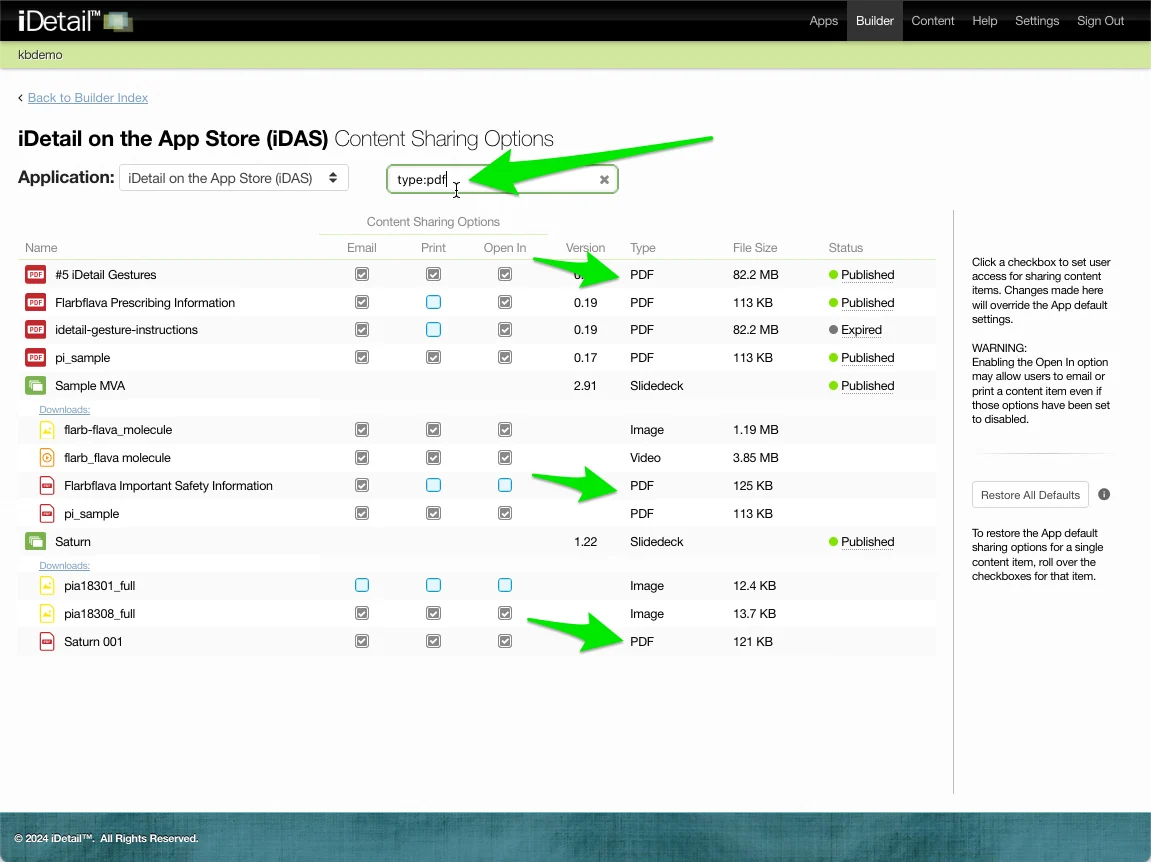
Enter the text “type:” with a colon followed by a file type to filter the list for all content items of that type.
If the file type is also a Downloads content item associated with a slidedeck, the slidedeck item and all of its Downloads items will also appear.
Status filtering
Enter the text “status:” with a colon followed by the text “published,” “not-published,” or “expired” to filter the list for all content items with a given publishing status. For example: “status:not-published”.
If a Slidedeck appears in the status results, any associated Downloads content items for that Slidedeck will also appear.