

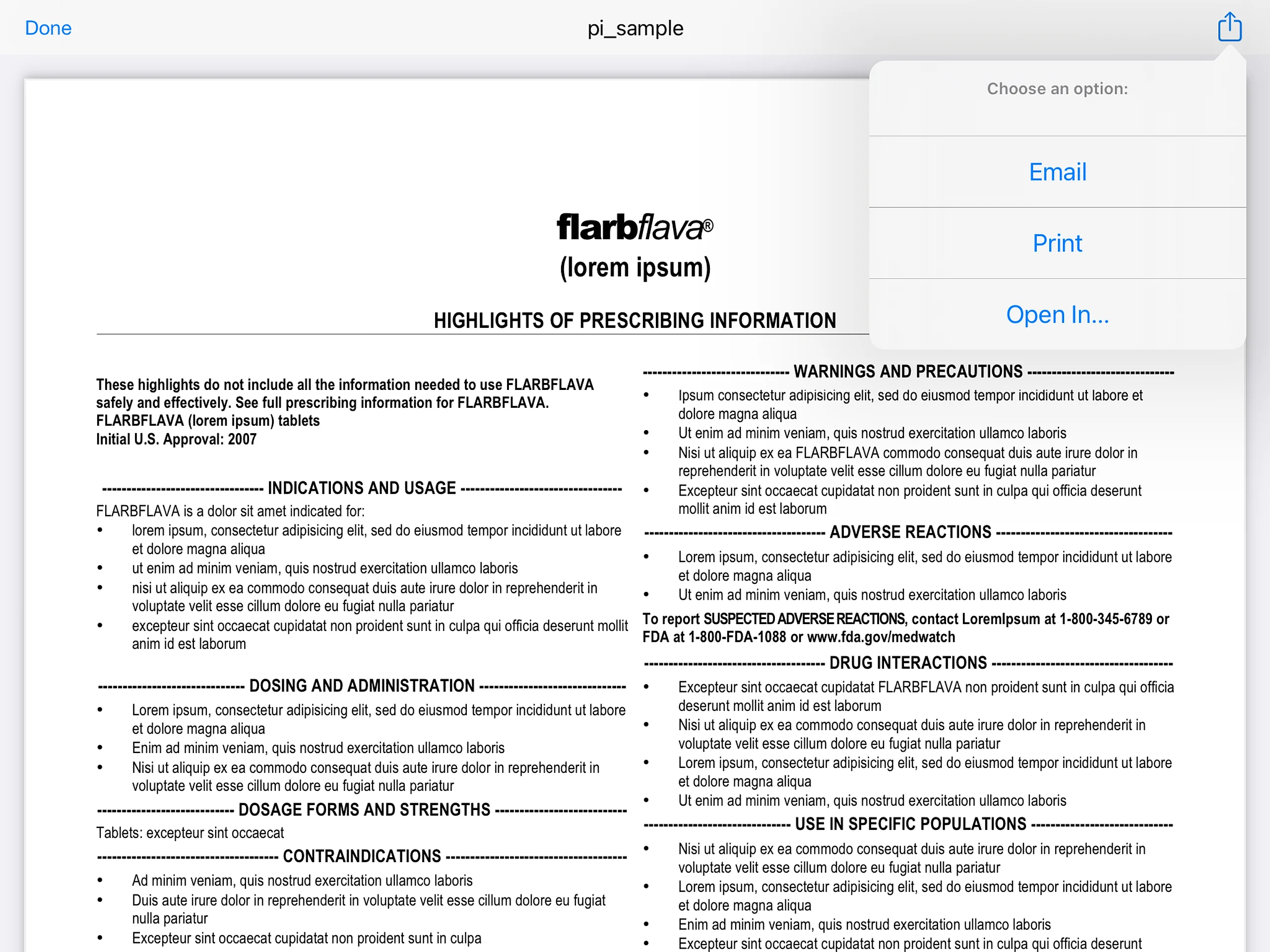
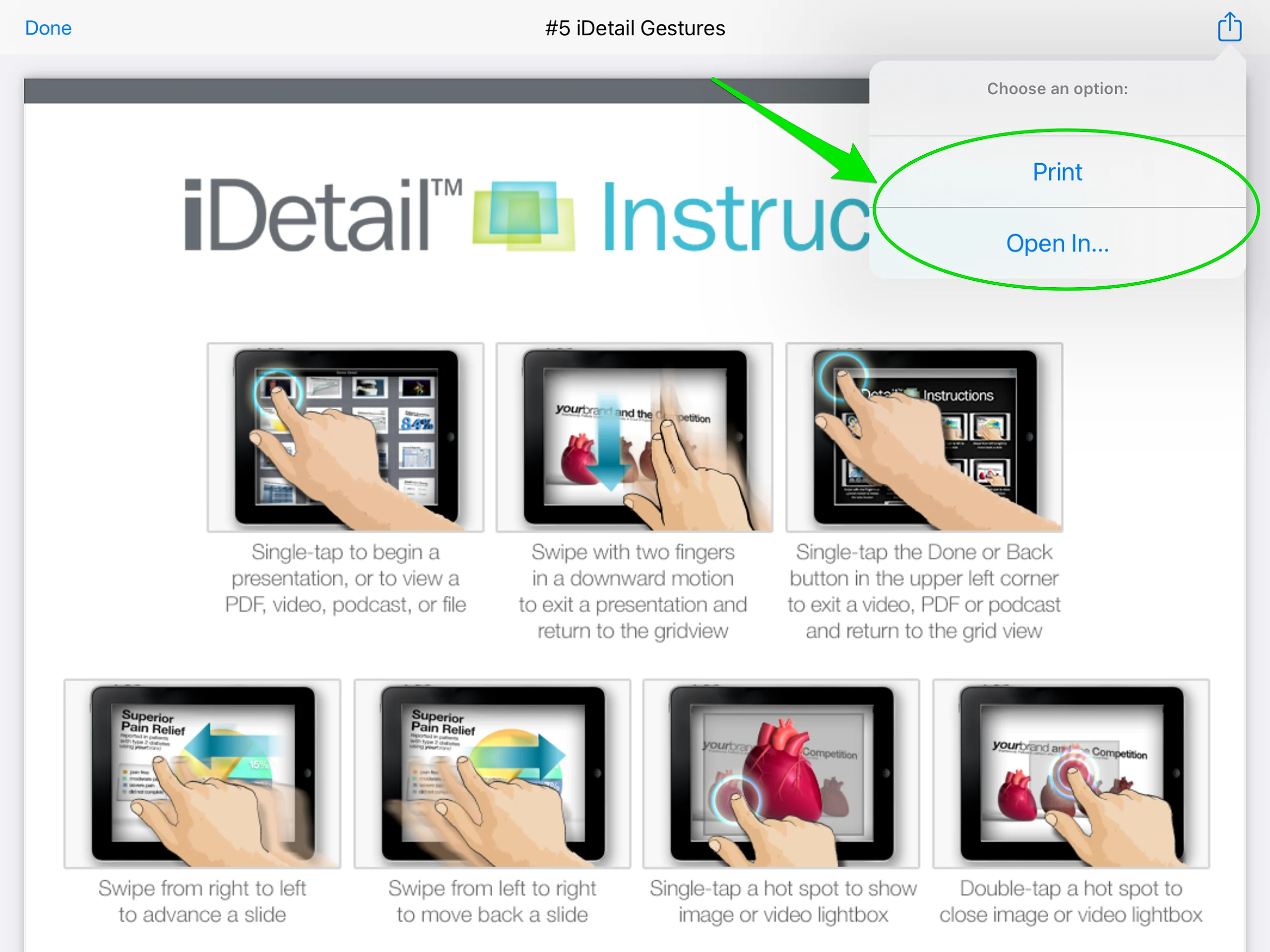
The iDetail App lets you share content items from the app with other individuals or other apps by tapping the Action icon at the top right of the screen to view a dropdown menu of options. You can choose to send an email with the content item attached, print the content item, or share it by opening it in another app by tapping "Open In…"
Below is an example of a PDF content item on the iDetail App displaying the available Content Sharing Options:
How to set the Content Sharing Options
Content Sharing On Content Items
The Content Sharing Options for content items in the iDetail App are managed in the Builder section of the iDetail Web Service.
To access the settings for content sharing:
Sign in to the iDetail Web Service.
Go to the Builder menu page and click the Manage Content Sharing Options link
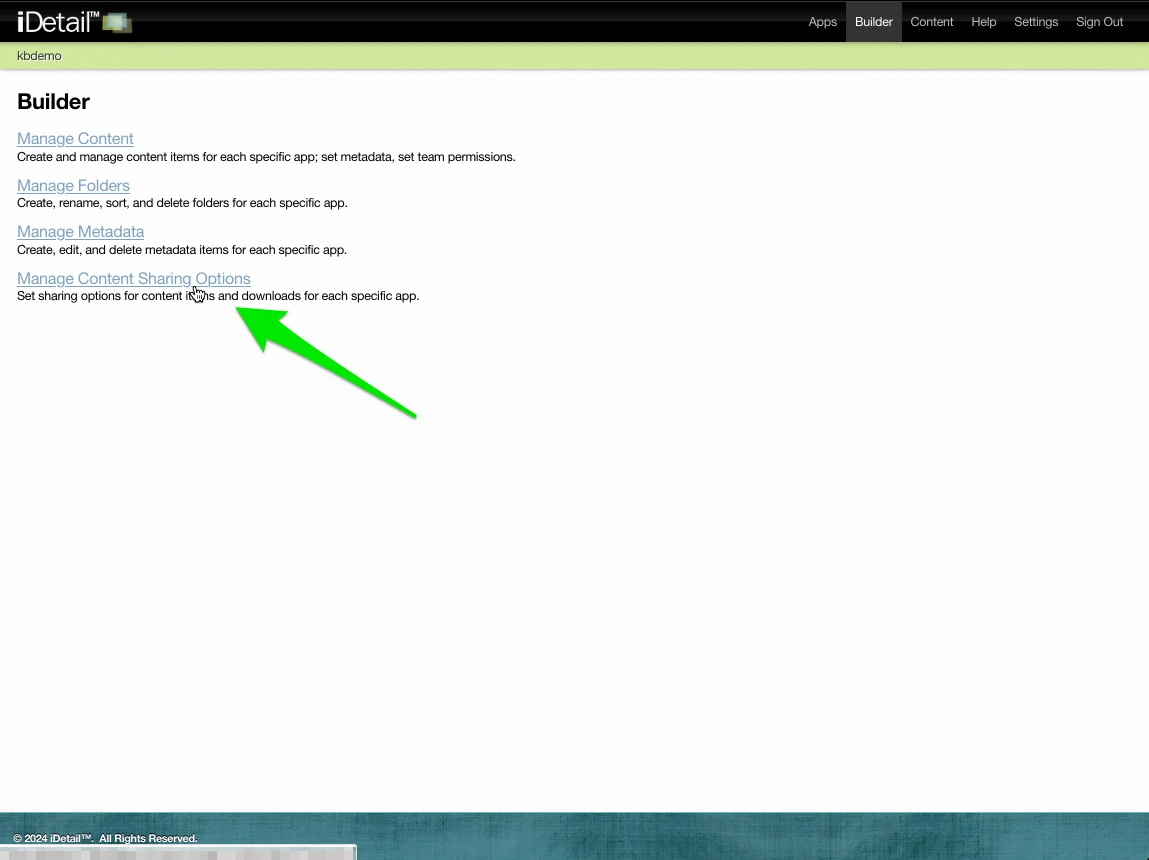
Clicking the link will bring you to the Content Sharing Options report page.
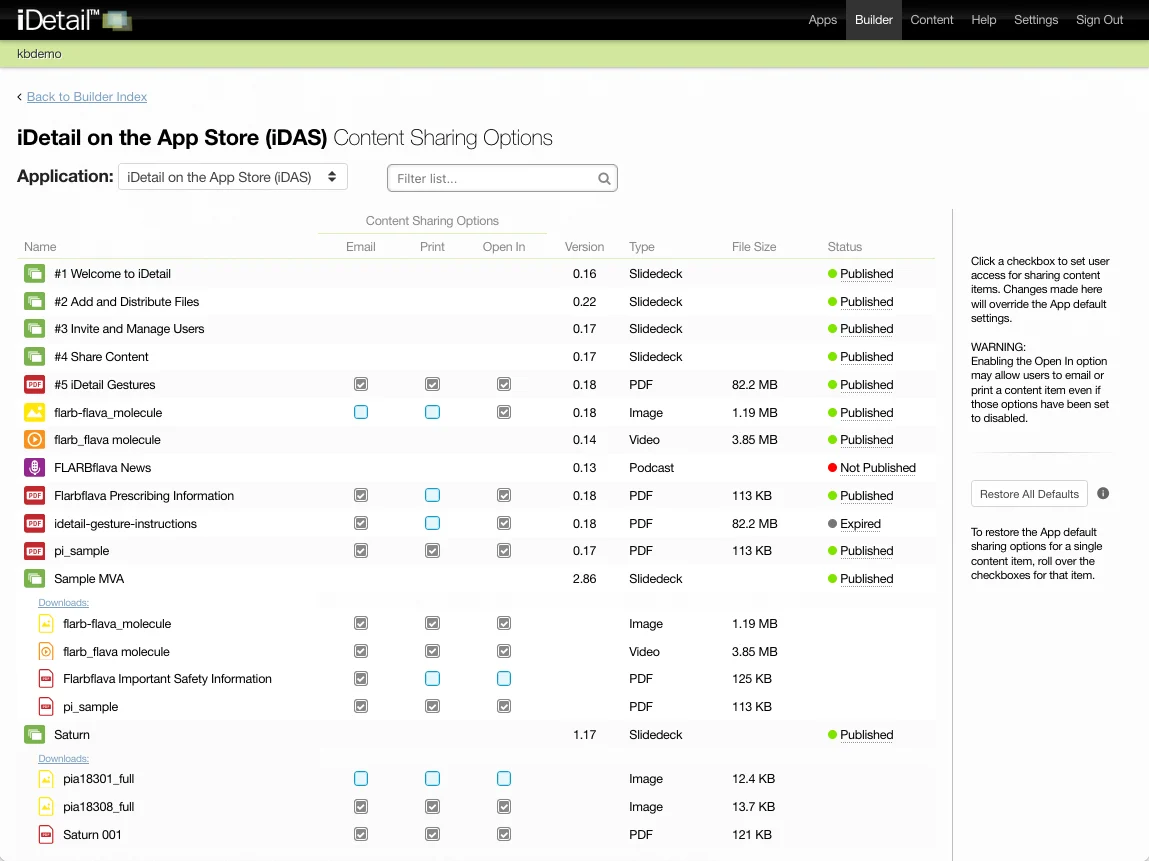
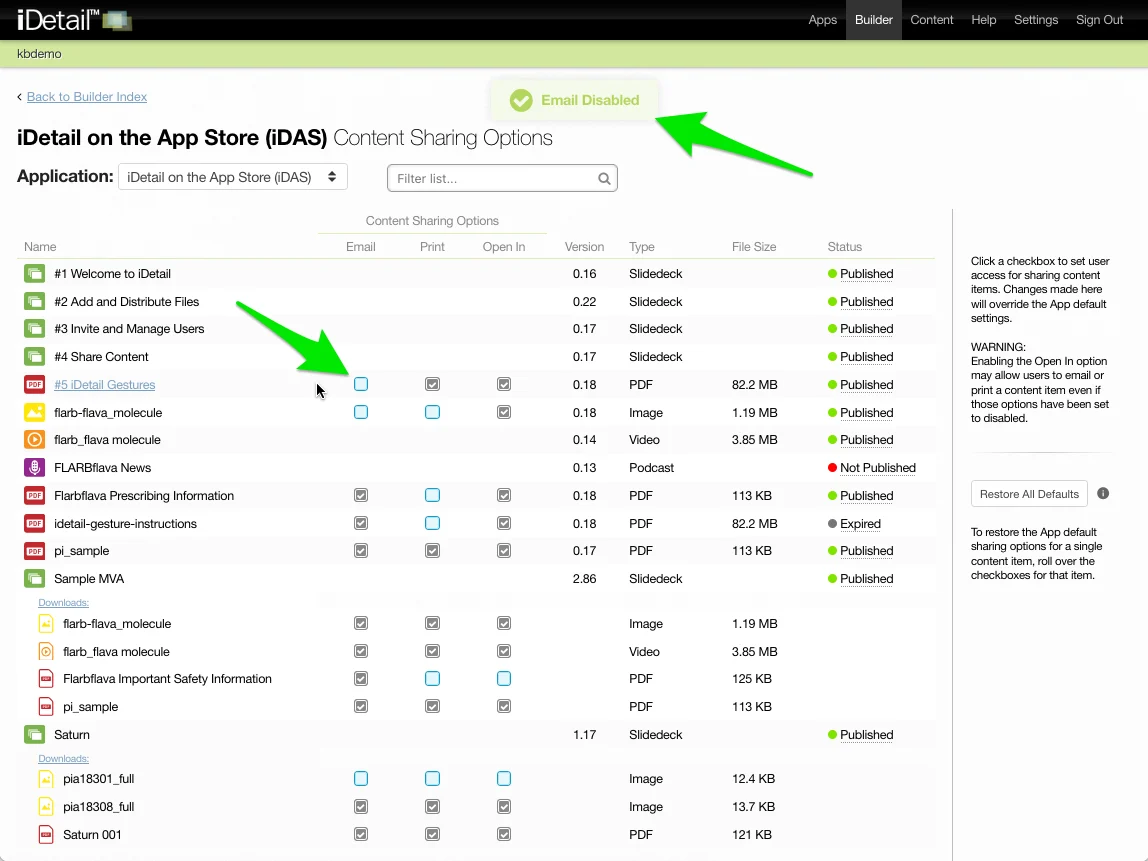
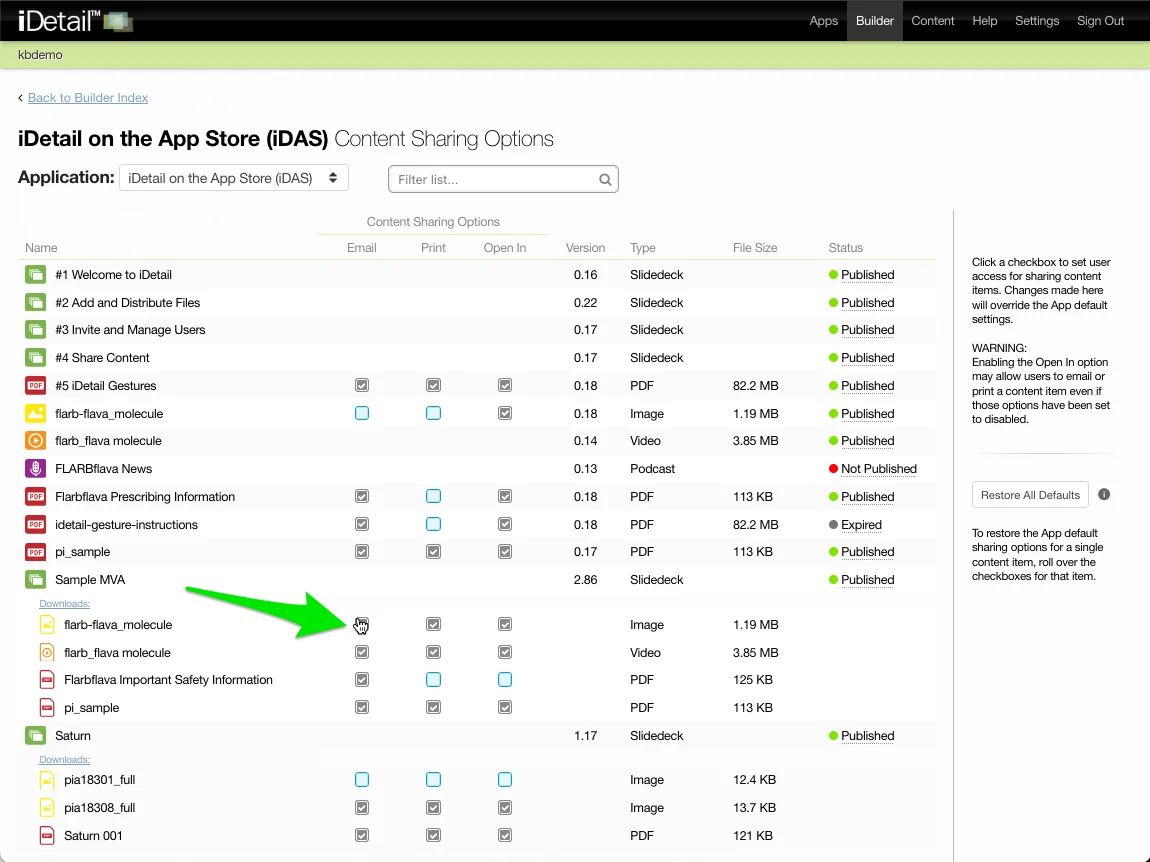
The page shows you all of the content items in the iDetail App at a glance. Default Content Sharing Options for a content item are shown as gray checkboxes or gray-outlined unchecked boxes. Content Sharing Options that have been modified from the defaults appear as blue checkboxes or blue unchecked boxes.
To change the content sharing settings for an item, click the checkboxes for the item to enable or disable the setting.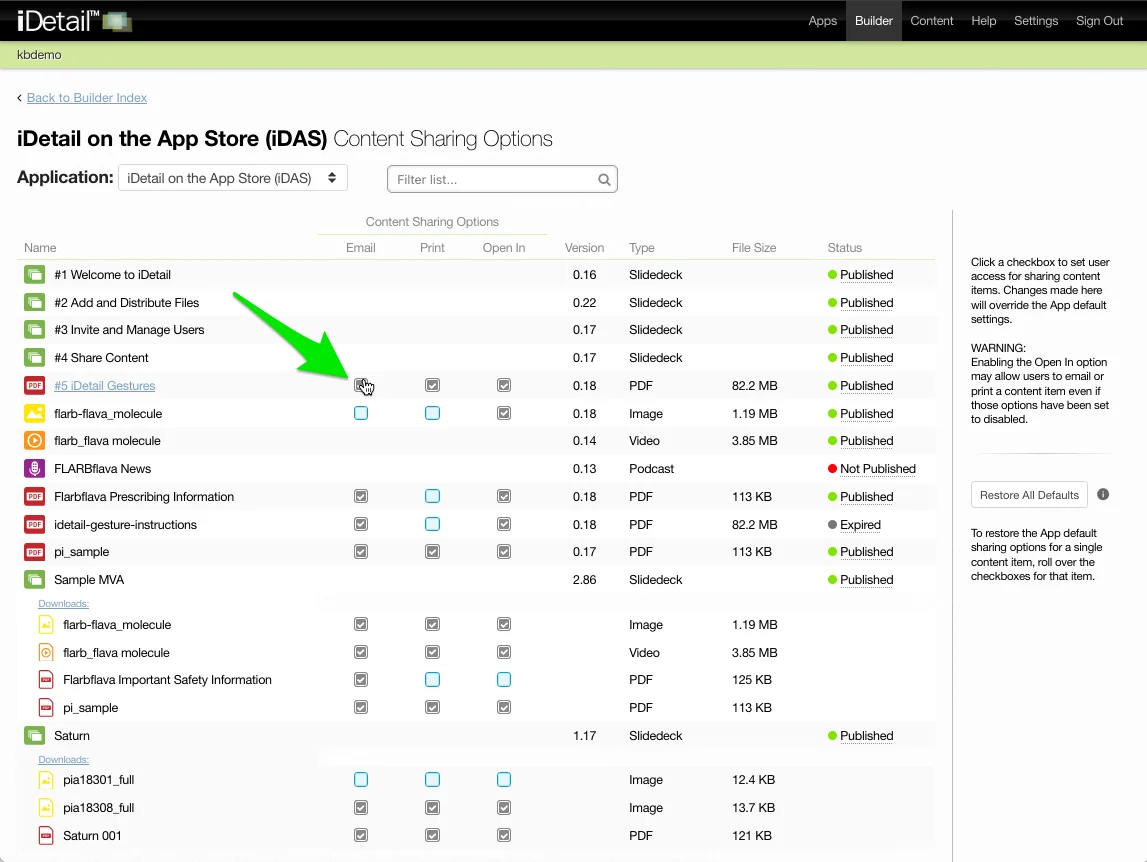
In this example, the email sharing option for the #5 iDetail Gestures PDF has just been disabled. A success message appears at the top of the screen to confirm the change.
In order to update the iDetail App with the changes you have made to the sharing options on this Builder page, you must refresh the content on the iPad:
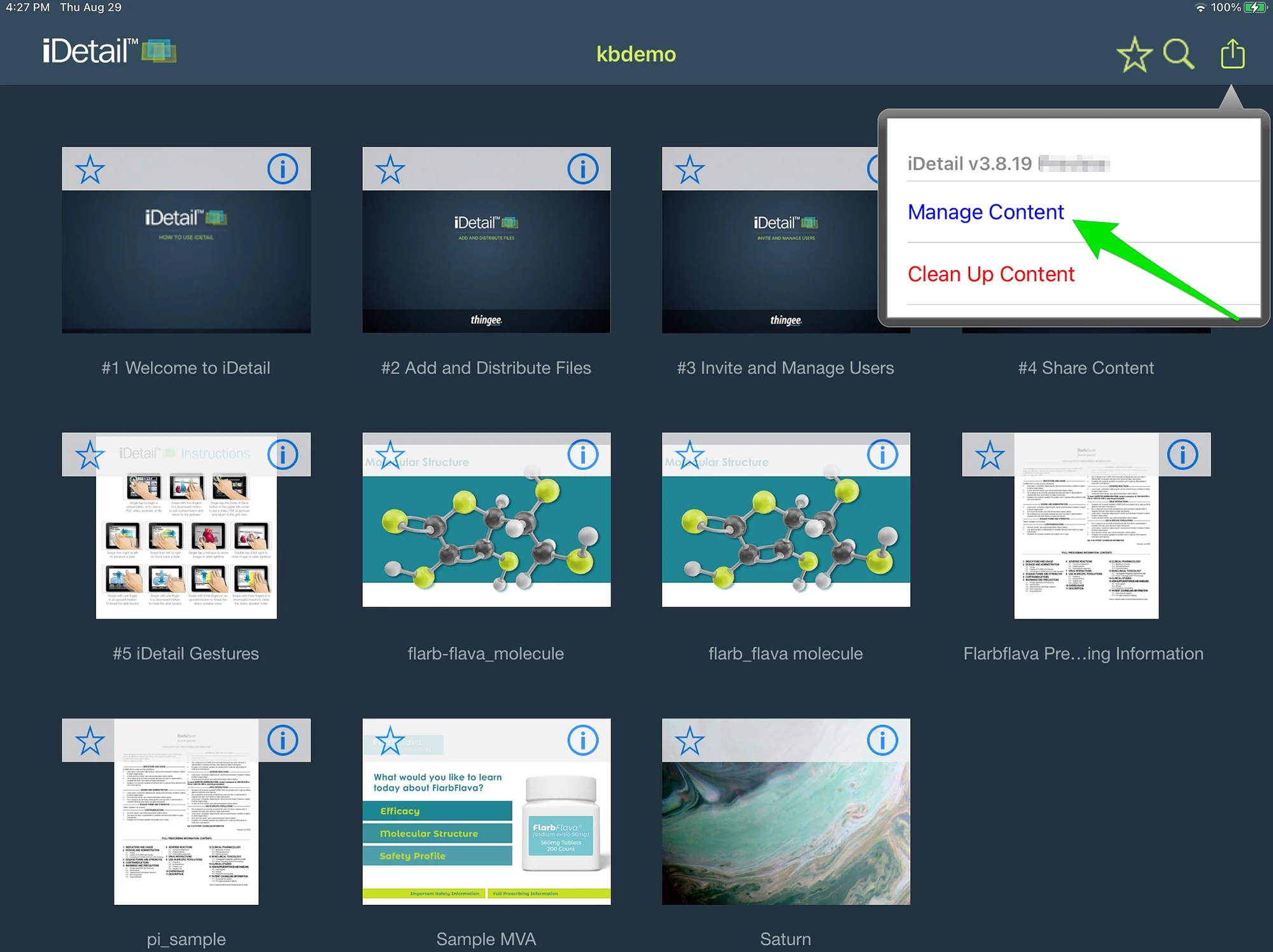
Go to the iDetail App on the iPad and choose Manage Content from the dropdown menu.
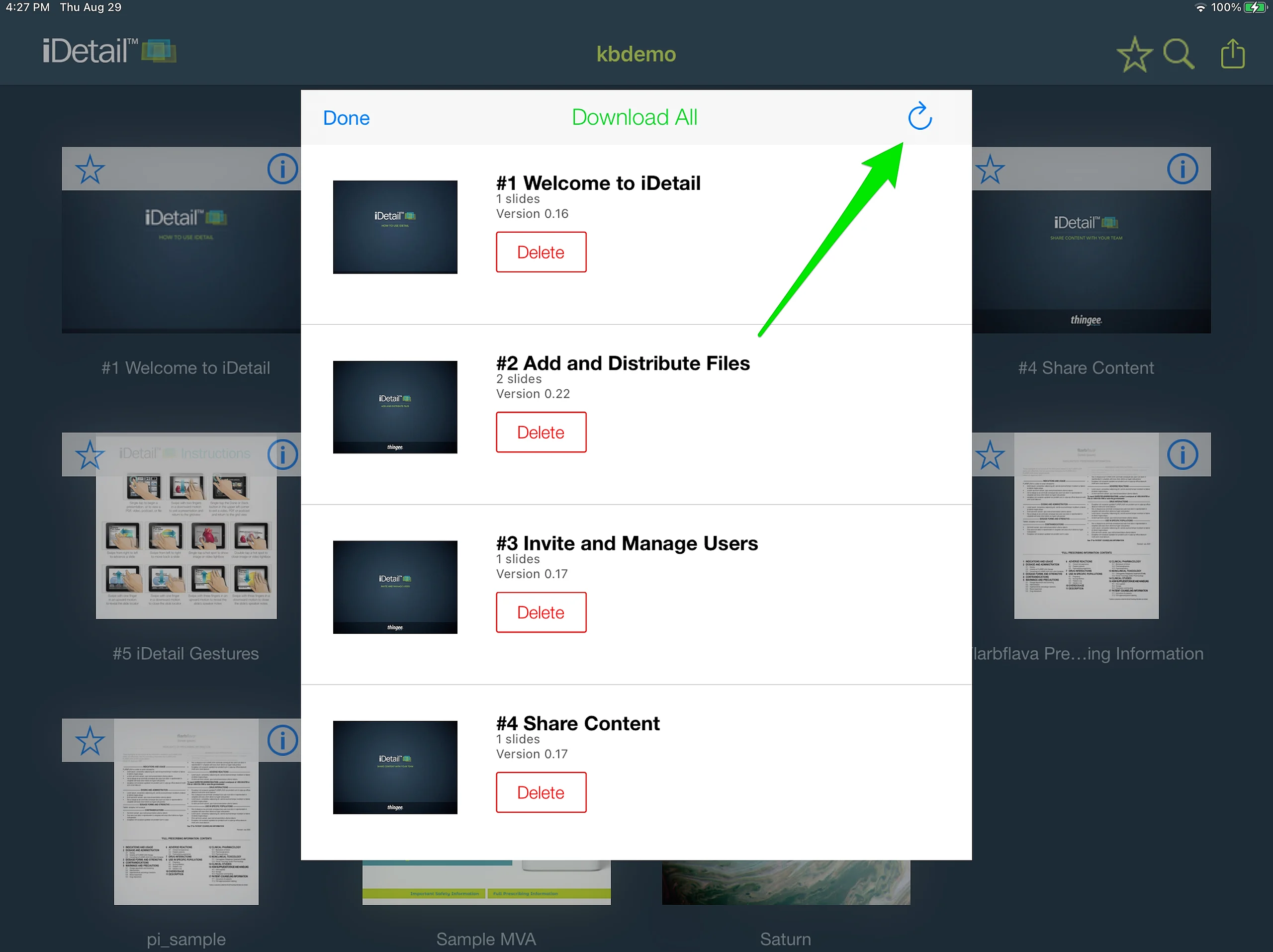
Refresh the content by tapping the refresh icon
007
Now, when you view the PDF on the iPad, you will see that the Email sharing option does not appear because it has been disabled.
Content Sharing on Downloads
A Slidedeck in an iDetail App cannot be shared, but any downloadable files (also referred to as attachments) associated with the Slidedeck are shareable. These Slidedeck Downloads appear on the Content Sharing Options report page in an indented list under the Slidedeck. Their content sharing settings can be updated in the same way by clicking the content sharing checkbox to enable or disable the option.
Considerations for setting Sharing Options
The Content Sharing Options report page gives iDetail administrators a way to control how users in their organization will be able to share information by placing limitations on what options appear in the Options menu on the user’s iPad. However, these restrictions cannot be implemented one hundred percent. Even if the administrator restricts certain options, like Email and Print, the Open In… option, depending on how the iPad is configured for the organization, may give users a way to use these options anyway.
For example, the "Open In…" option contains "Print" in its list of actions, so a given item can be printed even if the "Print" sharing option in the Options dropdown menu has been disabled. In a similar manner, if the organization has included an email app in the list of apps displaying in the Open In… window, users will be able to email the given content item, even if the Email content sharing option in the Options dropdown menu has been disabled.
To achieve document control in this open environment, an organization will need to implement a policy that combines using the app restrictions that are available together with organizational best practices that encourage compliance from its members.