

Overview
Attachments are added to the Downloads tab of a Content Item in the iDetail Web Service. The attached files are associated with the content item and then appear in the iOS App by tapping the [Info Screen] icon of the specific content item and are shown at the bottom of the info screen popup or from the iDetail Web Service by selecting Content in top navigation, selecting the specific content item from the grid view and then selecting the Downloads tab.
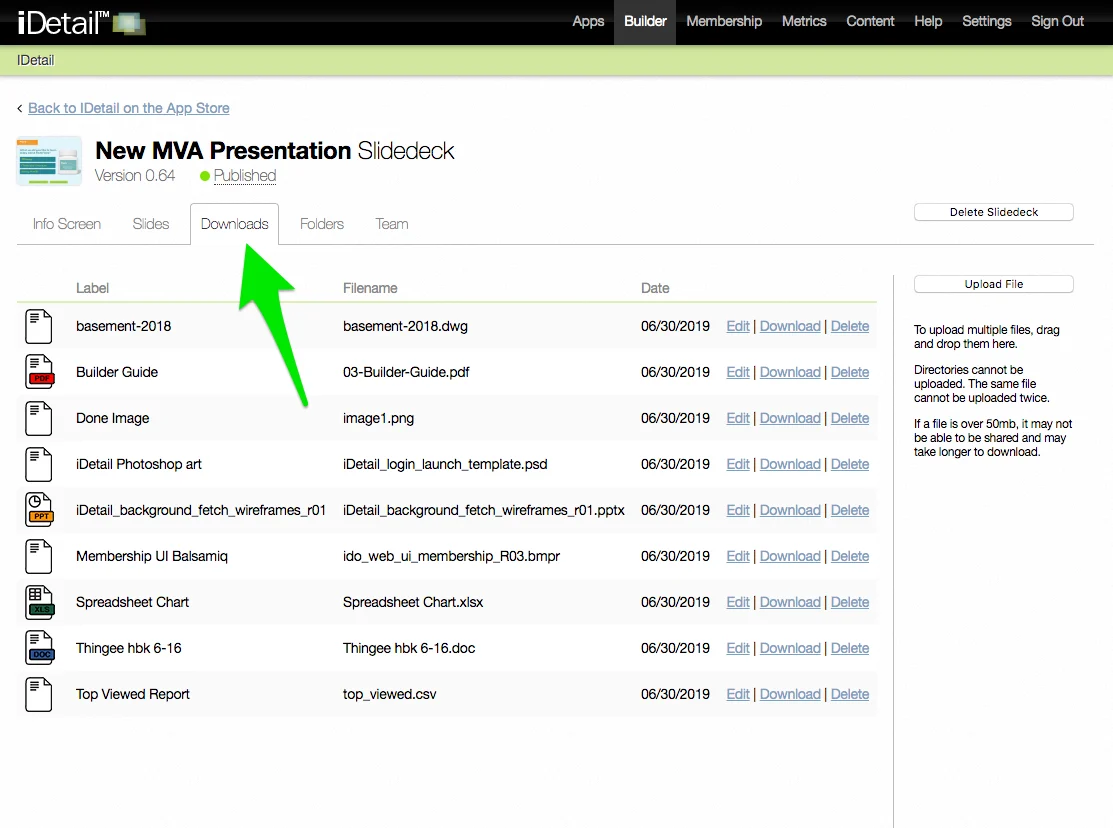
Steps to upload an Attachment
Select the Content Item of Interest
Select the Downloads tab
Drag and drop files or select the [Upload File] button
Permission for Attachments are inherited from the Content Item
Notes
All file types are supported for download, but not all are viewable on iPad
Not all viewable file types support all file functions (example: iOS does not support macros in Excel)
Some types will need a third-party App installed to view (example: QuickLook does not support Apple iBook)
Not required to publish the Content Item
New or updated attachments automatically publish if the Content Item is published
Maximum file size is 2 gigabytes
Unlimited number of attachments per content item
Can be printed or emailed
iPadOS Open-in feature is supported
Team permission for Attachments are inherited from the content item
Attachment name can be different from the file name
Attachment file can be replaced though Edit link