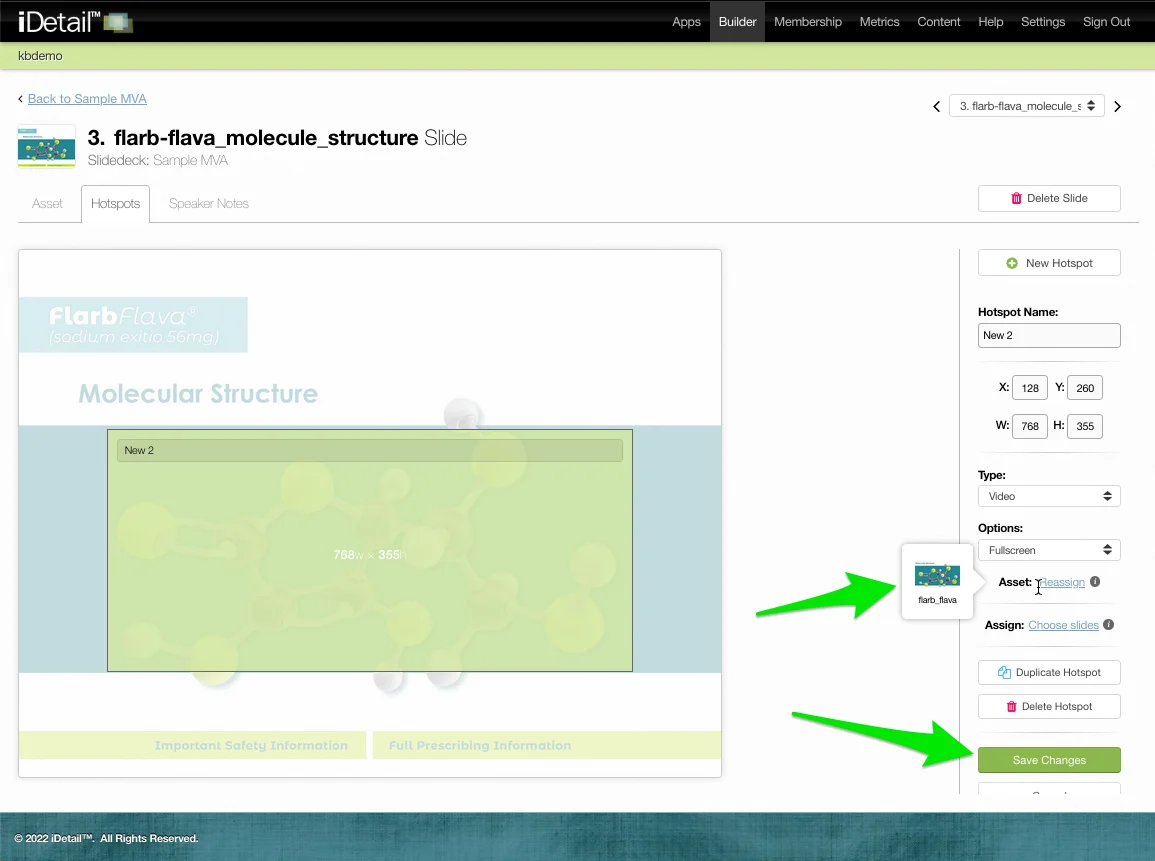

Hotspots are interactive areas you can add to a slide in an iDetail slide deck. They give you enhanced functionality when they are tapped when presenting from the iDetail iOS app on the iPad.
For example, instead of swiping through every slide, you can use a hotspot to jump immediately to another slide in a different part of the slide deck. Or you can initiate other actions, like playing a video or displaying a PDF document.
This article shows you how to assign a video file to a hotspot.
Add a video file to a hotspot
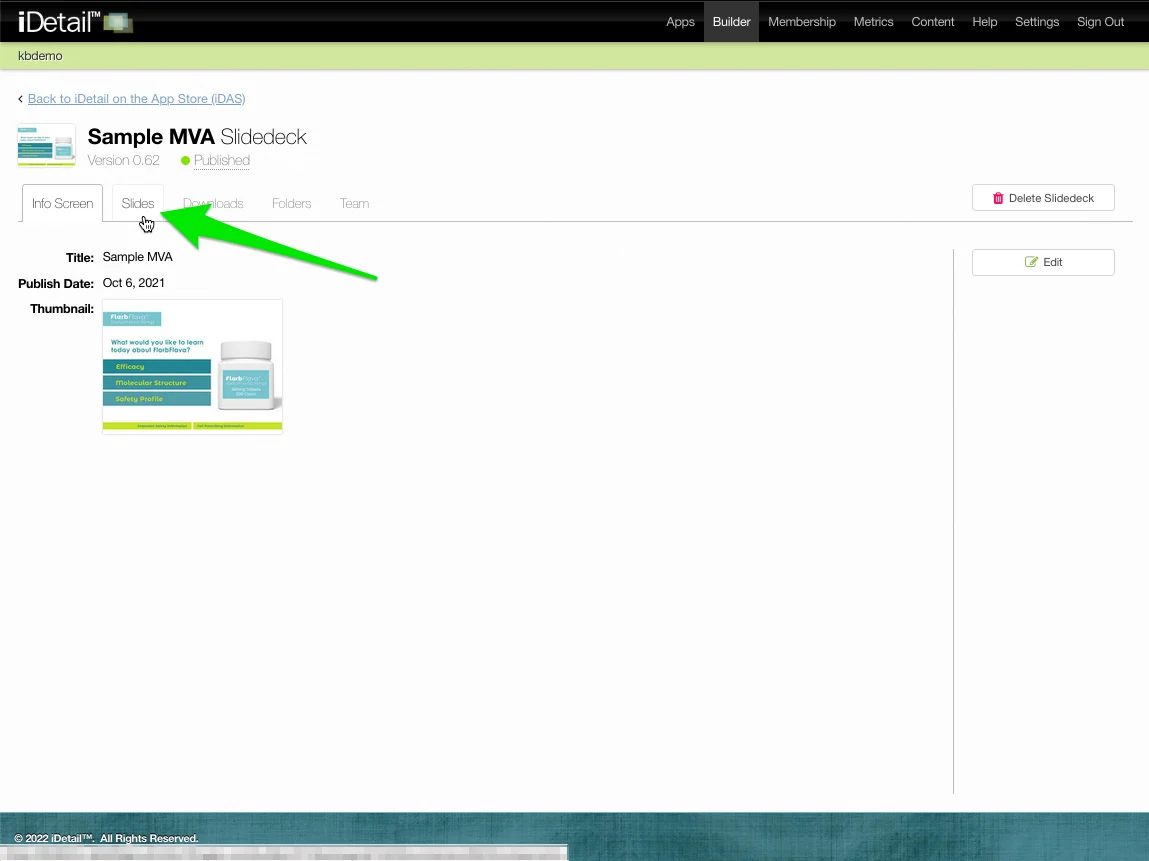
Select the slide deck you want to modify from the main grid view, then choose the Slides tab
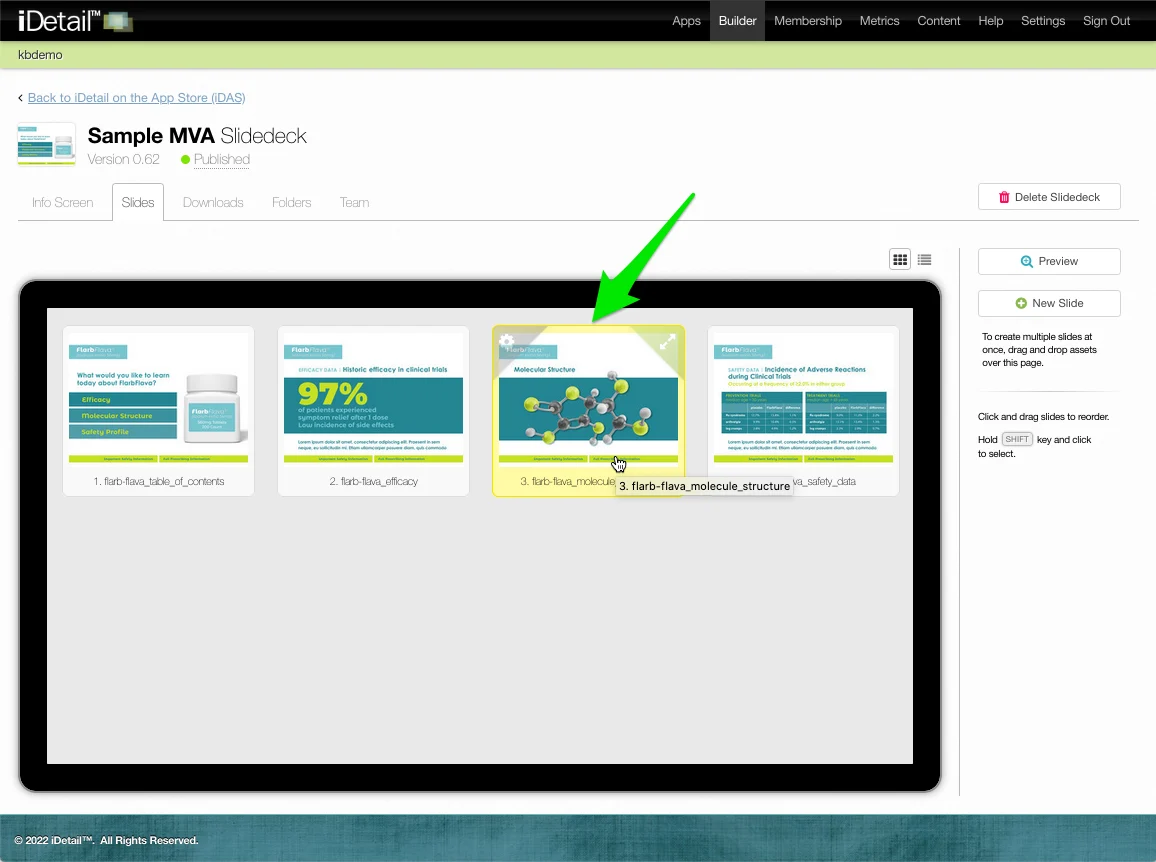
Choose the slide where you want to add a hotspot and click on its thumbnail
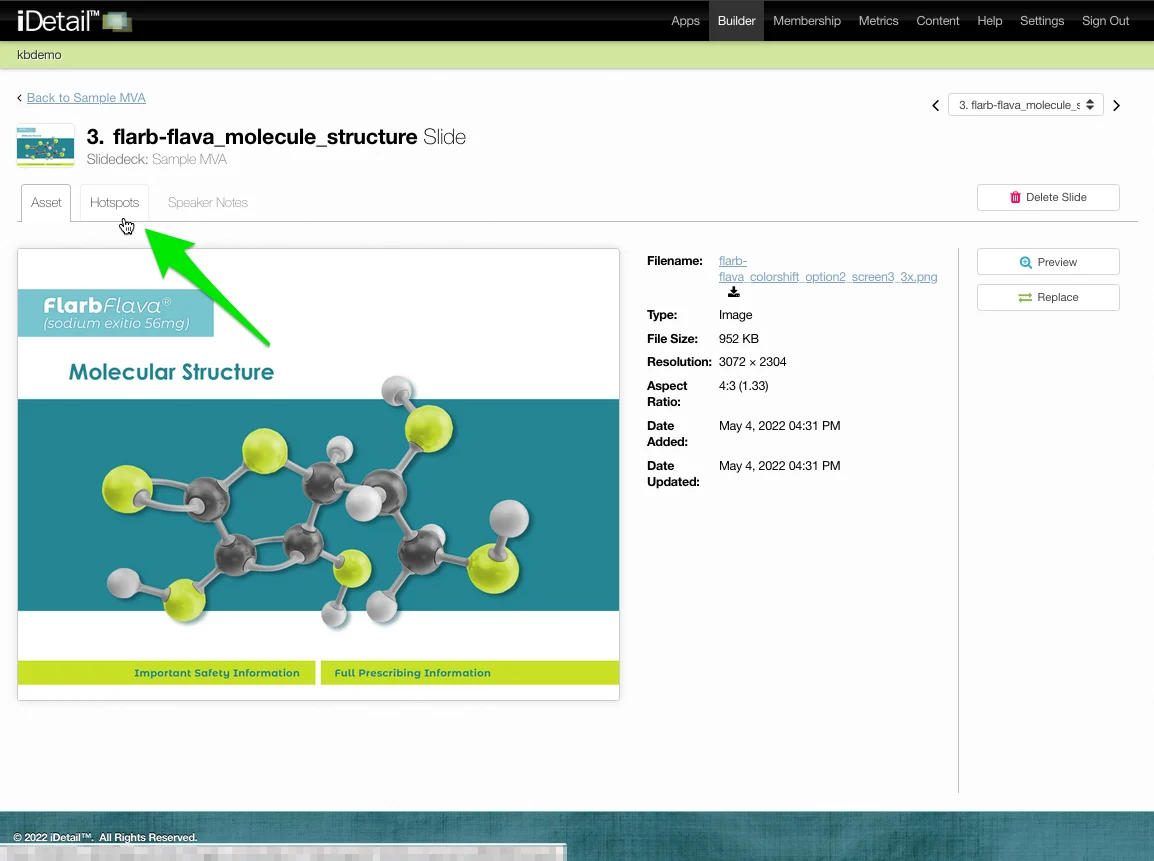
Choose the Hotspots tab
Select an area for the hotspot by dragging and dropping the mouse cursor
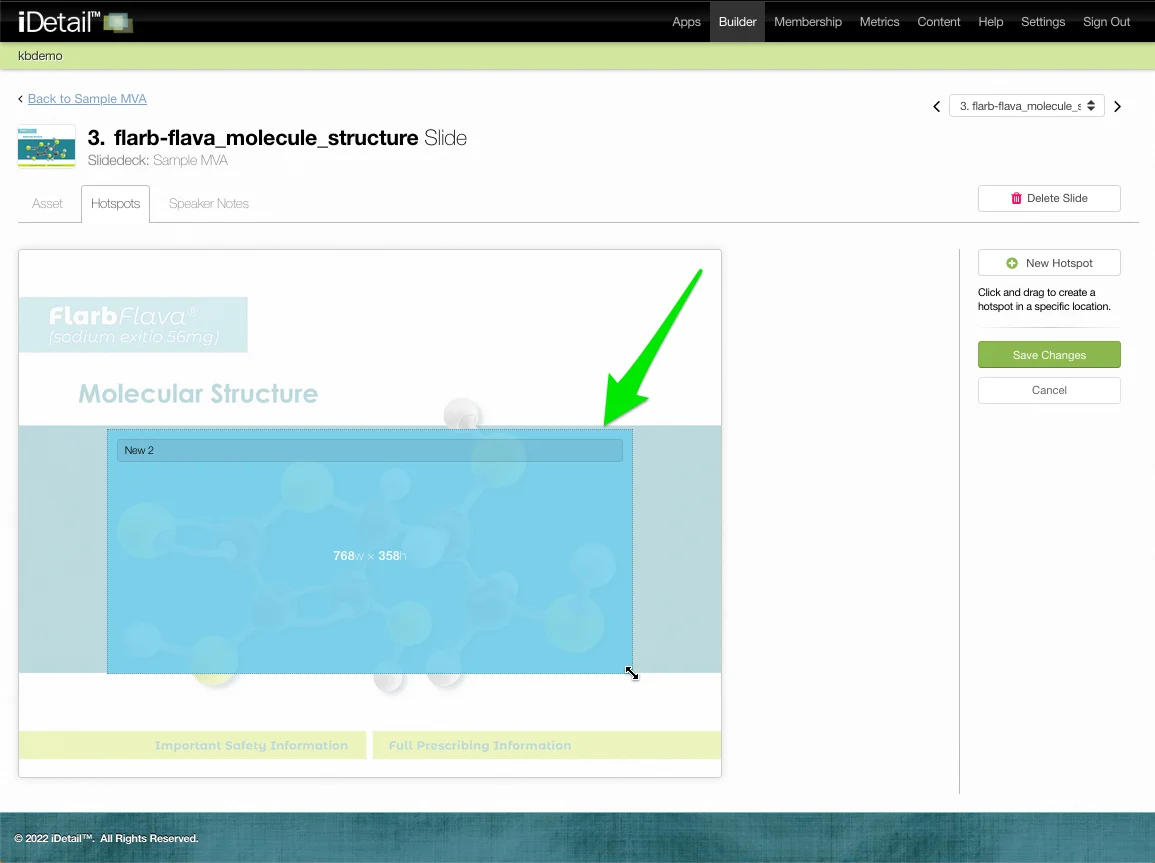
In the hotspot sidebar, click on the Type dropdown menu
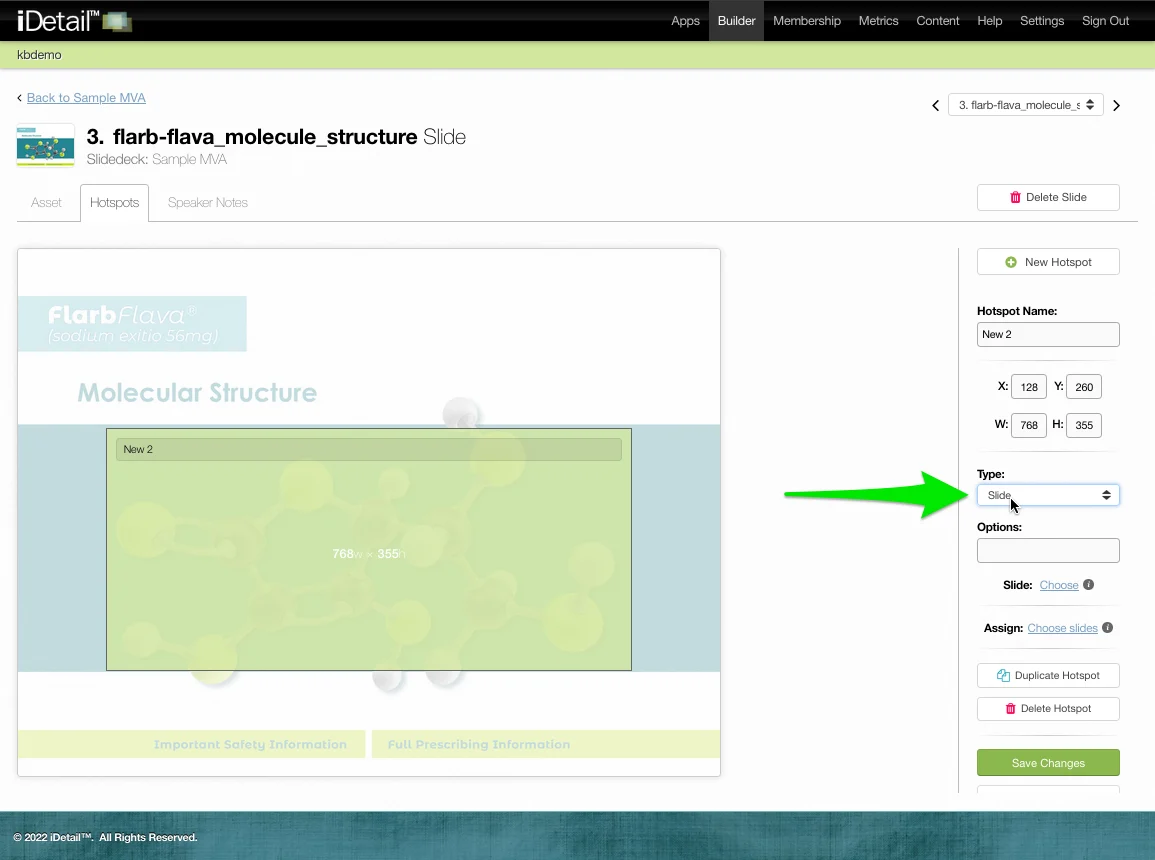
Choose Video as the hotspot type
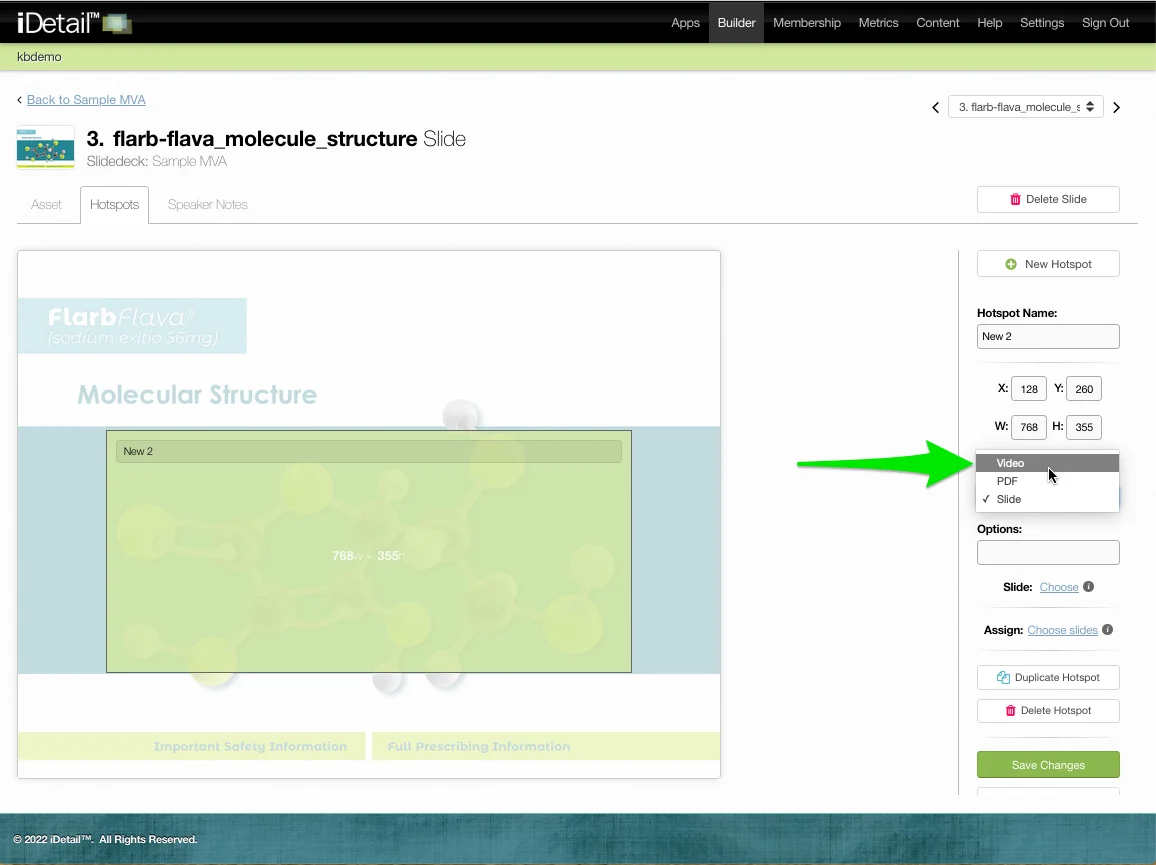
Click on the Asset: Choose link
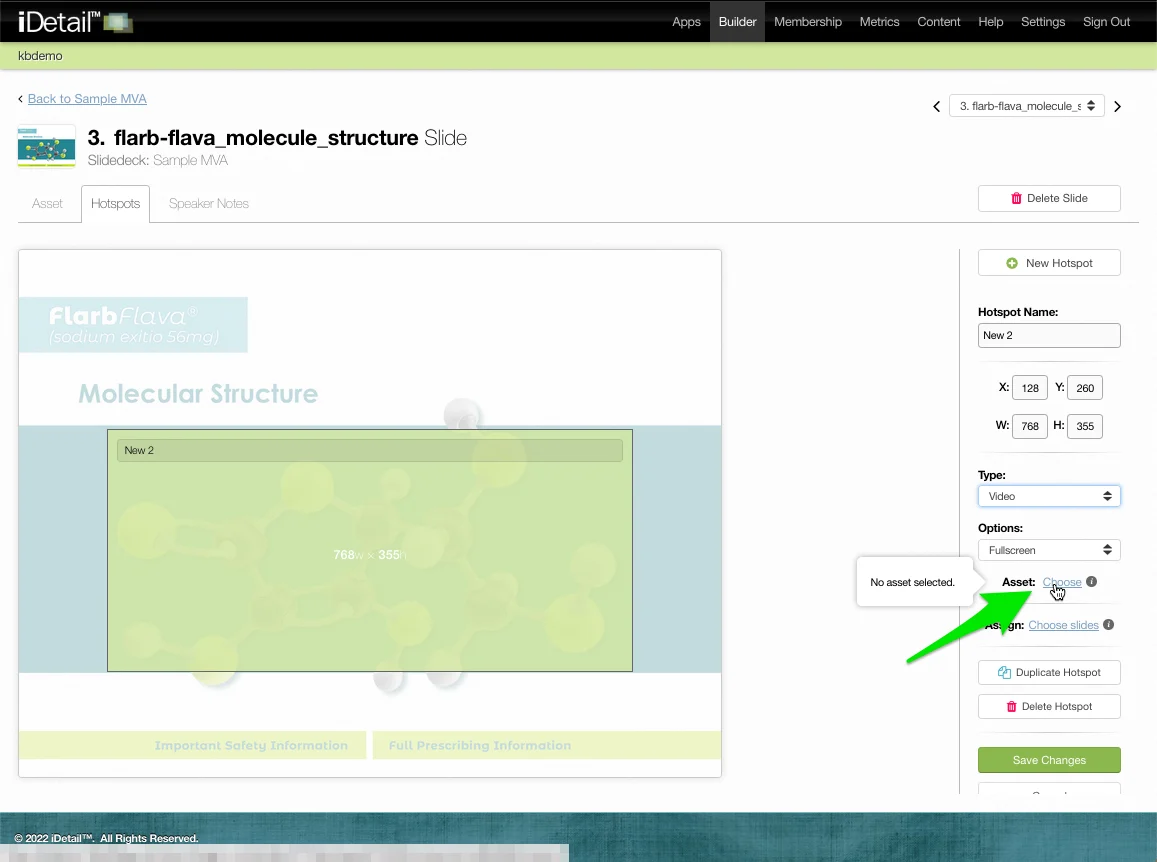
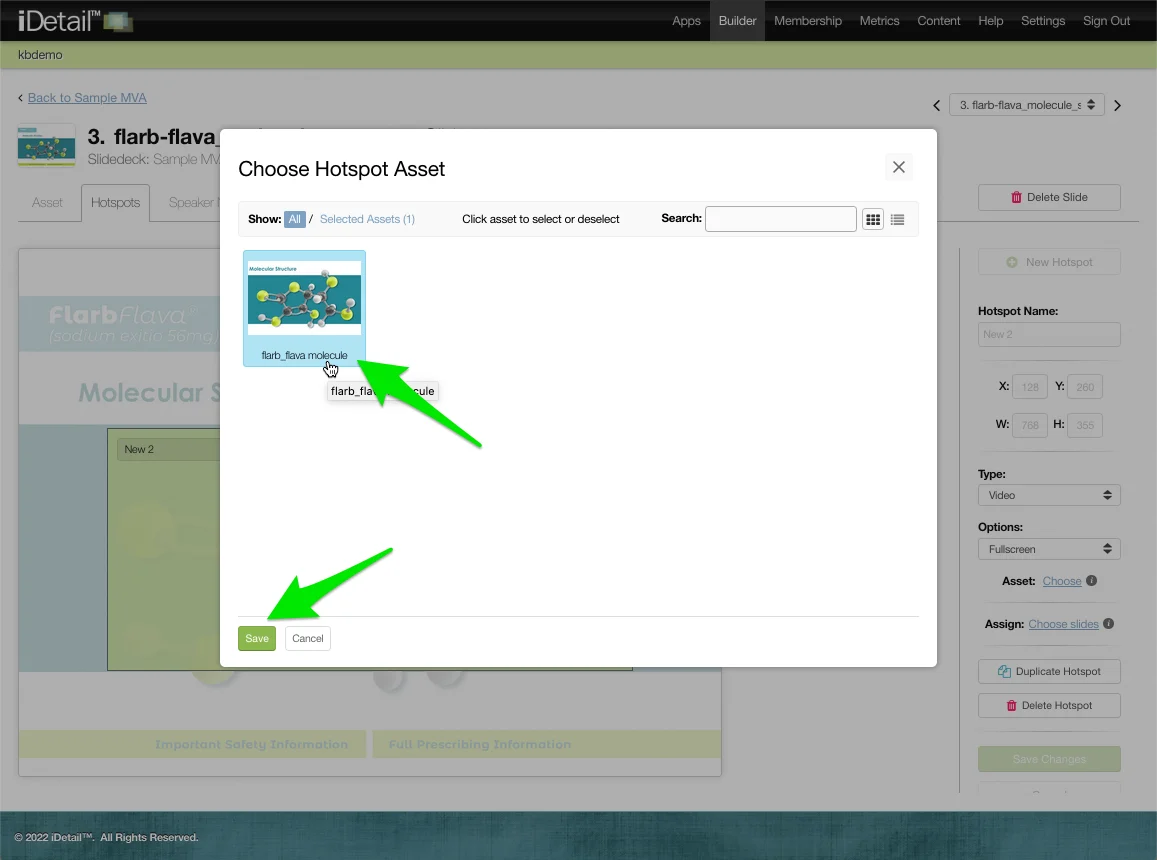
A dialog box appears with videos available to your organization
Click on a thumbnail image to choose a video. The selection turns blue.
Click on Save to save your selection
A thumbnail image of the video selection appears when you rollover on the Asset link
Click Save Changes to save all of the hotspot changes