

What are hotspots?
Hotspots are interactive areas you can add to a slide in an iDetail slide deck. They give you enhanced functionality when they are tapped when presenting from the iDetail iOS app on the iPad.
For example, instead of swiping through every slide, you can use a hotspot to jump immediately to another slide in a different part of the slide deck.
You can also use hotspots to
Add PDFs and videos that will pop up and display when the hotspot is tapped
Reference prescribing and safety information
Build a table of contents in a presentation
Add a “home” hotspot on all slides that jumps to the same location (for example, to a table of contents or to the beginning of the slide deck)
Hotspots can be added to slides that are image files (.PNG, .JPG, or .JPEG) or video files (.MOV).
This article shows you how to add a hotspot to a slide.
Add a hotspot to a slide (by clicking and dragging the cursor)
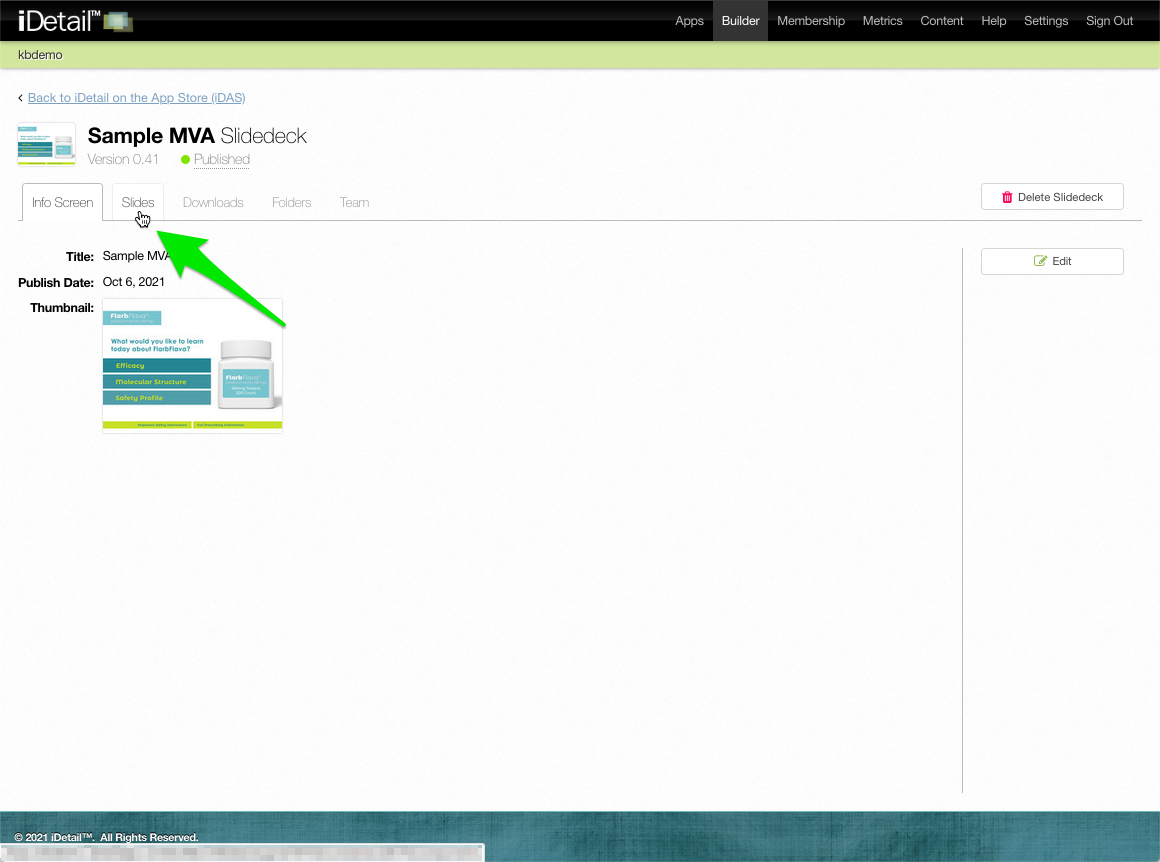
Select the slide deck you want to modify from the main grid view or list view, then choose the Slides tab
001
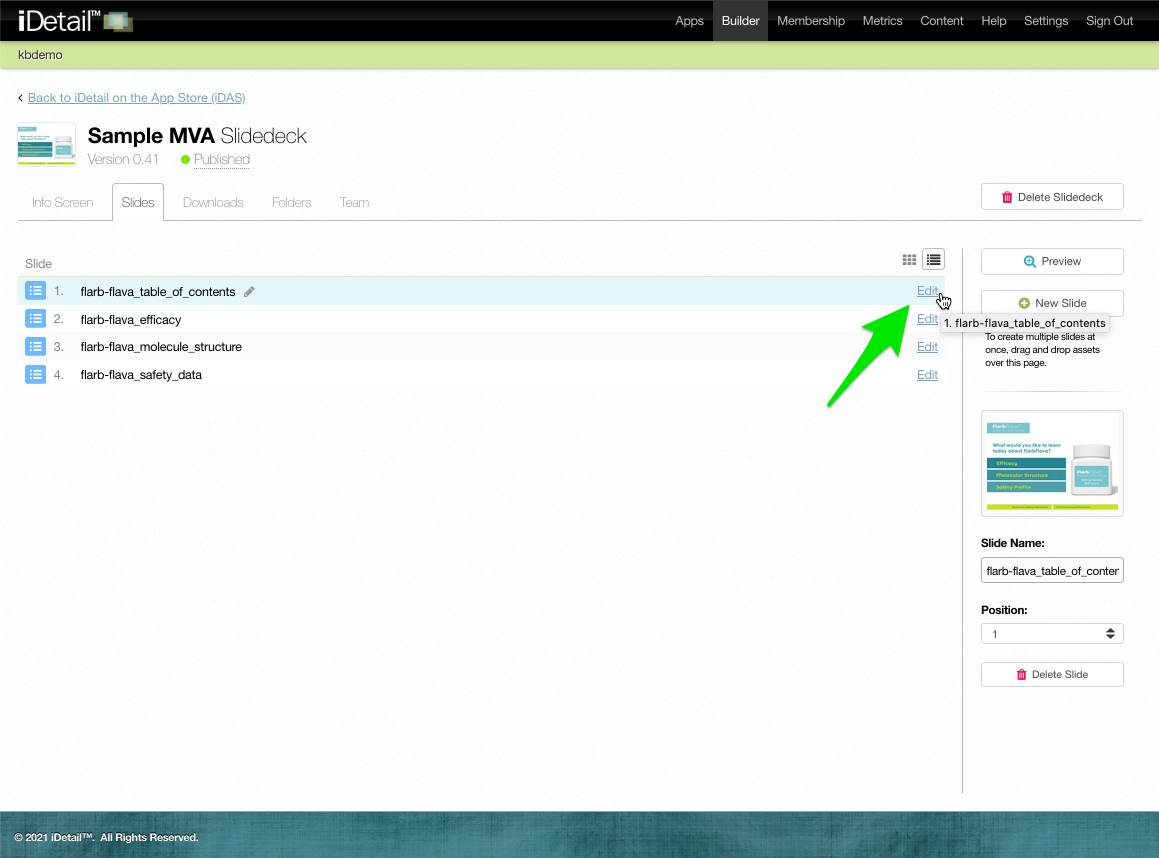
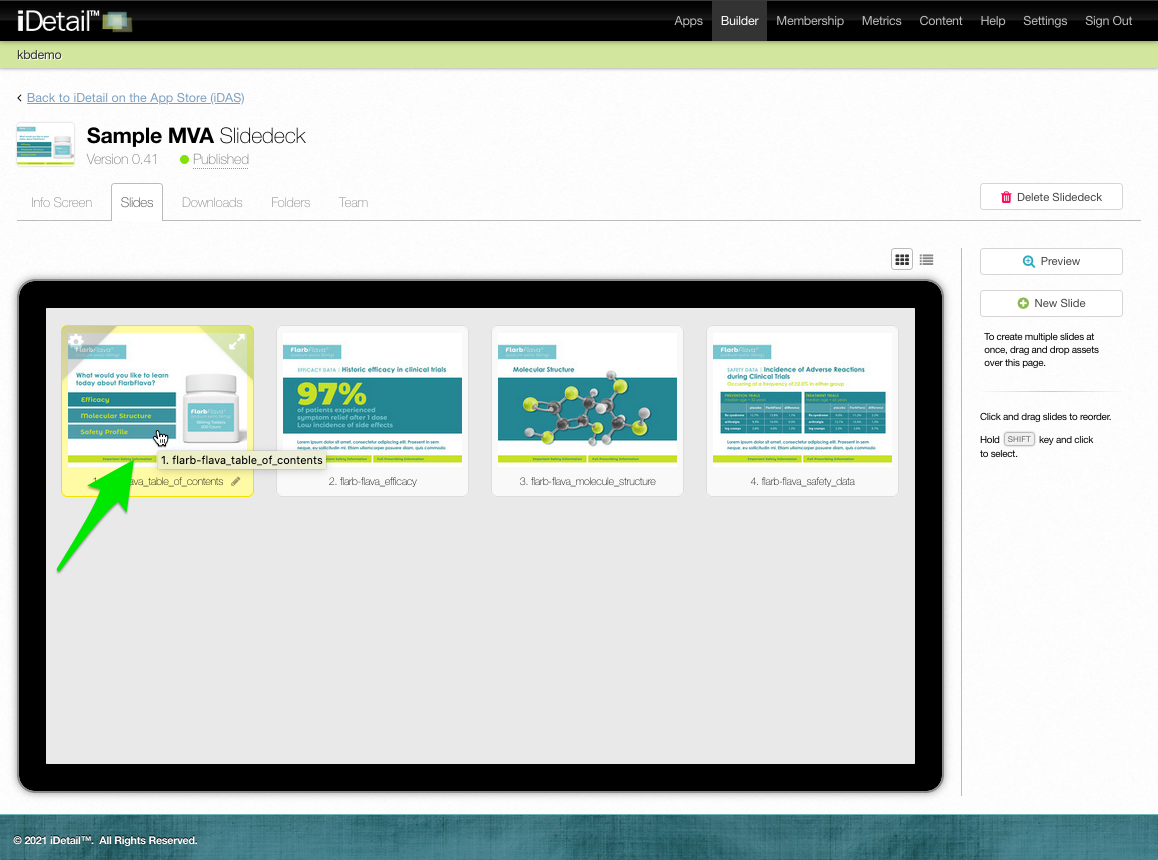
Choose the slide where you want to add a hotspot and click on its thumbnail (or click the Edit link if your are using the List view)
(Grid view)
002
(List view)
003
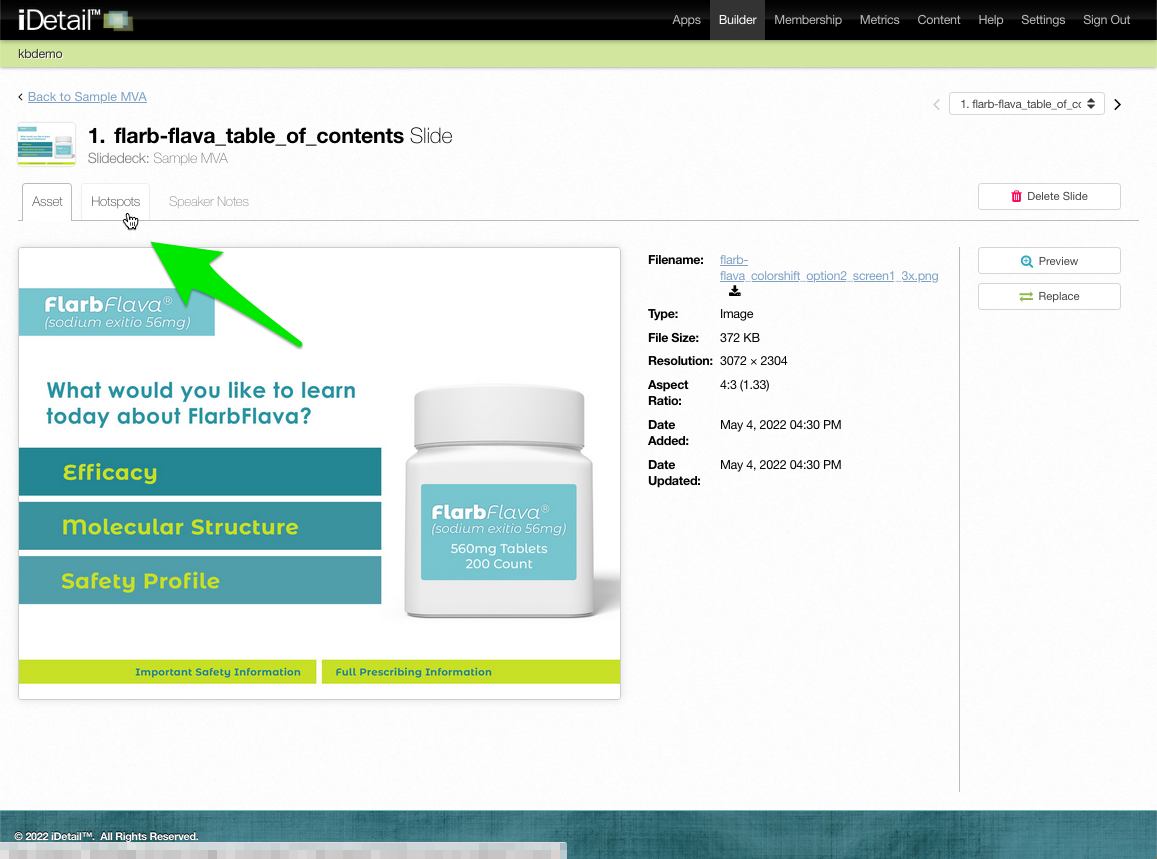
Choose the Hotspots tab
004
Select an area for the hotspot by dragging and dropping the mouse cursor
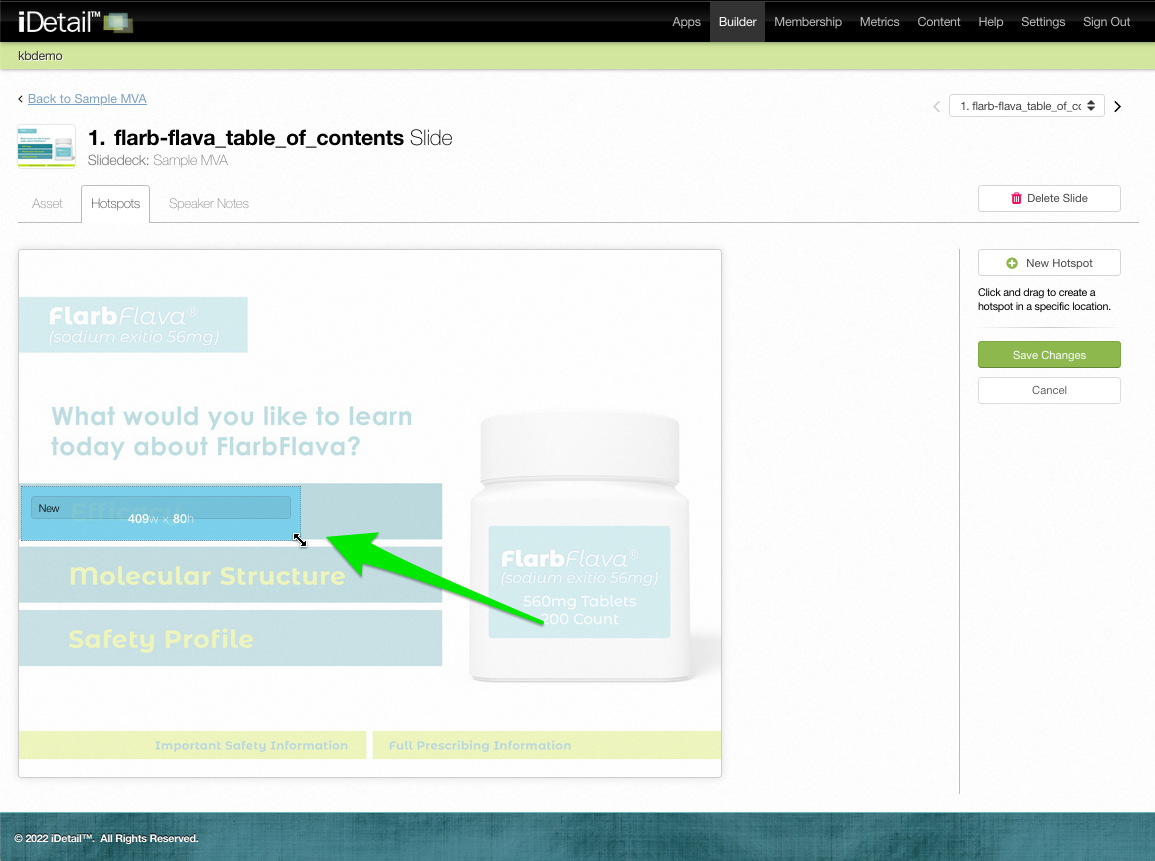
005
You can reposition or resize the hotspot as needed
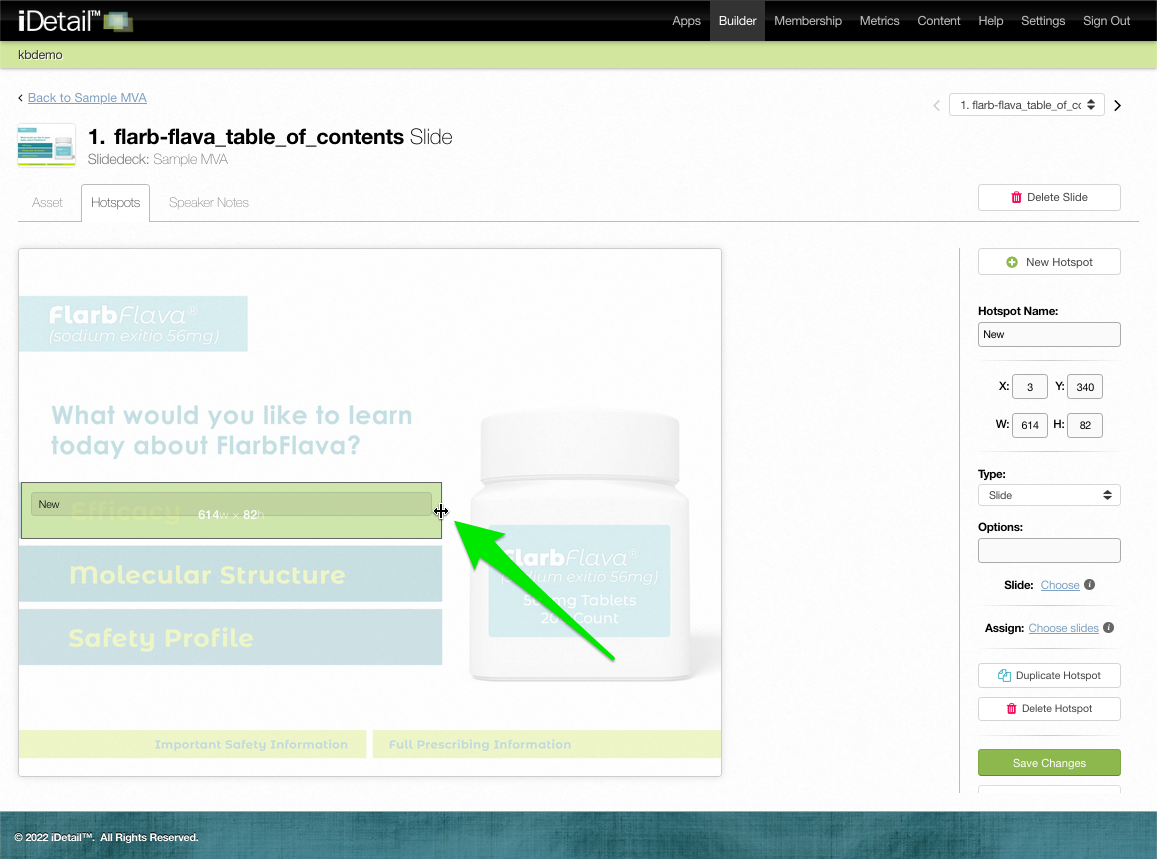
006
In the hotspot sidebar, check that Slide is showing in the Type window (Slide is the default hotspot type)
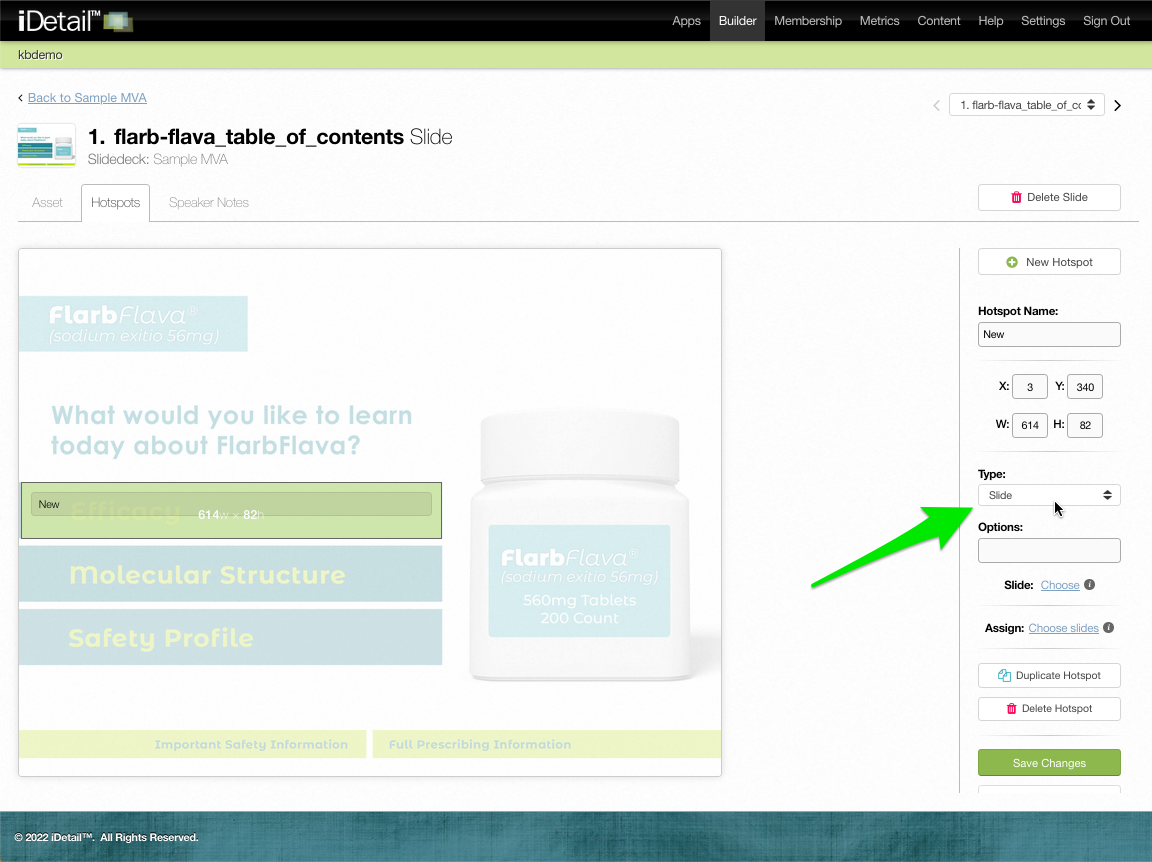
007
Click the Slides: Choose link
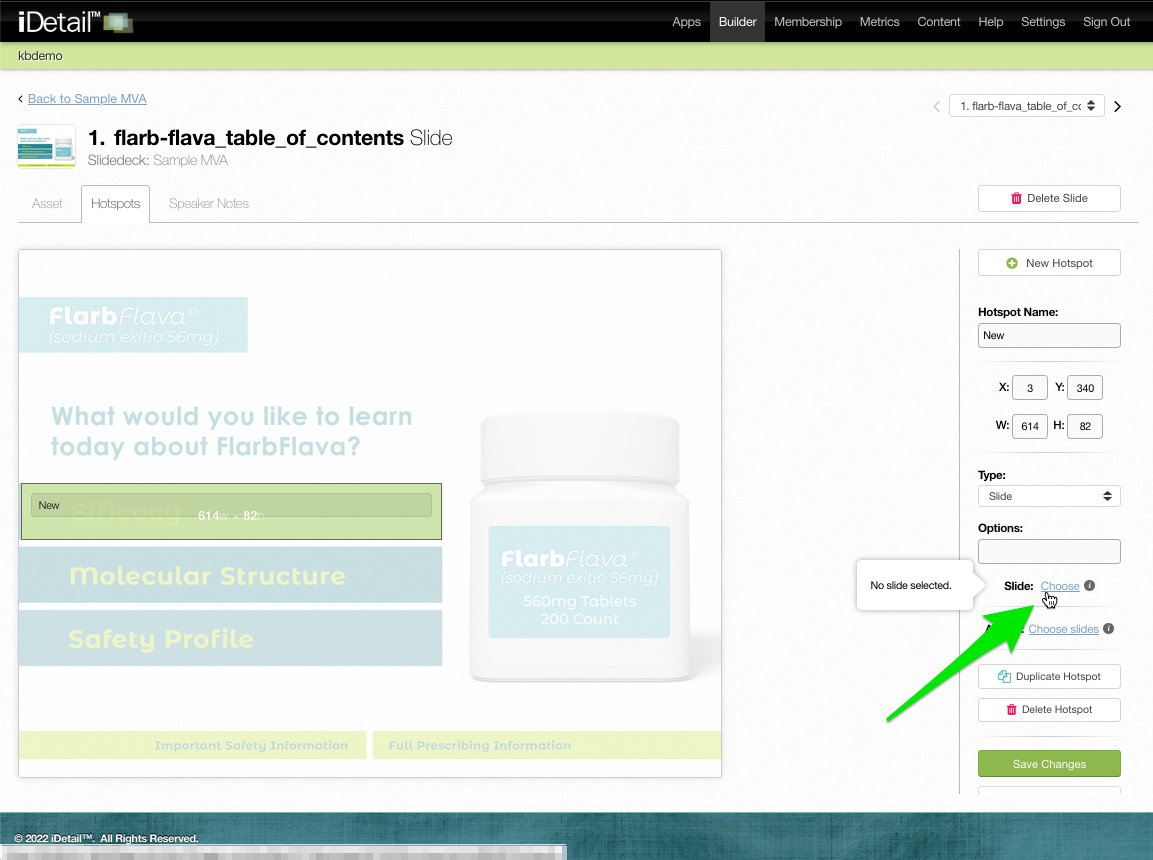
008
A dialog box appears and shows all of the slides in the presentation
Click a thumbnail image to choose a slide. The selection turns blue.
Click Save to save your selection

009
A thumbnail image of the slide selection now appears when you roll the cursor over the Slides: Choose link
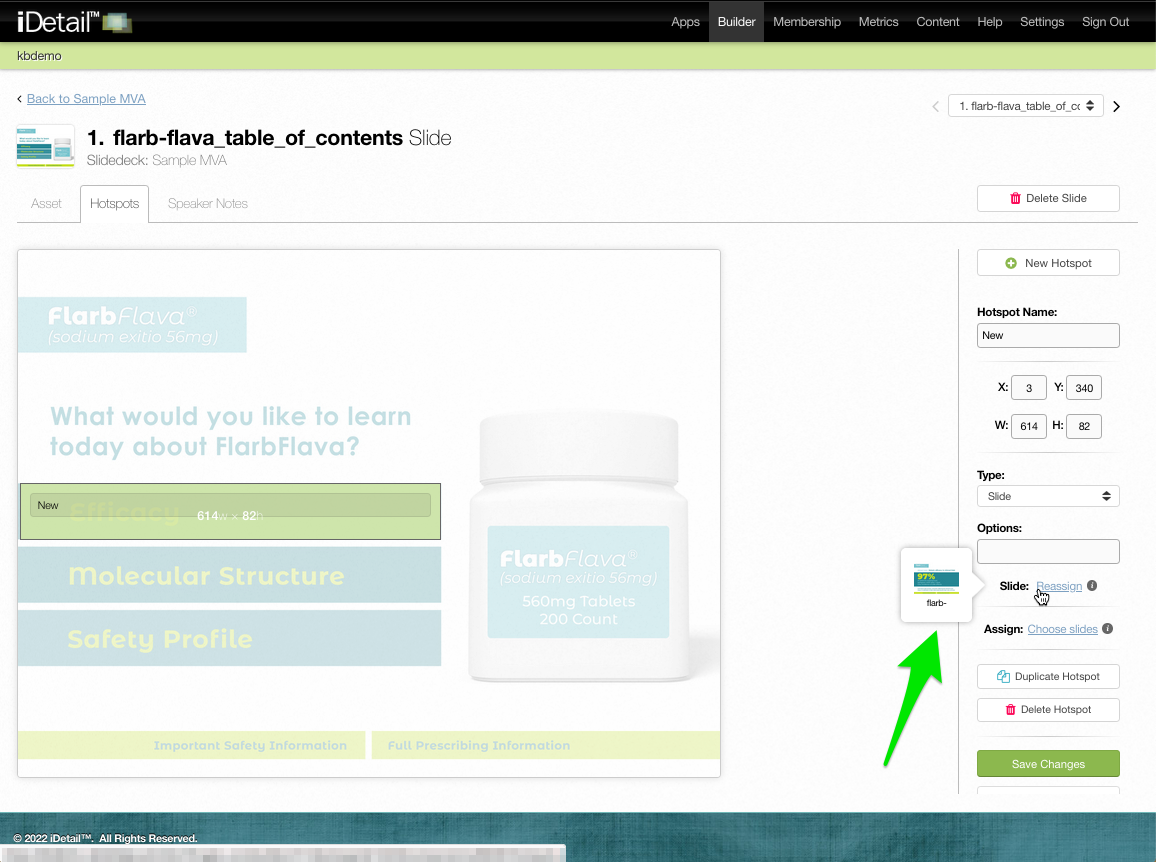
010
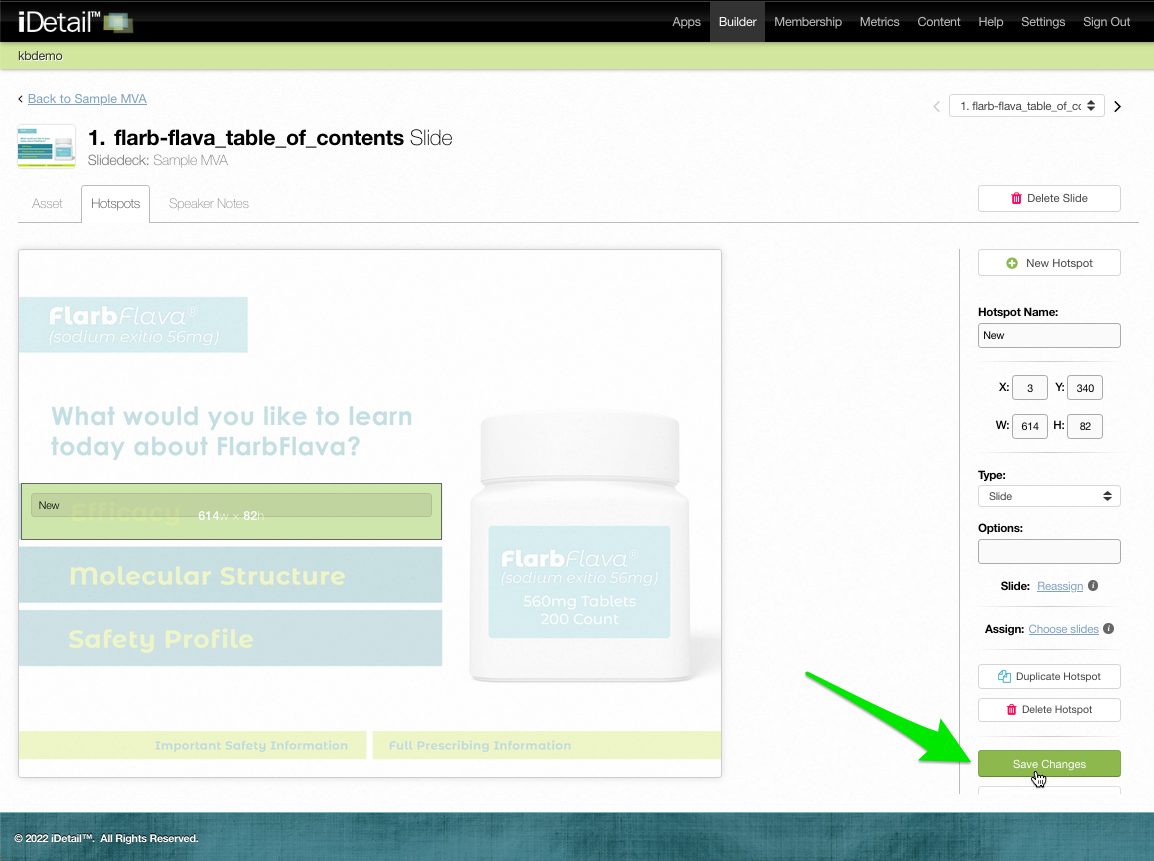
Click Save Changes to save all of the hotspot changes
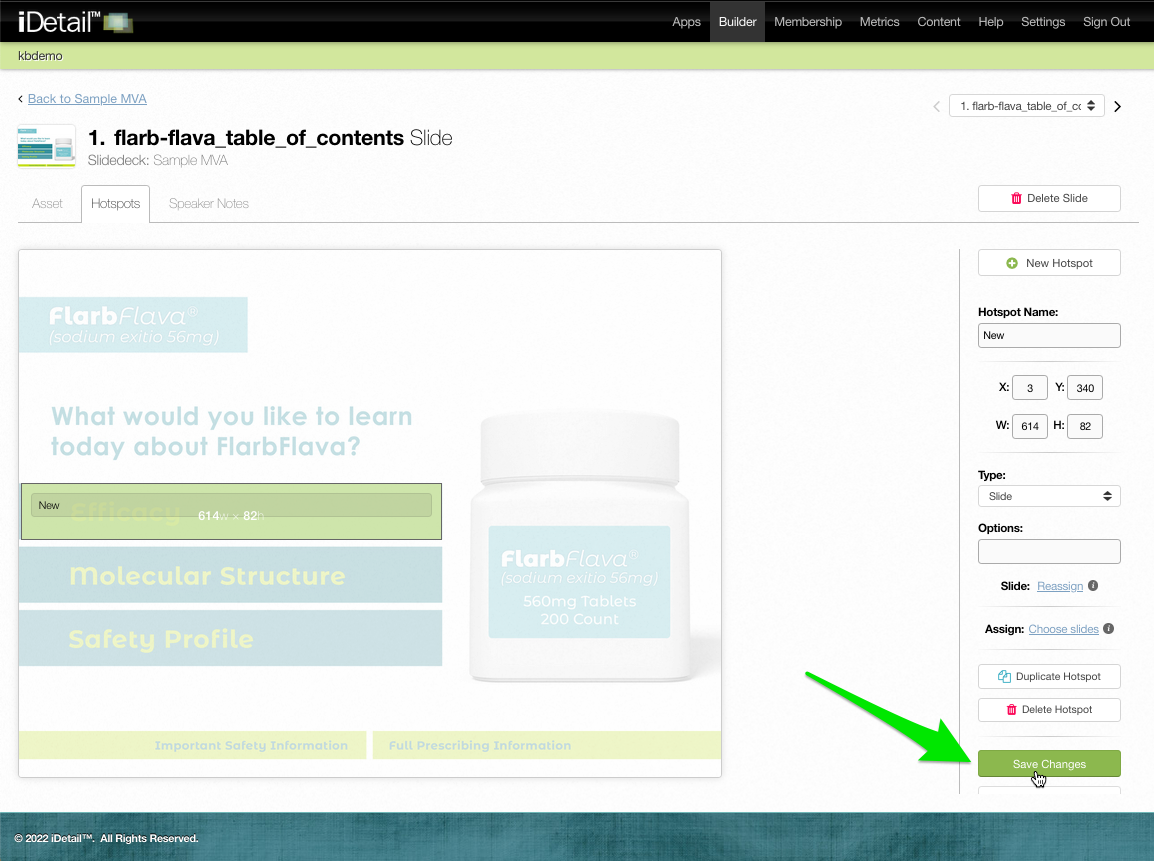
011
Add a hotspot to a slide (using the New Hotspot button)
Choose the slide where you want to add a hotspot, click on its thumbnail, and navigate to the Hotspots tab as described in the previous section
Click the New Hotspot button
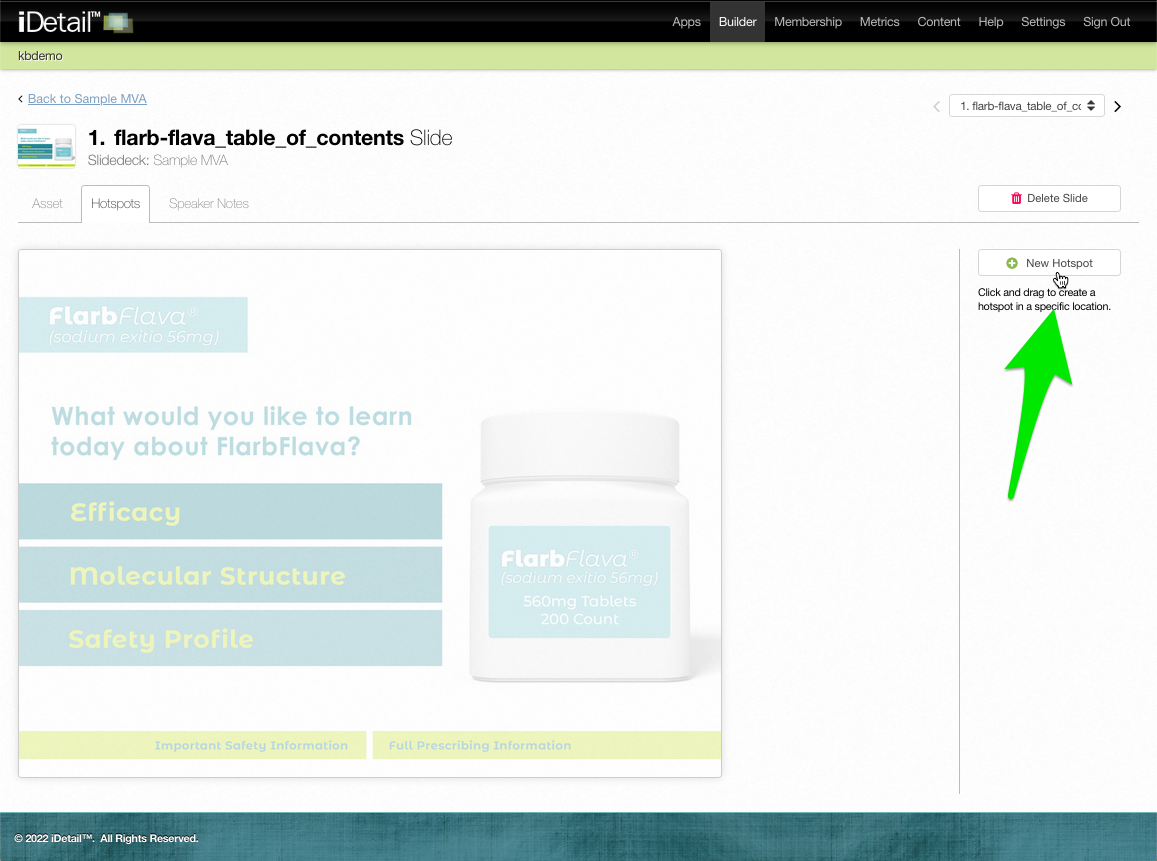
012
A hotspot appears in the upper left corner of the slide
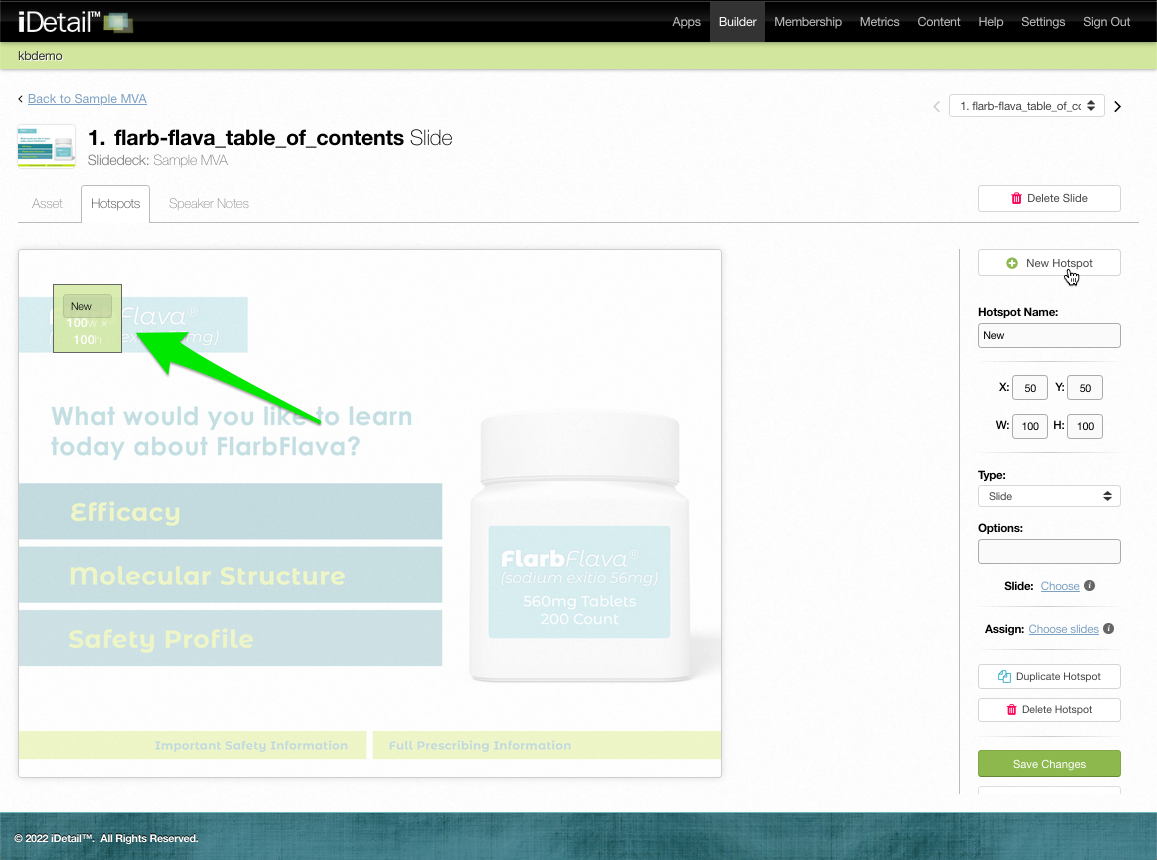
013
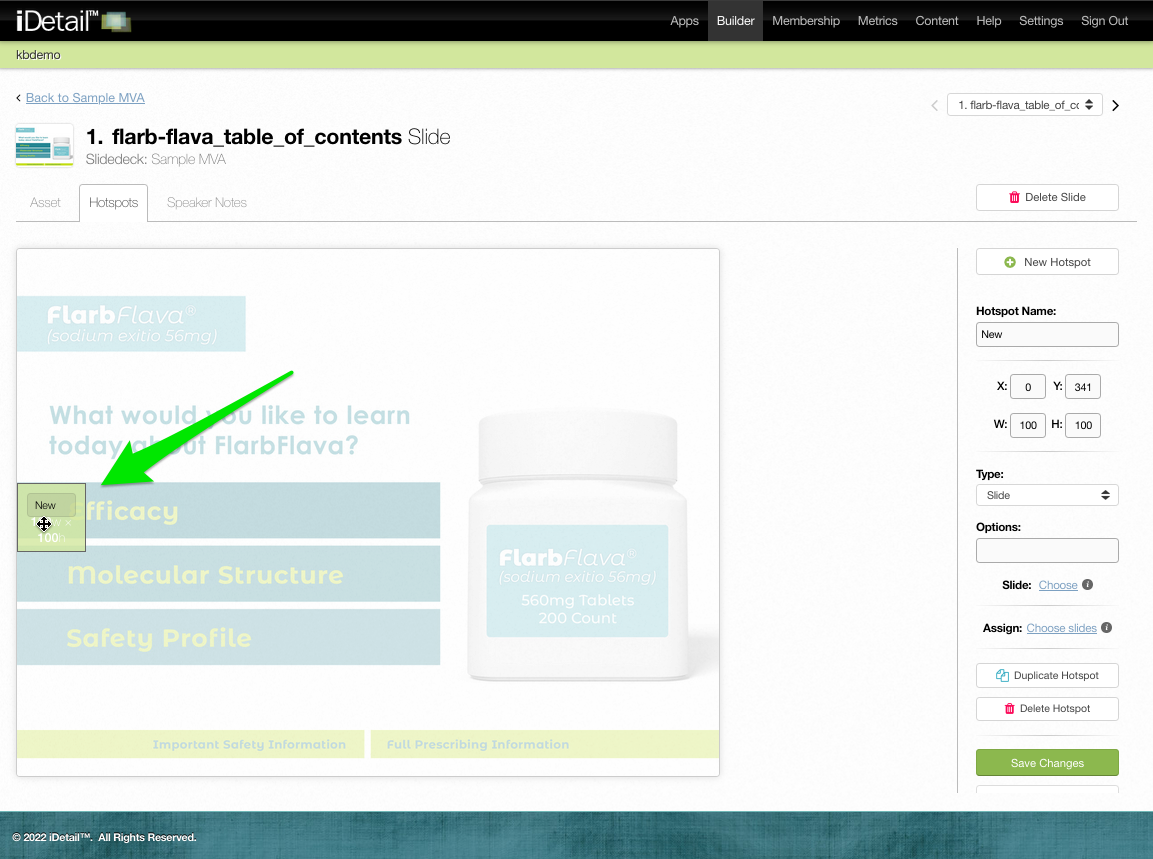
Click and drag the hotspot to position it where you want
014
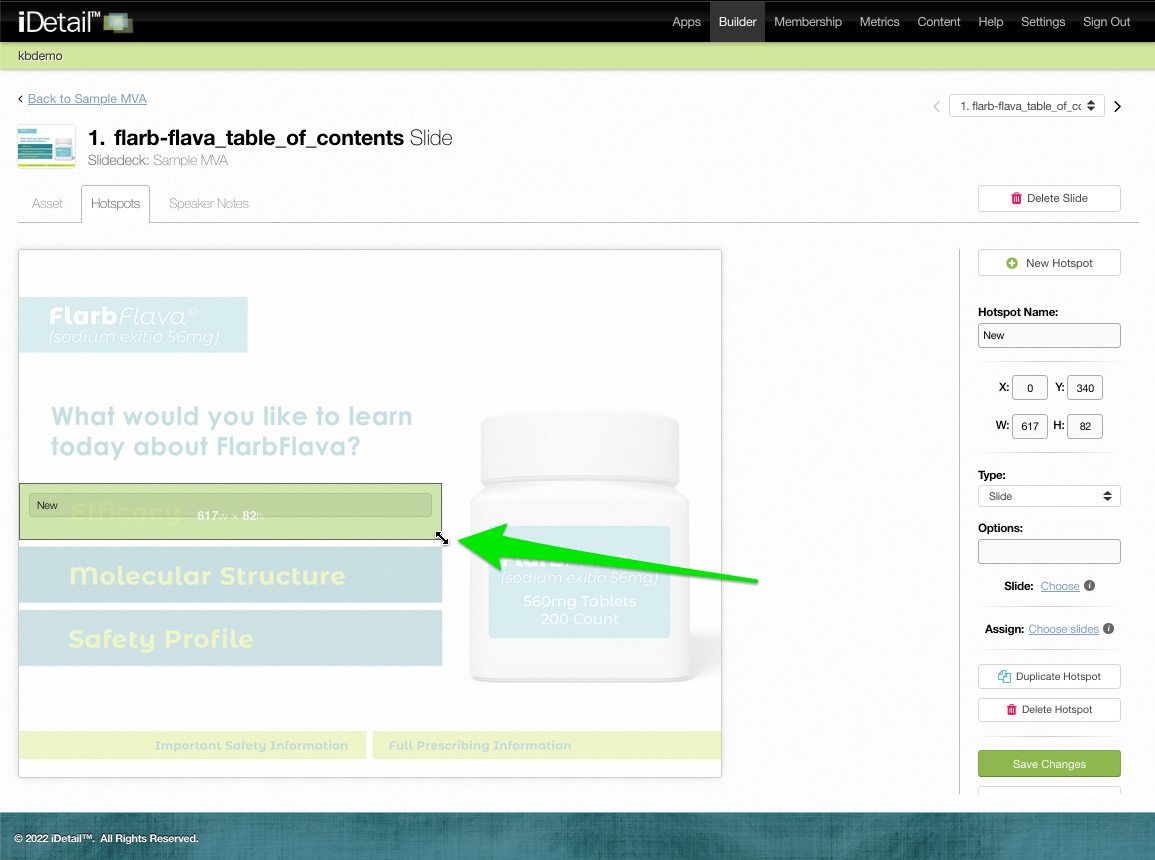
Grab the border of the hotspot to resize it if needed
015
In the hotspot sidebar, check that Slide is showing in the Type window
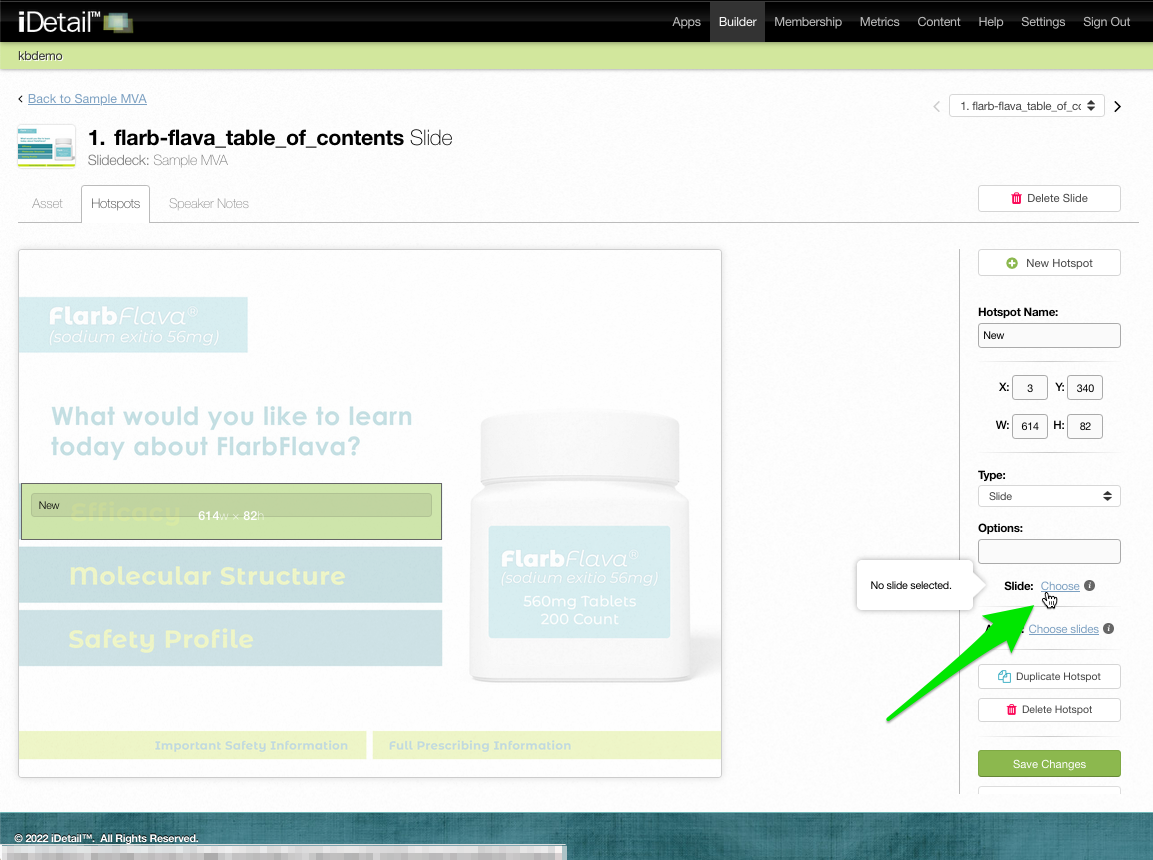
Click the Slides: Choose link
008
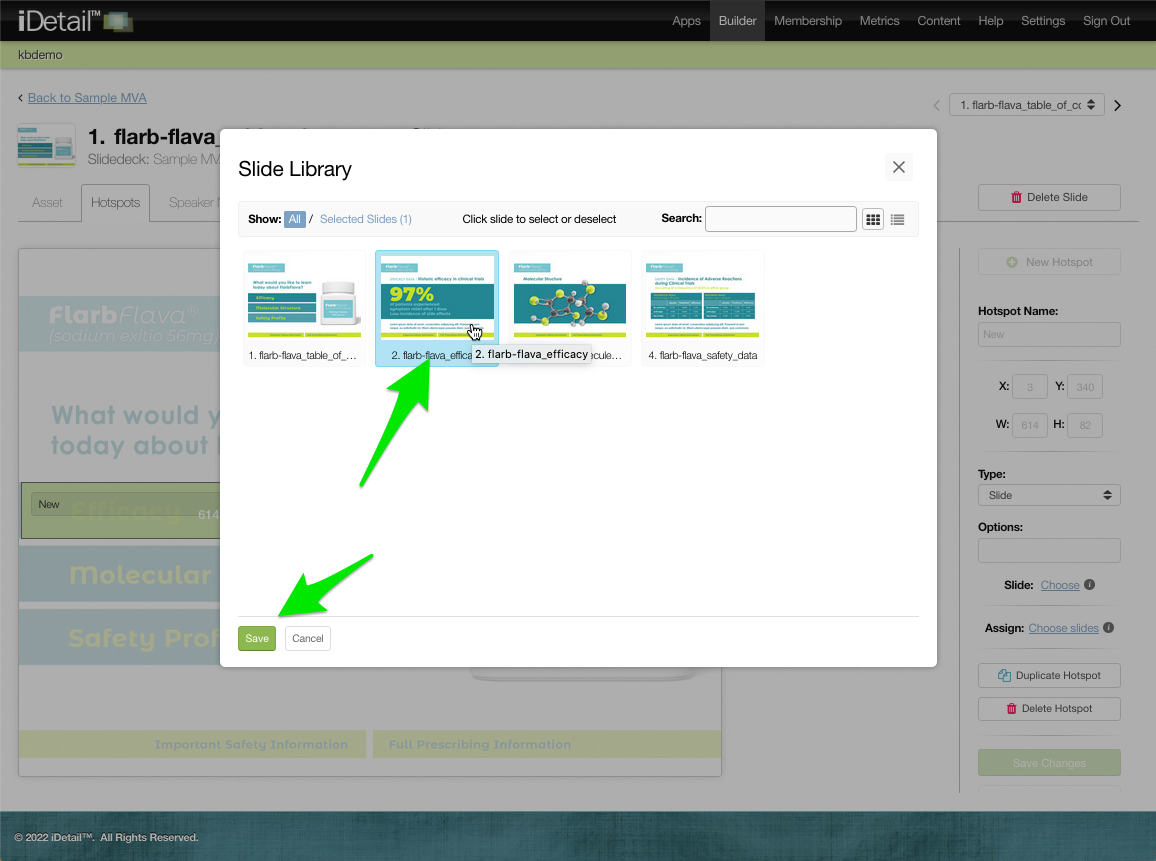
A dialog box appears and shows all of the slides in the presentation
Click a thumbnail image to choose a slide. The selection turns blue.
Click Save to save your selection
009
Click Save Changes to save all of the hotspot changes
011