
Hotspots are interactive areas you can add to a slide in an iDetail slide deck that give you enhanced functionality when they are tapped in the iDetail App. For example, you can use a hotspot to jump immediately to another slide in a different part of the slide deck instead of swiping through every slide to get to it.
You can also copy hotspots. The Builder authoring tools on the iDetail platform give you several ways to do this.
Copying a hotspot on the same slide
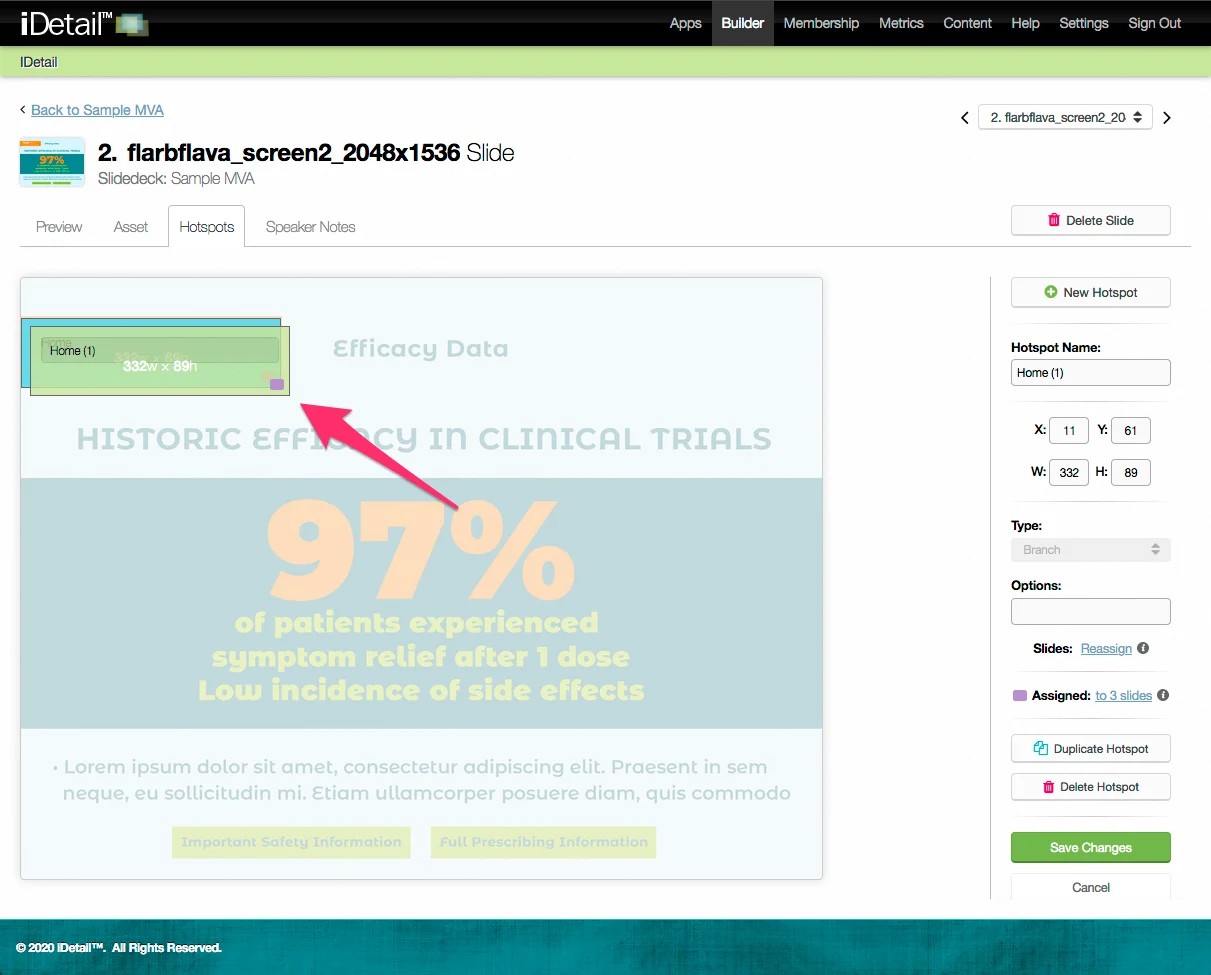
It’s easy to copy a hotspot to the same slide. Select the hotspot (it turns from blue to green when selected), then use ctrl-c and ctrl-v to copy and paste, or use ctrl-d to duplicate, or click on the Duplicate Hotspot button in the sidebar control channel.
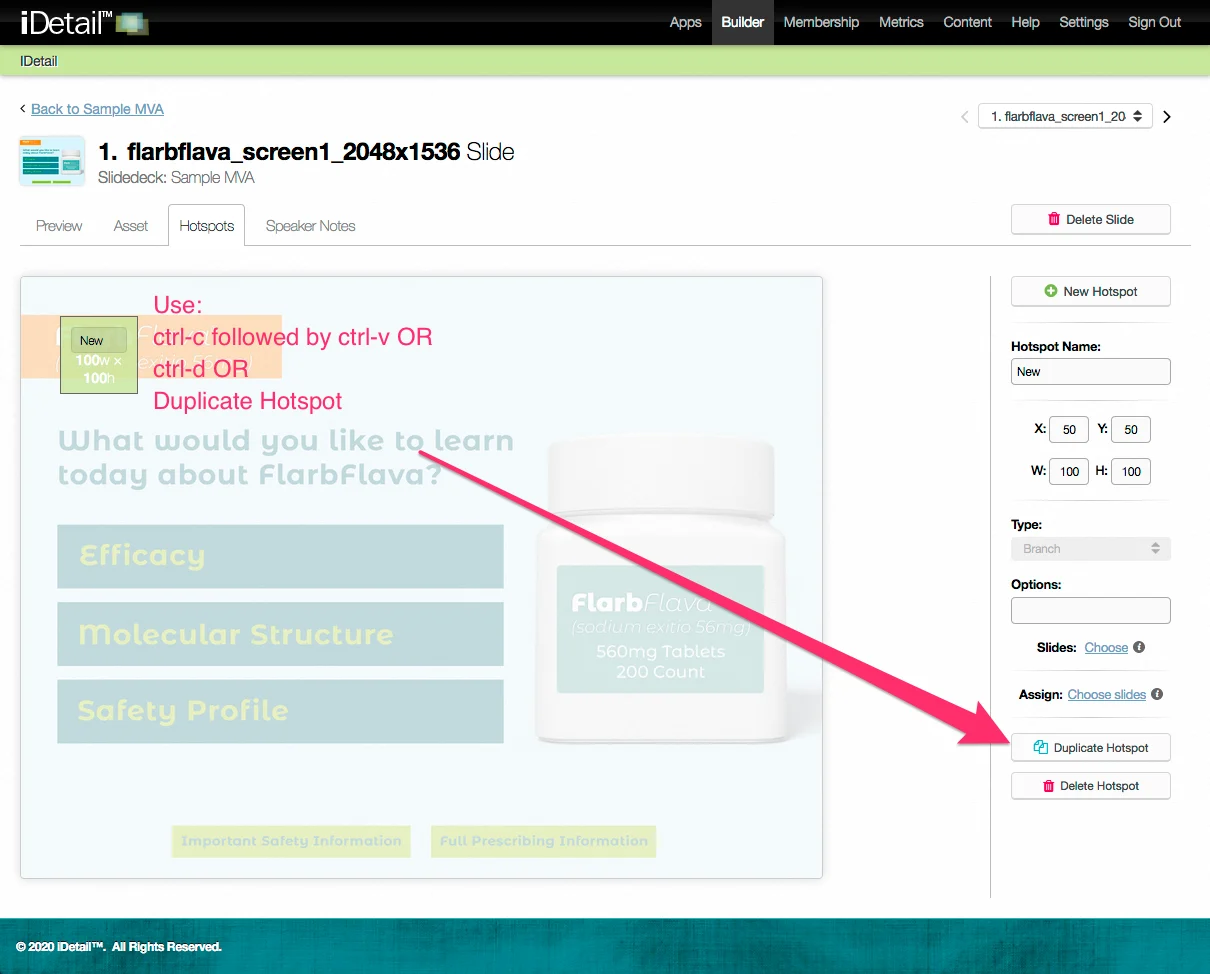
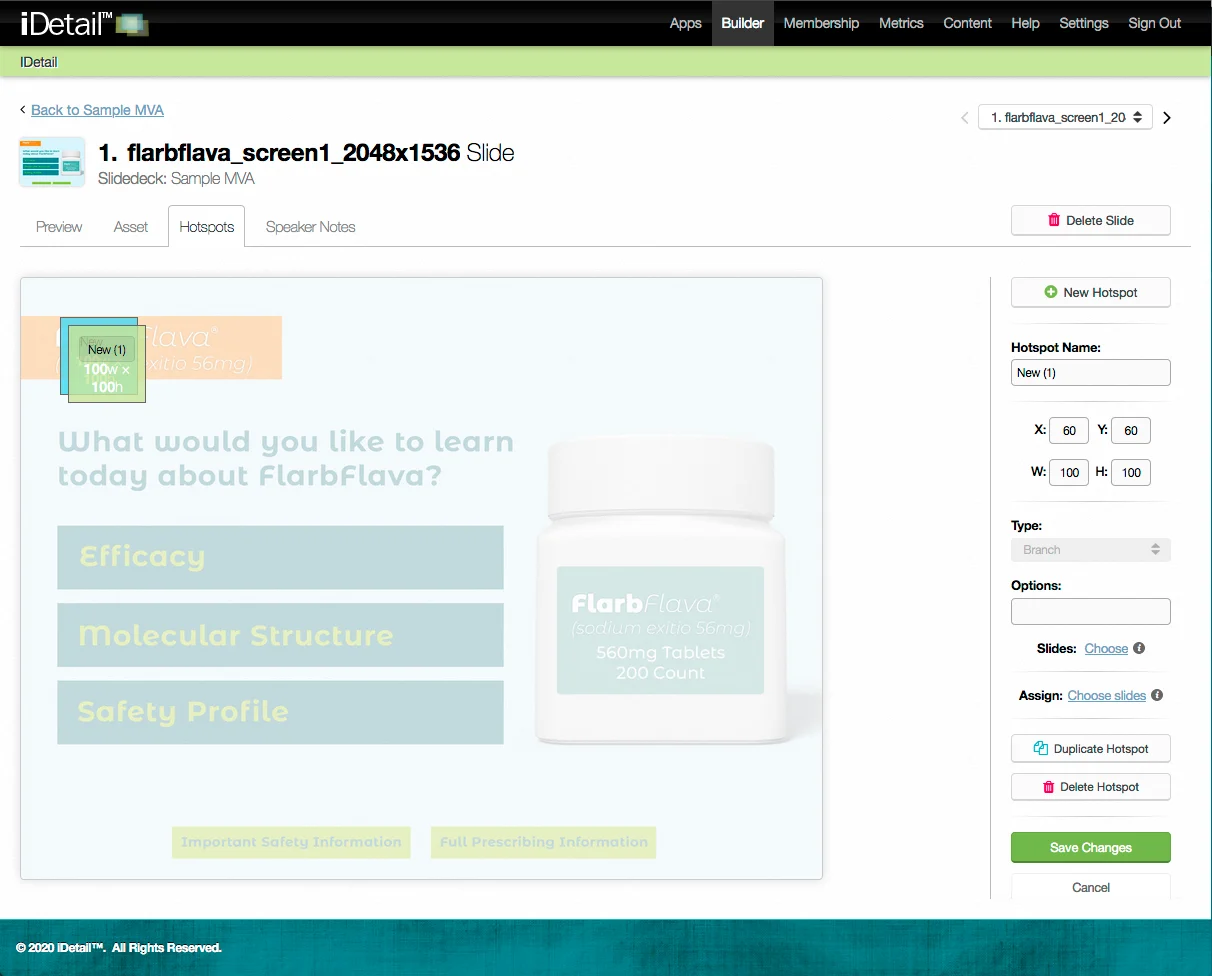
The new hotspot copy appears on top of the original hotspot, but slightly offset. You can then grab the newly copied hotspot and move it anywhere on the slide, or modify it any way you like.
Copying a hotspot to a different slide or slides
To copy a hotspot to different slides in the same slide deck, select the hotspot and then click on the “Assign: Choose slides” link in the Hotspot sidebar.
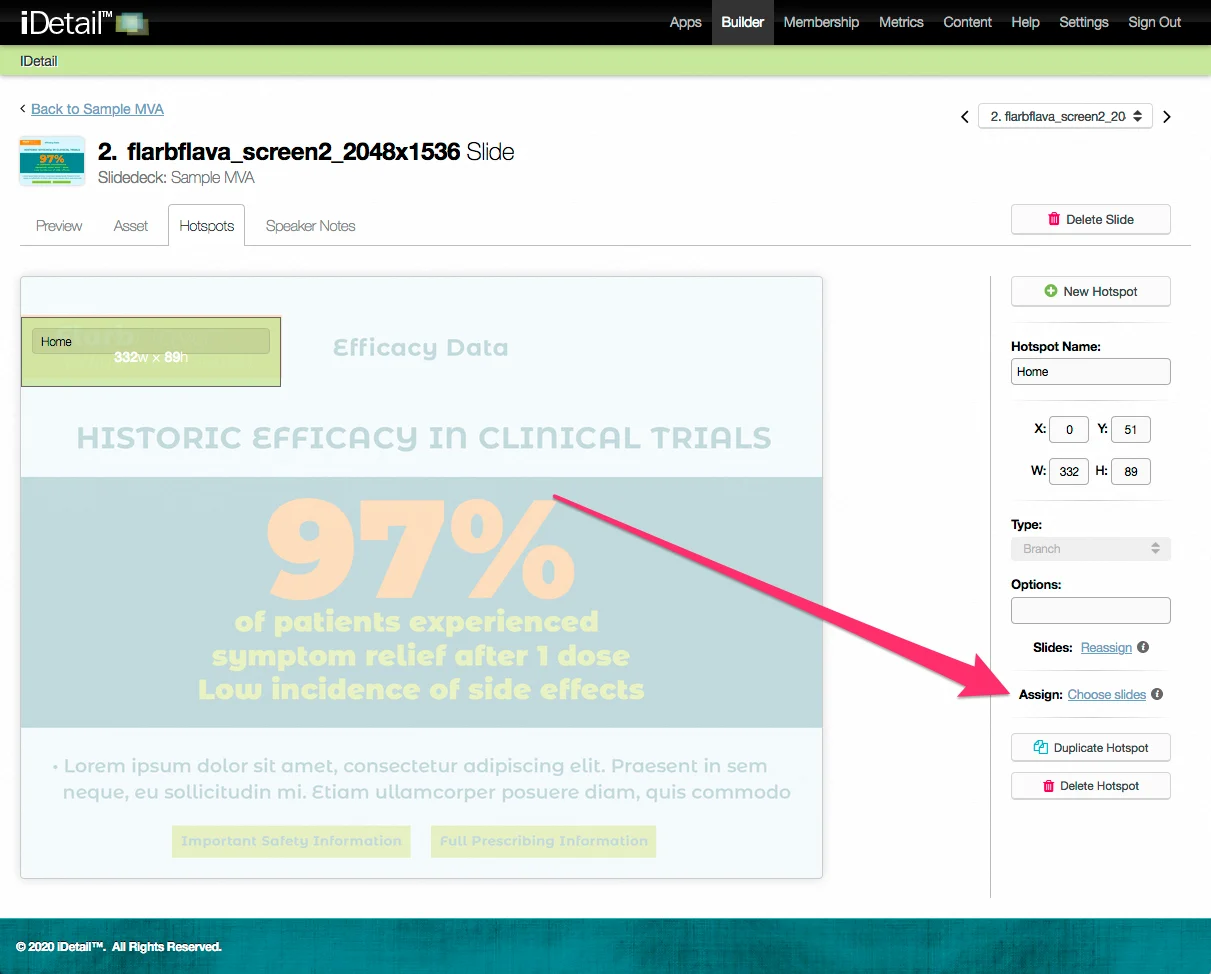
The link launches a dialog box where you can choose other slides in the slide deck where you want the hotspot to appear.
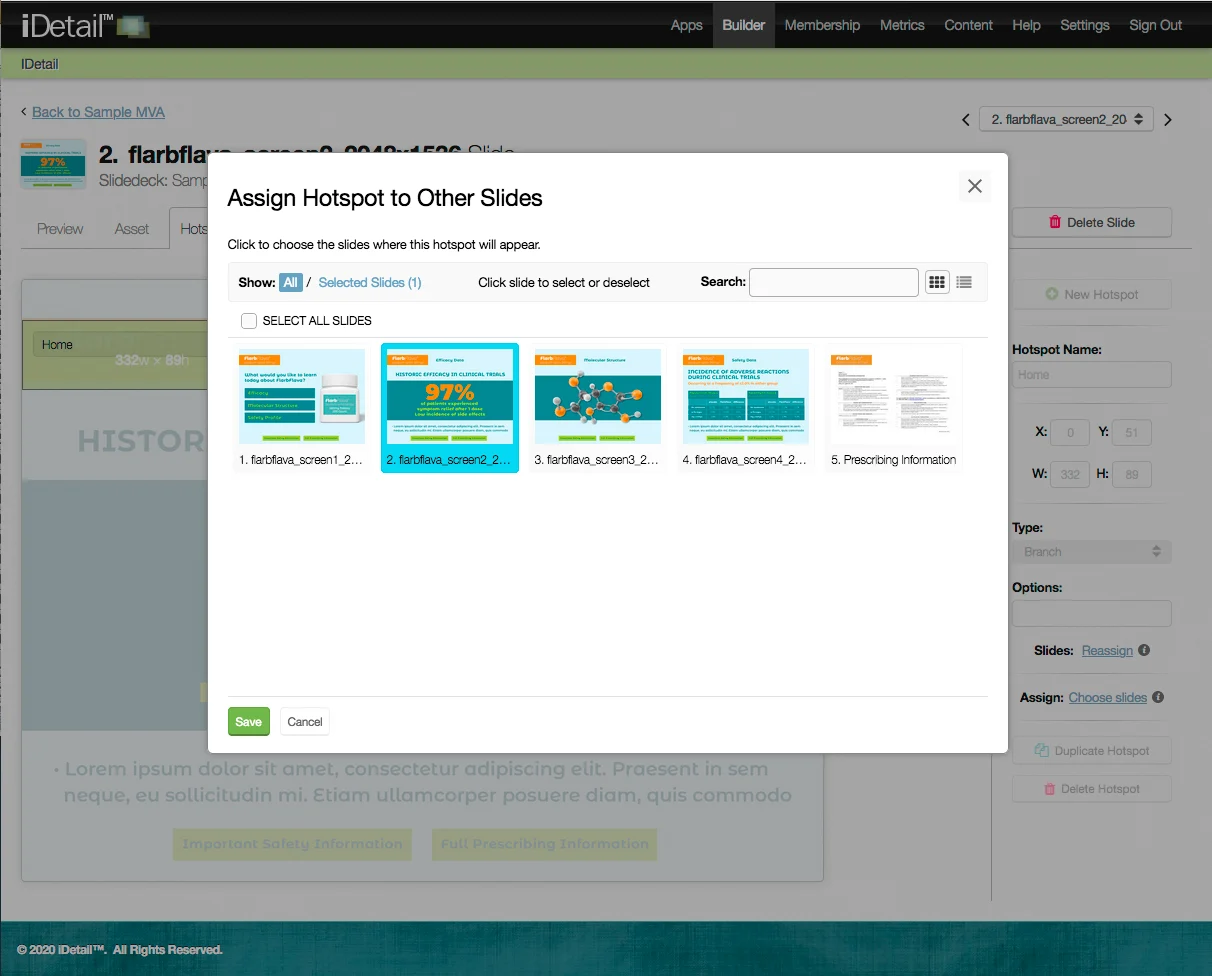
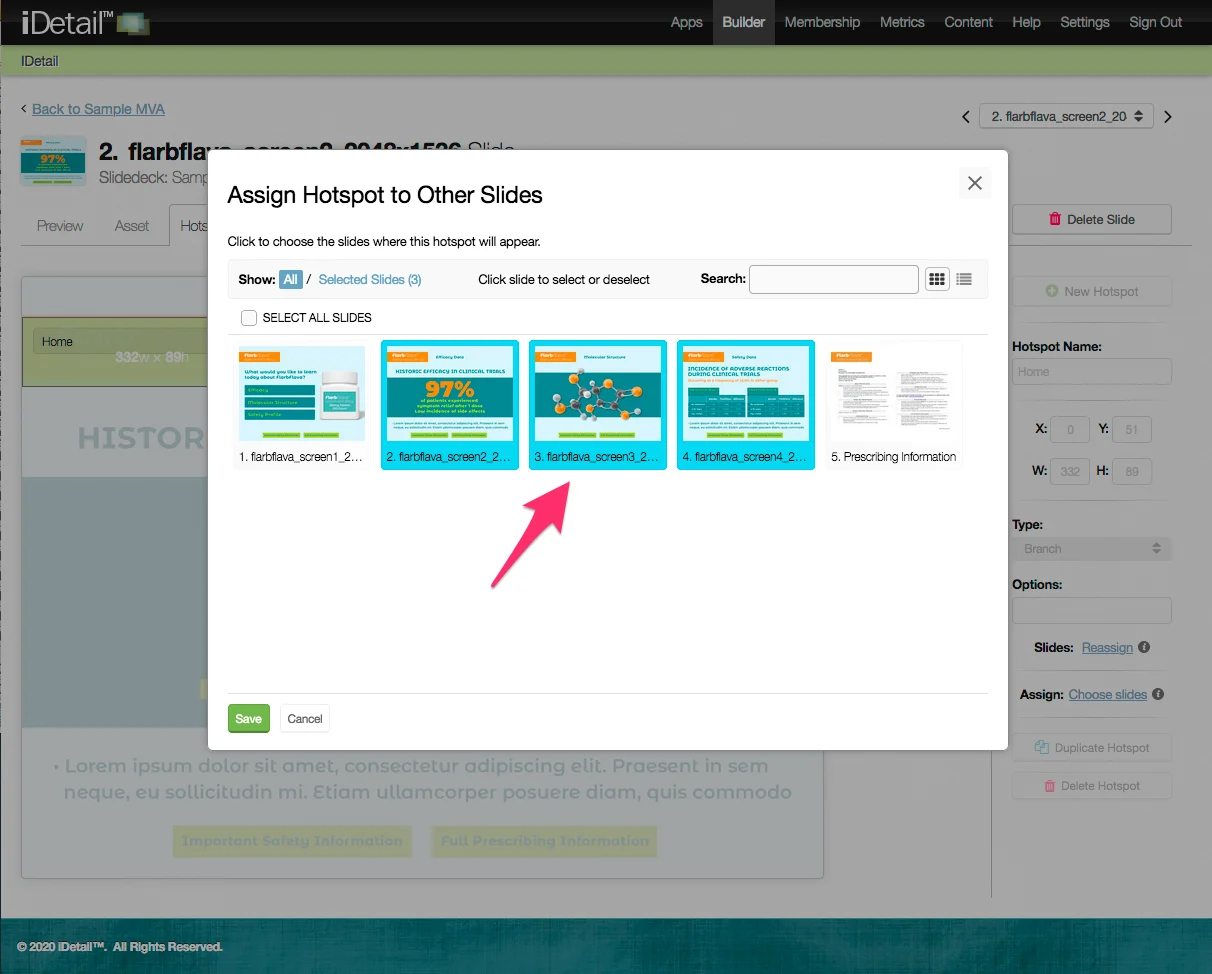
Choose other slides by clicking on the slide thumbnails appearing in the dialog box. The thumbnail background turns blue when a slide is selected. You can also deselect a slide by clicking on it again. Click Save to save your changes or cancel to discard them.
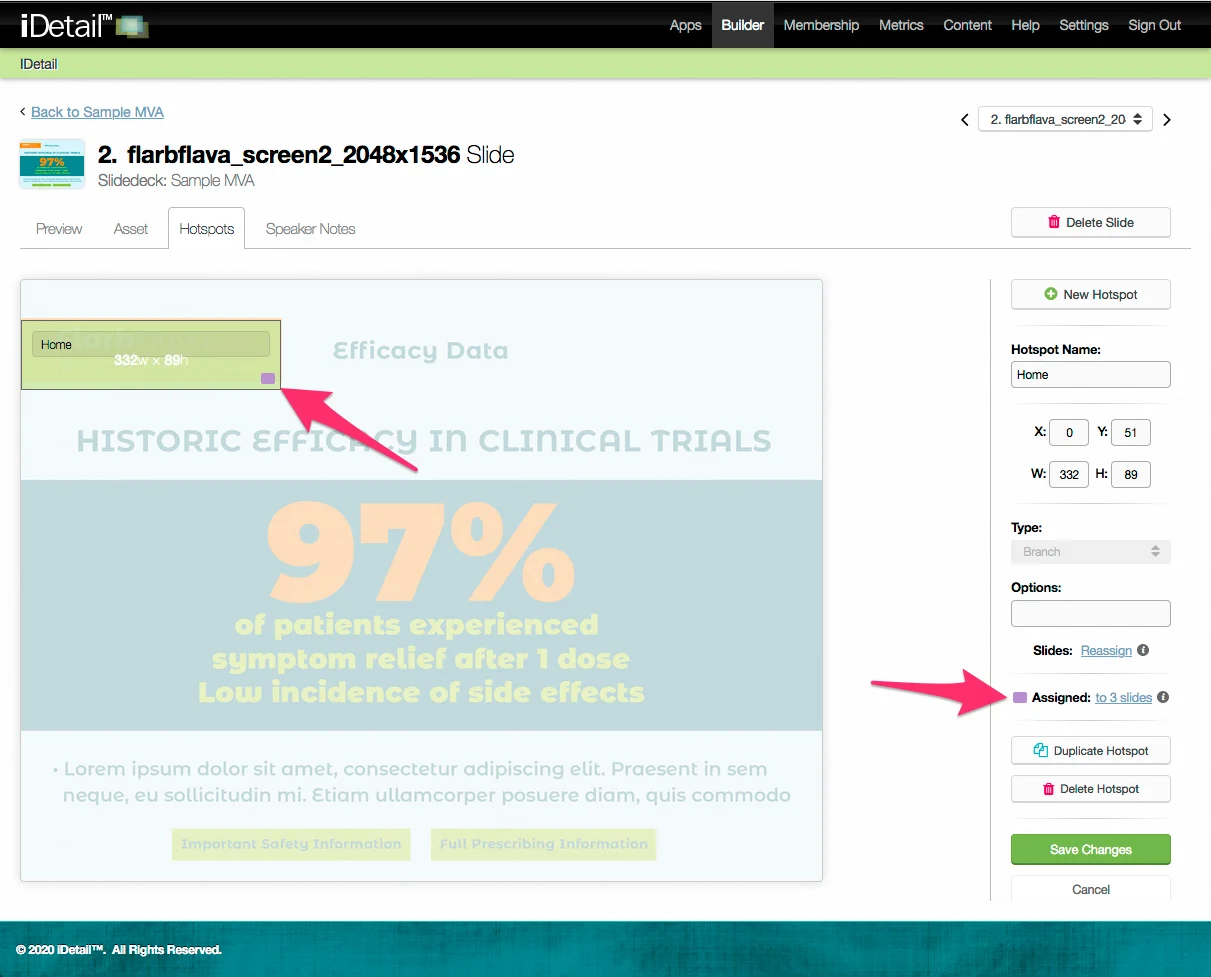
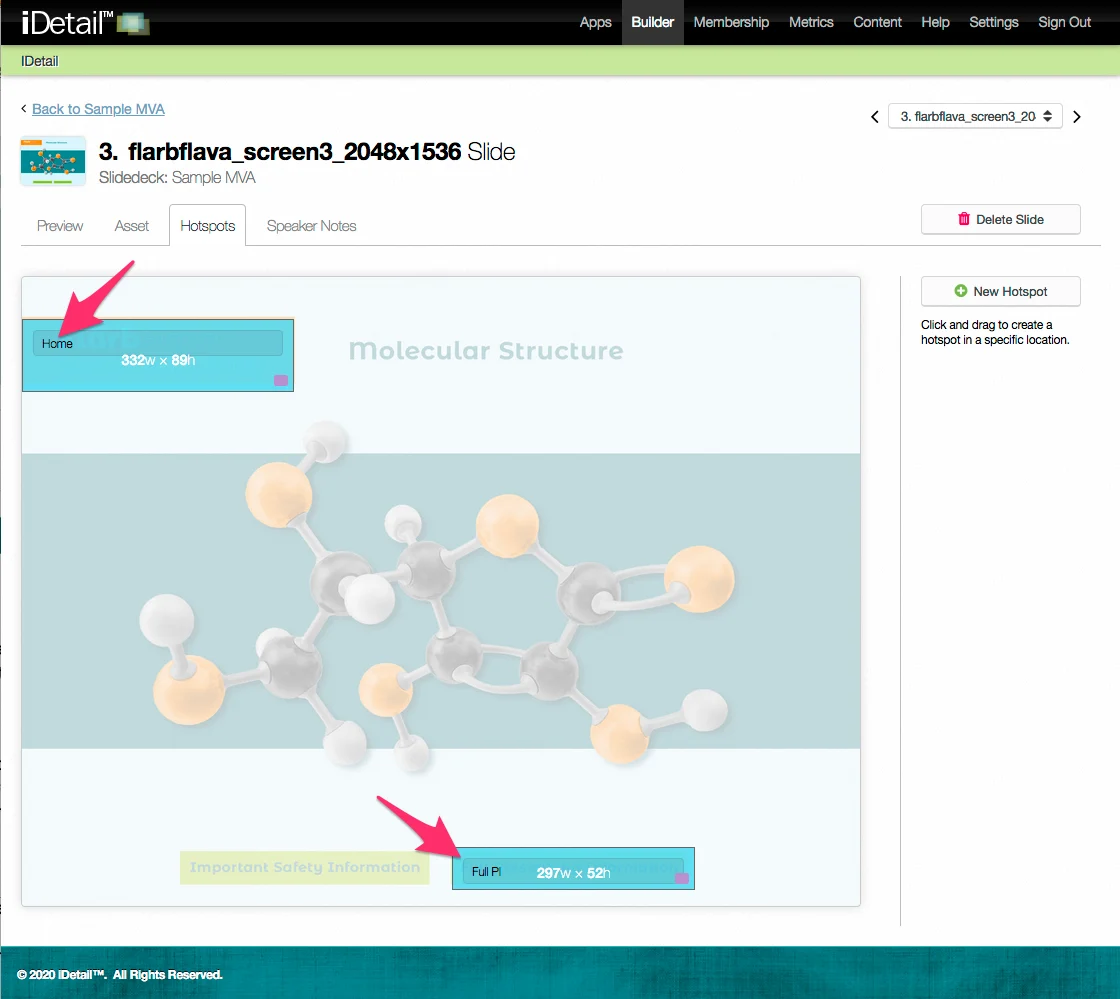
After you’ve finished choosing slides in the dialog box, the Assign link in the sidebar changes to show the number of slides you’ve chosen. A small colored icon in the lower right corner of the hotspot indicates that this hotspot appears on other slides.
You can copy a hotspot with assigned slides the same way you copy other hotspots, using ctrl-c and ctrl-v, ctrl-d, or the Duplicate Hotspot button. The hotspot will be copied on every other slide the hotspot is assigned to.
Uses for duplicated hotspots
Copying hotspots can save you time if you need to create several hotspots on a slide that use the same or similar formatting. You can modify the duplicated hotspot instead of creating a new hotspot each time from scratch.
The Assign function lets you create a Home button hotspot and copy it to many other slides in a single operation instead of having to create the Home hotspot individually on every slide. Similarly, you can create hotspot copies for any other repeating references in your presentation, for example, Prescribing Information and Important Safety Information.
Deleting hotspots
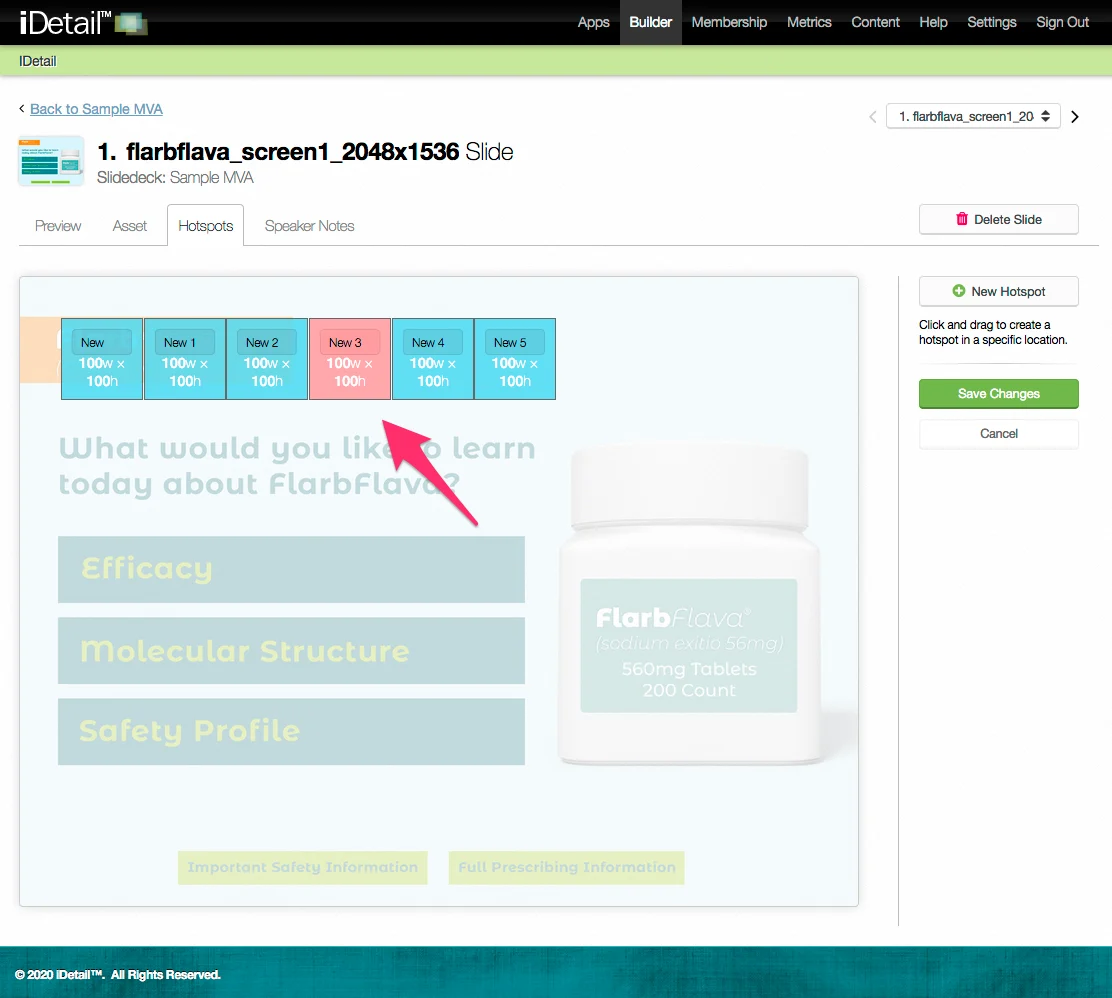
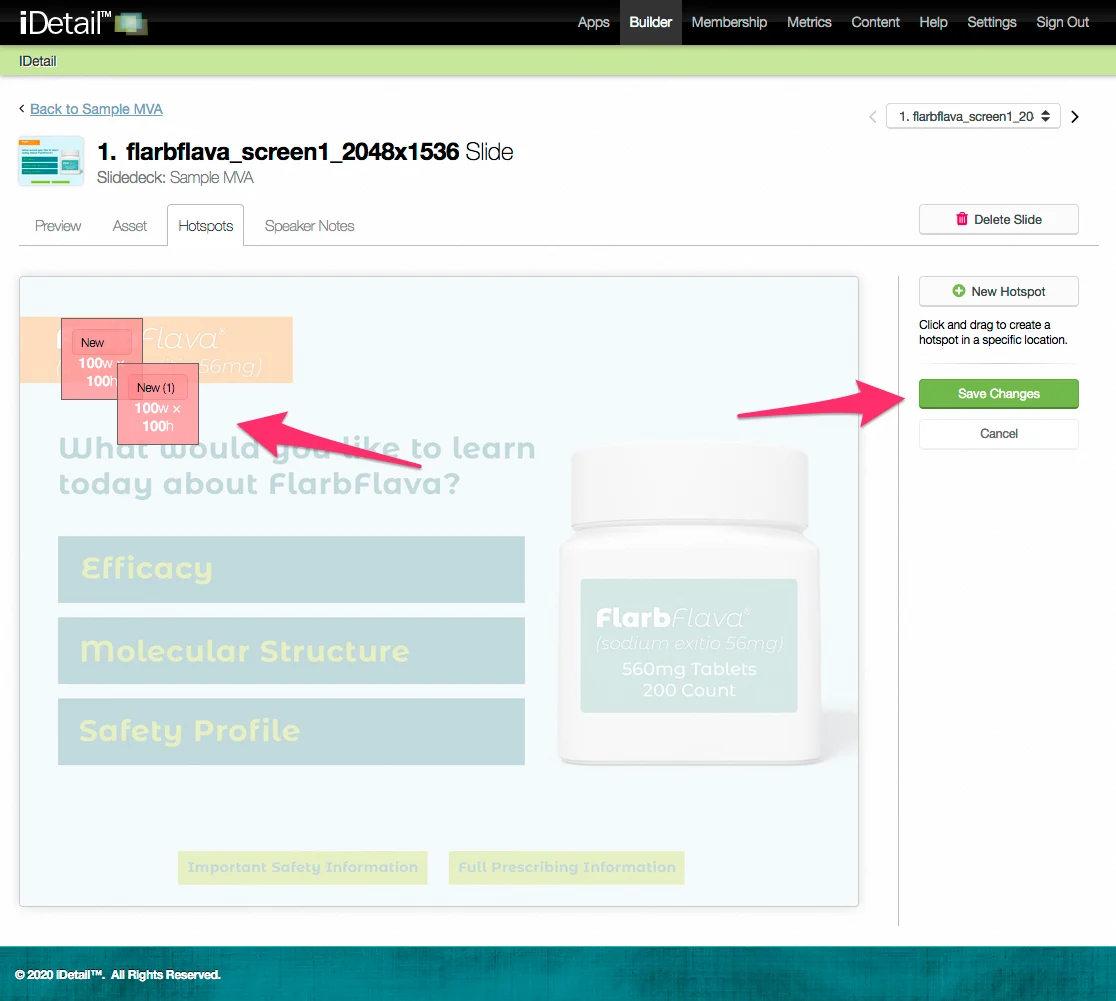
If you created the hotspot in your current session, you can delete it immediately by pressing the delete key or using the Delete Hotspot button in the sidebar. To delete previously created hotspots, use the delete key or the Delete Hotspot button and the hotspot will be marked red. The hotspot will be removed when you Save Changes.
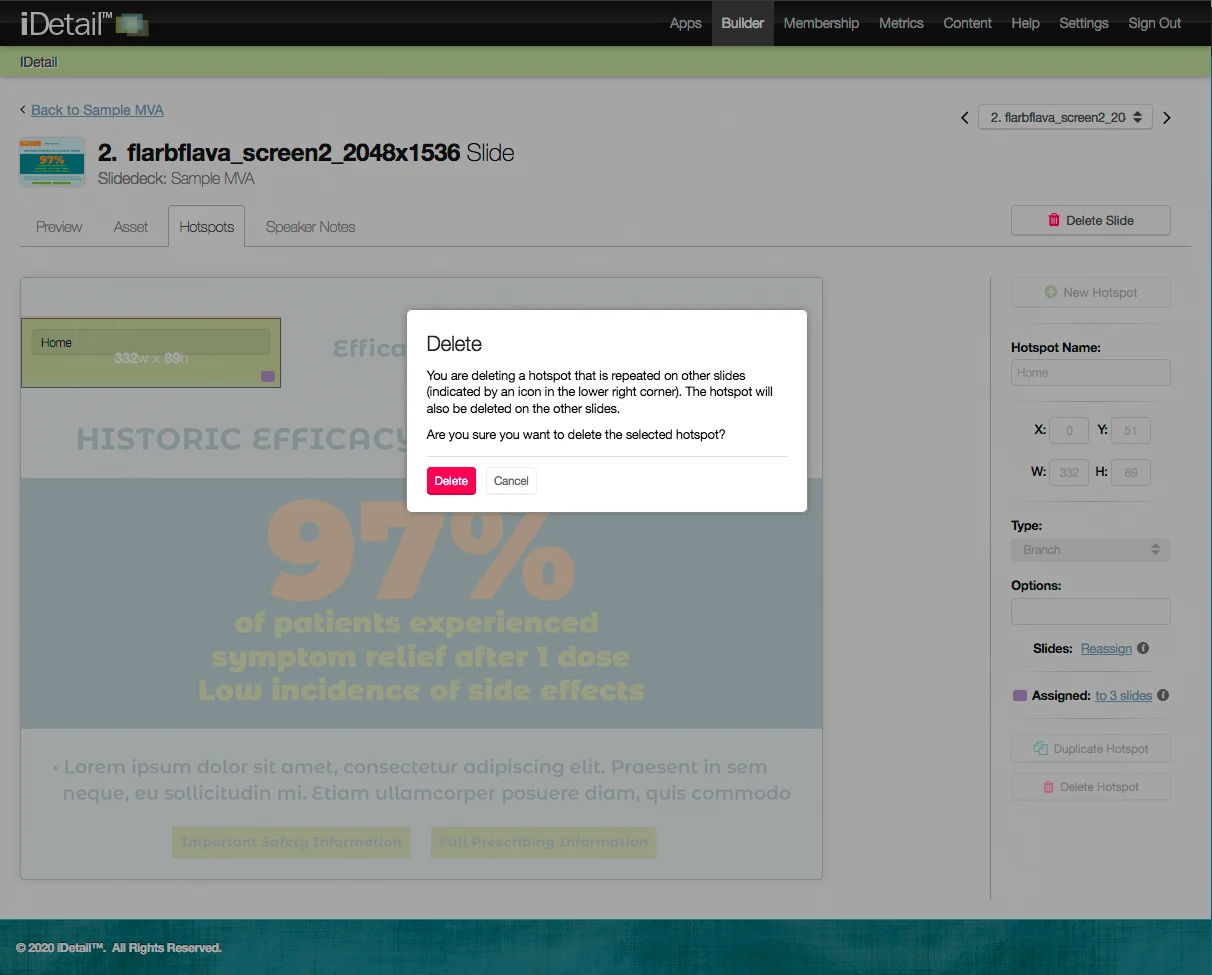
When you delete a hotspot that is also assigned to other slides, you will receive a message warning that this hotspot has copies on other slides that will also be deleted once you Save Changes.
Hotspot numbering
Hotspot copies have the same default name as the original hotspot, but with a number in parentheses indicating which copy it is. A copy of hotspot New 10 becomes New 10 (1). If you make more than one copy of the original hotspot, the copies will appear as, for example, New 10 (1), New 10 (2), New 10 (3), etc.
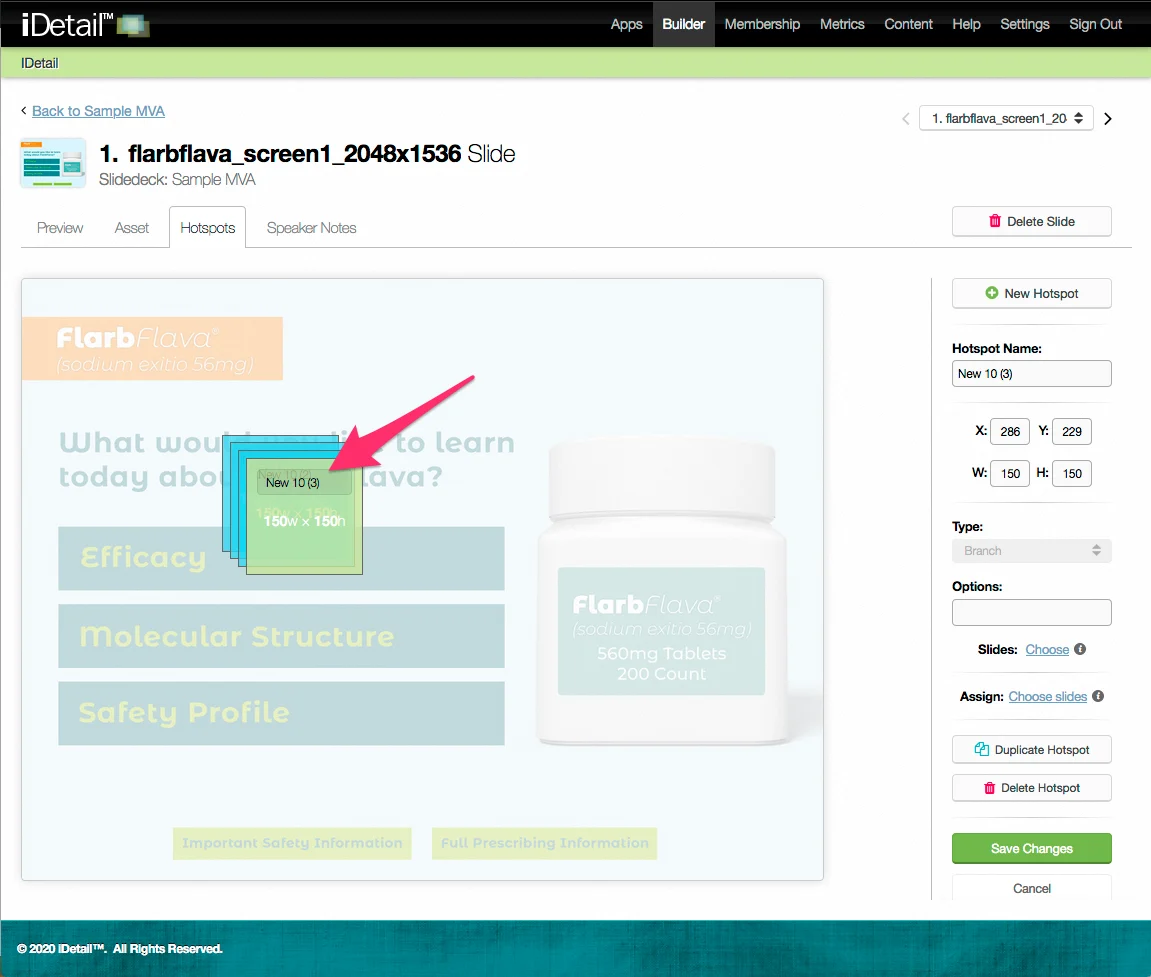
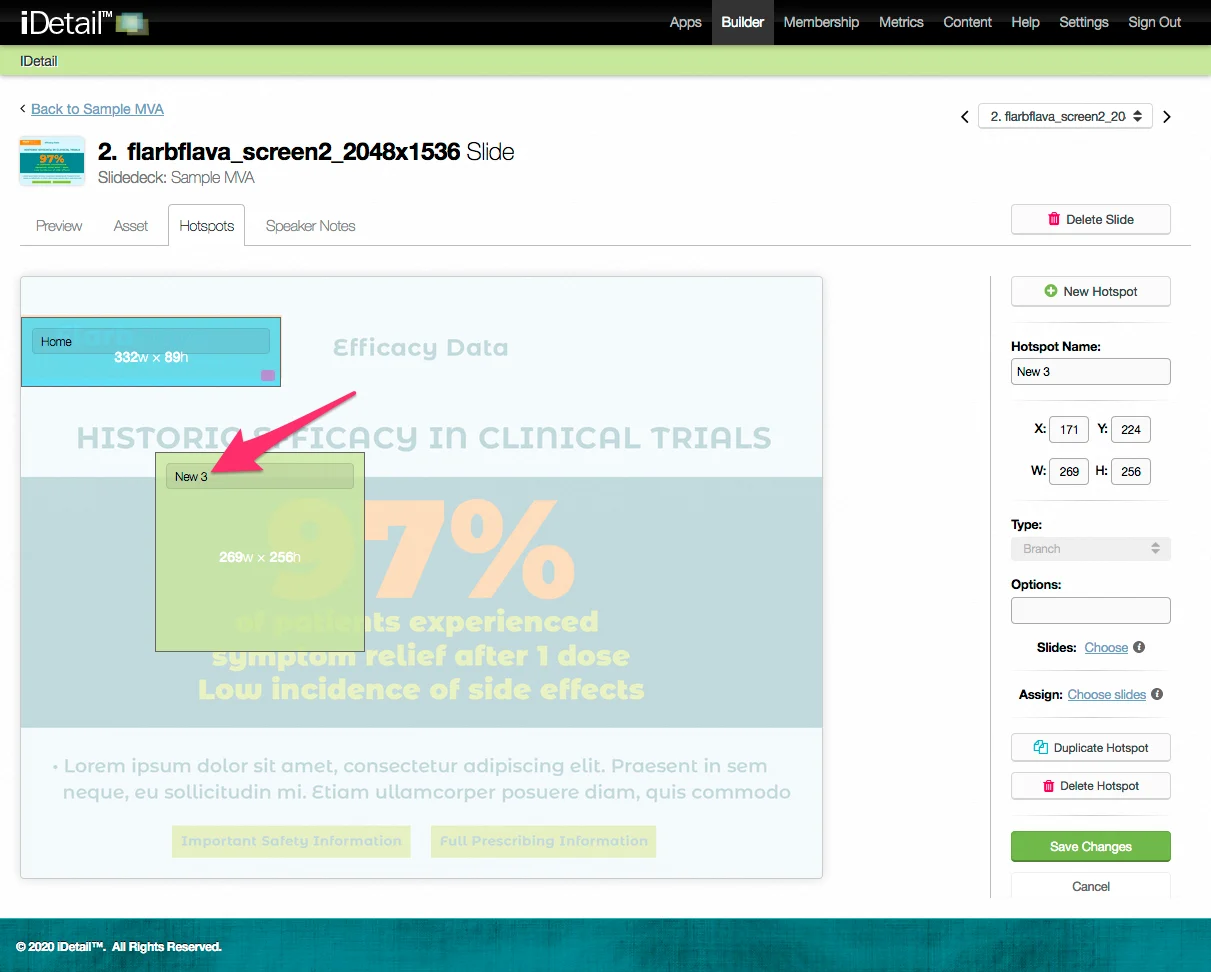
Hotspots numbers get reused throughout the slide deck. For example, suppose you create five hotspots on Slide 1, then delete the hotspot New 3. If you go to a different slide and create a new hotspot, its name will be New 3, not New 6. Also, if you rename a hotspot, its original number will be recycled.