
Hotspots are interactive areas you can add to a slide in an iDetail slide deck. They give you enhanced functionality when they are tapped when presenting from the iDetail App on the iPad.
You can add an embedded video to a hotspot on a slide in a slide deck. An embedded video is immediately visible on a slide (whereas a fullscreen video launches on top of the slide after the hotspot is tapped). How the embedded video behaves depends upon the settings you choose (see Embedded video hotspot settings, below).
If the embedded video hotspot is using a .MOV file with an HEVC video codec, which supports Alpha Channel transparency layers for video, the iDetail iOS App will detect it and play the file with transparency enabled.
Add an embedded video to a hotspot
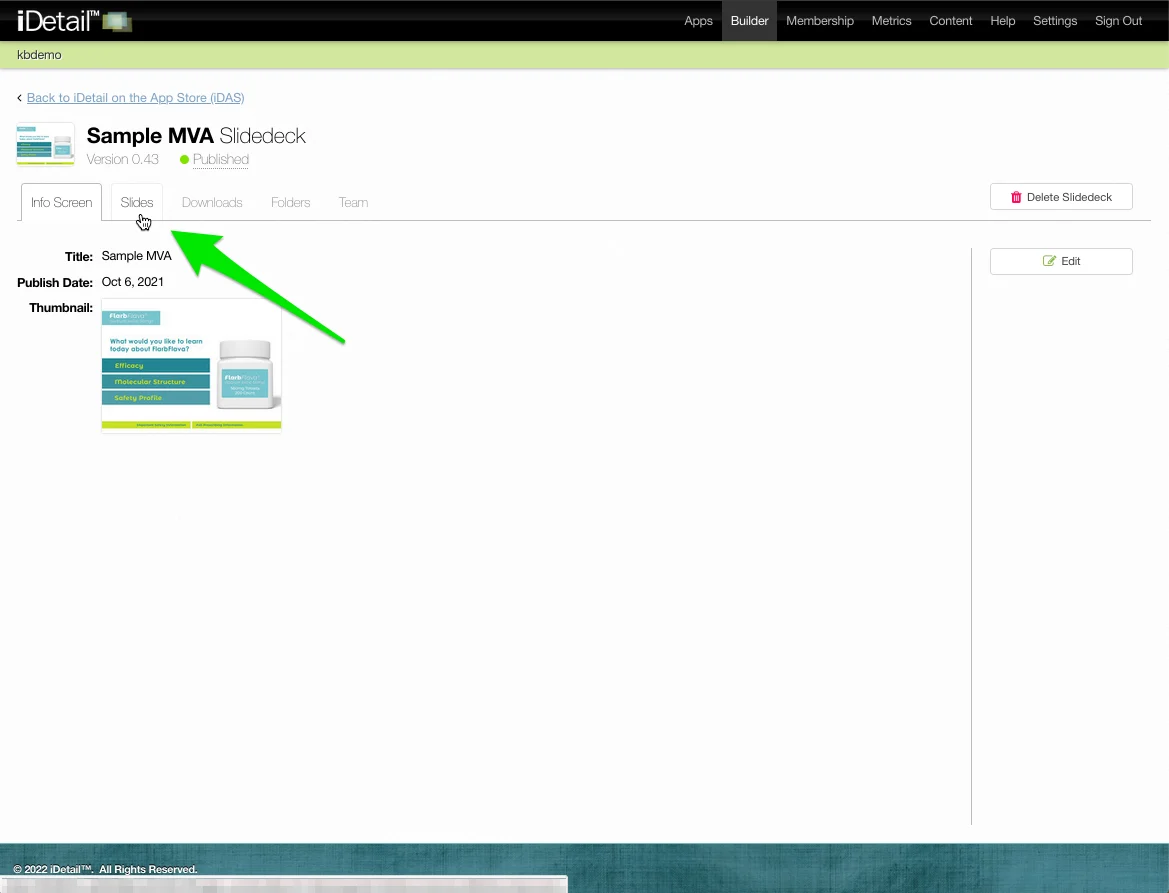
Select the slide deck you want to modify from the main grid view, then choose the Slides tab
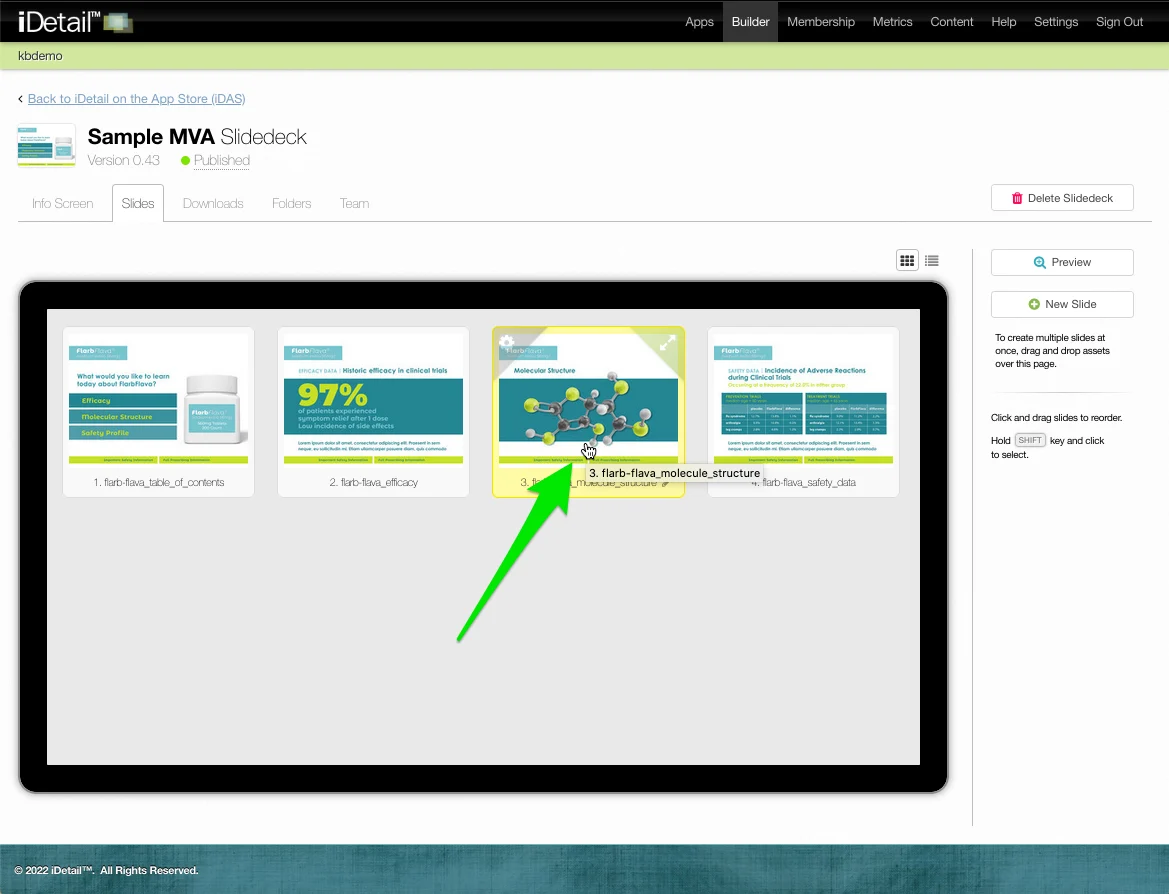
Choose the slide where you want to add a hotspot and click its thumbnail
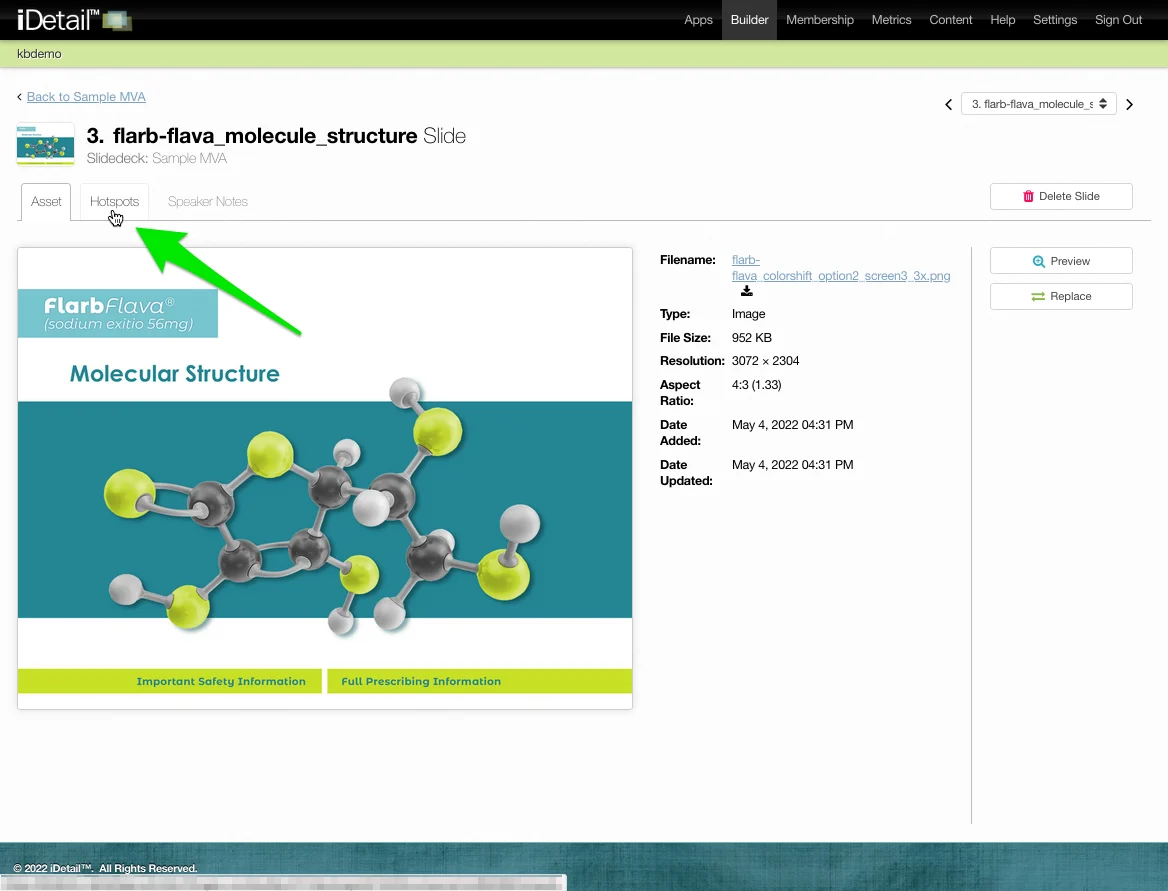
Choose the Hotspots tab
Select an area for the hotspot by dragging and dropping the mouse cursor
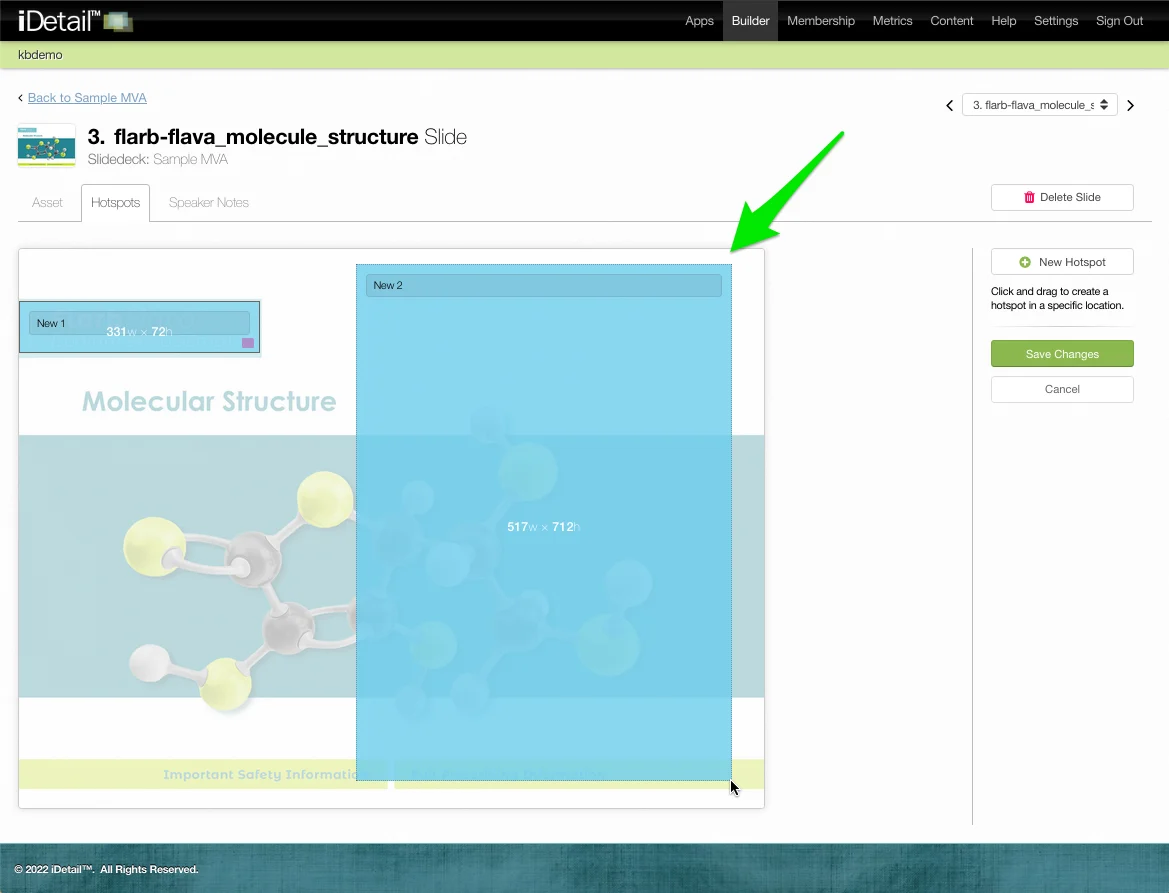
In the hotspot sidebar, click the Type dropdown menu
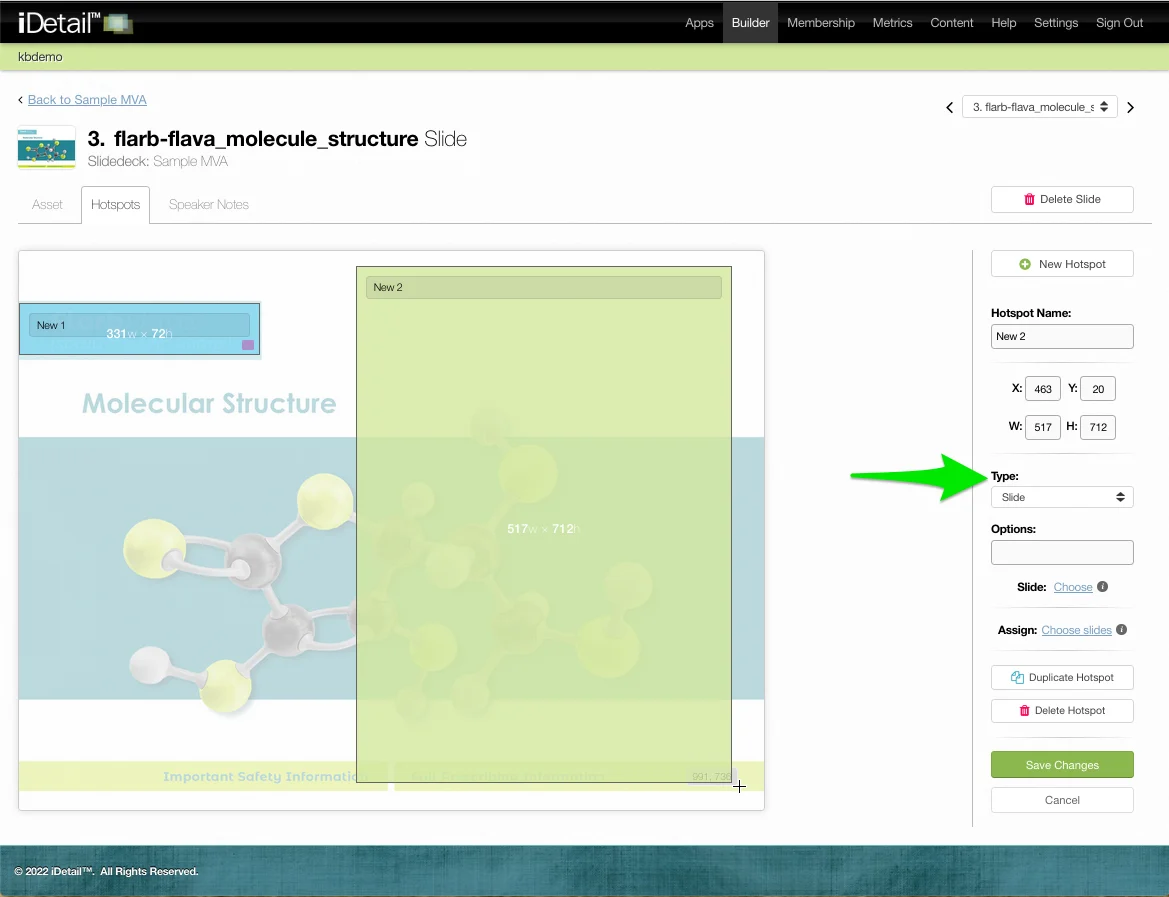
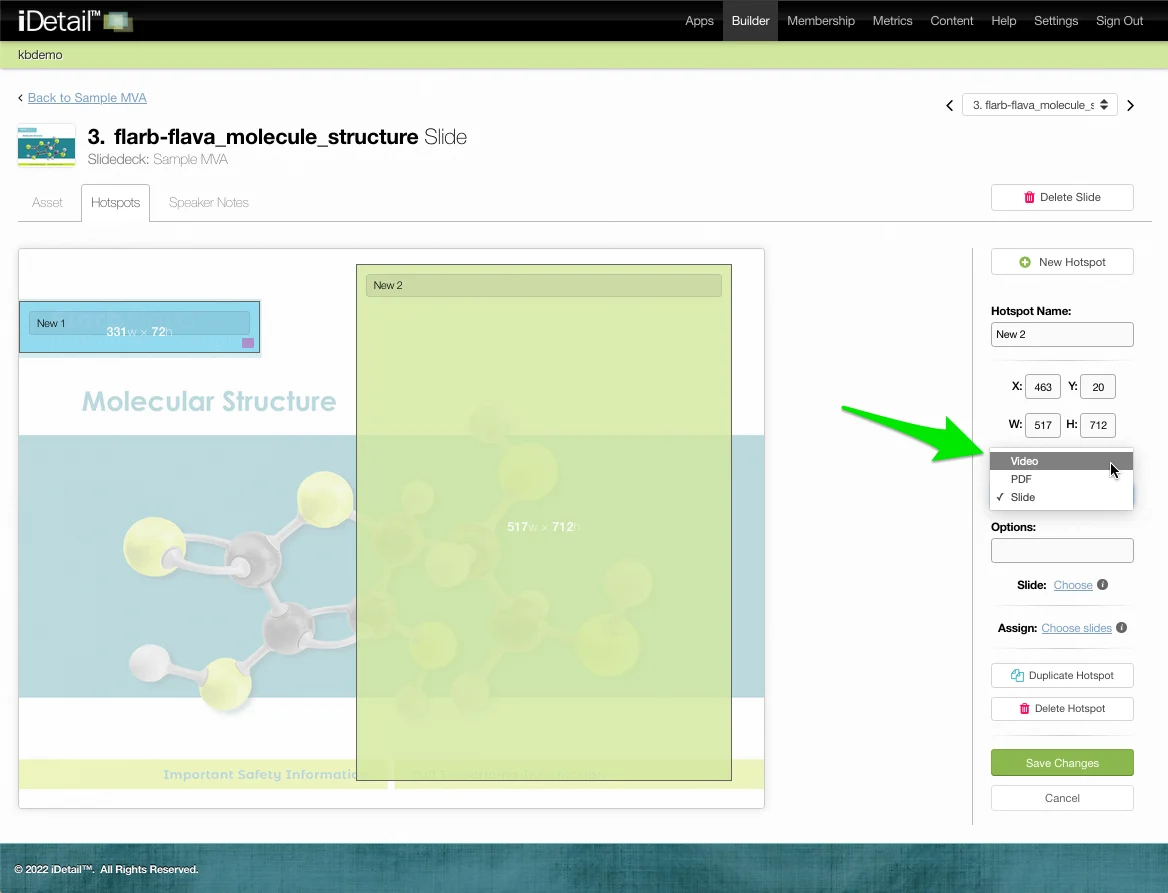
Choose Video as the hotspot type
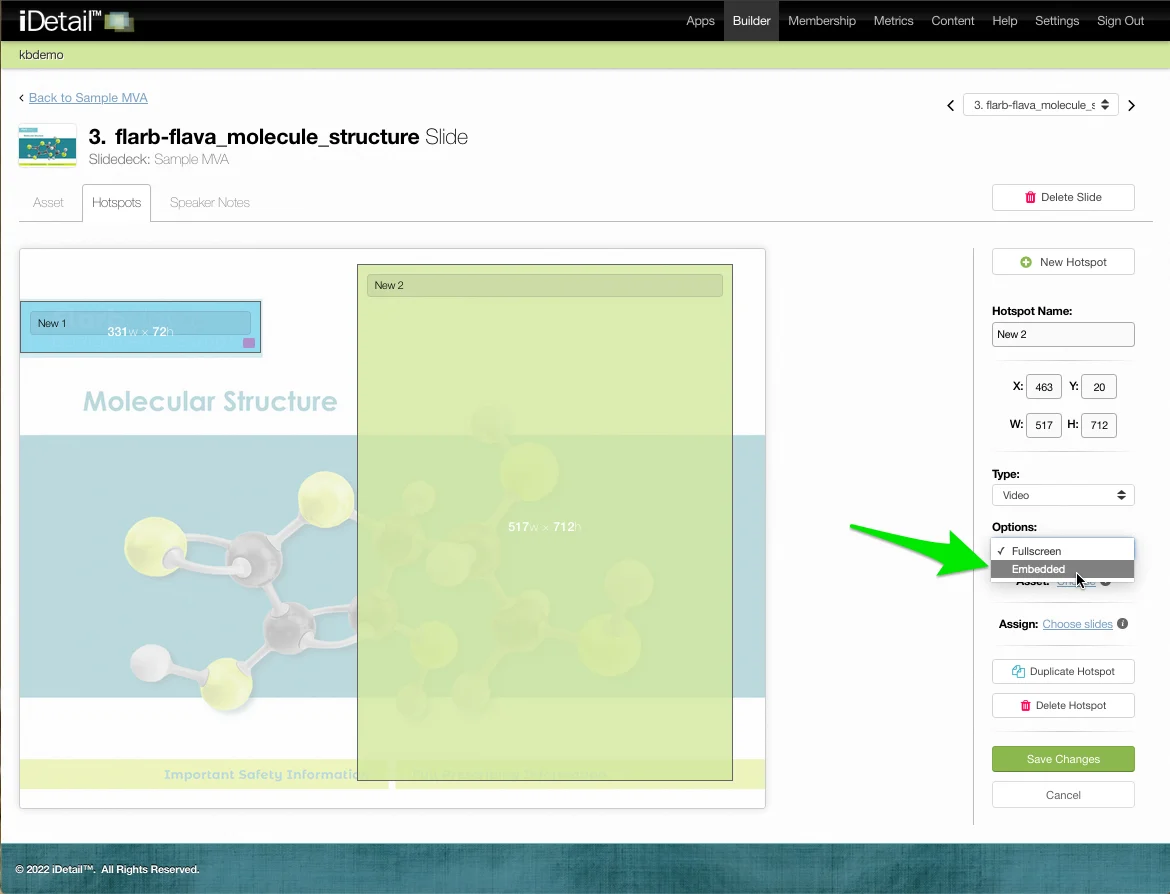
Click the Options dropdown menu and choose Embedded
Click on the File: Choose link
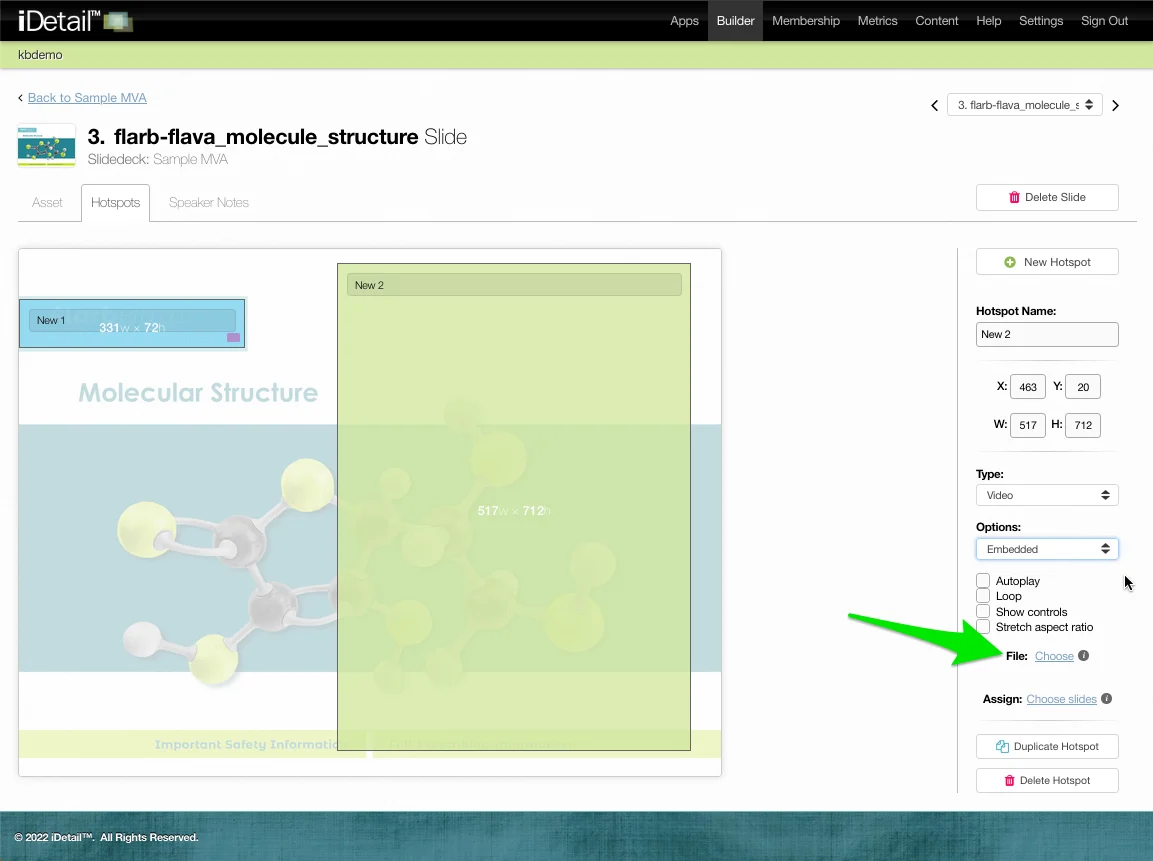
A dialog box appears with videos available to your organization
Click a thumbnail image to choose a video. The selection turns blue.
Click Save to save your selection
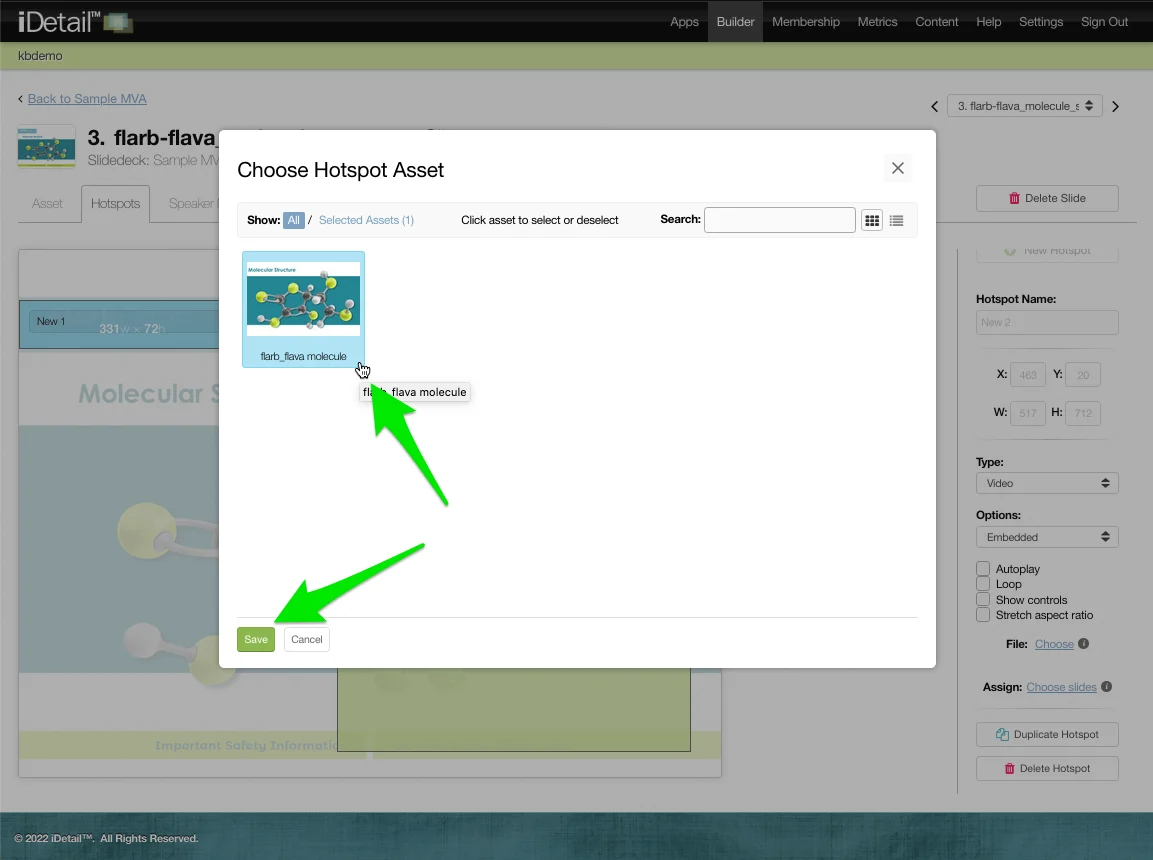
The hotspot will resize itself if necessary to preserve the aspect ratio of the video so that the video will display without black bars around its edges.
You can move or adjust the size of the hotspot after you have selected an embedded video, and the aspect ratio will be preserved, using these rules:
When the width of an embedded video is greater than its height, the hotspot width will remain the same and the hotspot height will be reduced from the bottom.
When the height of an embedded video is greater than its width, the hotspot height will remain the same and the hotspot width will be reduced from the right side.
Embedded video hotspot settings
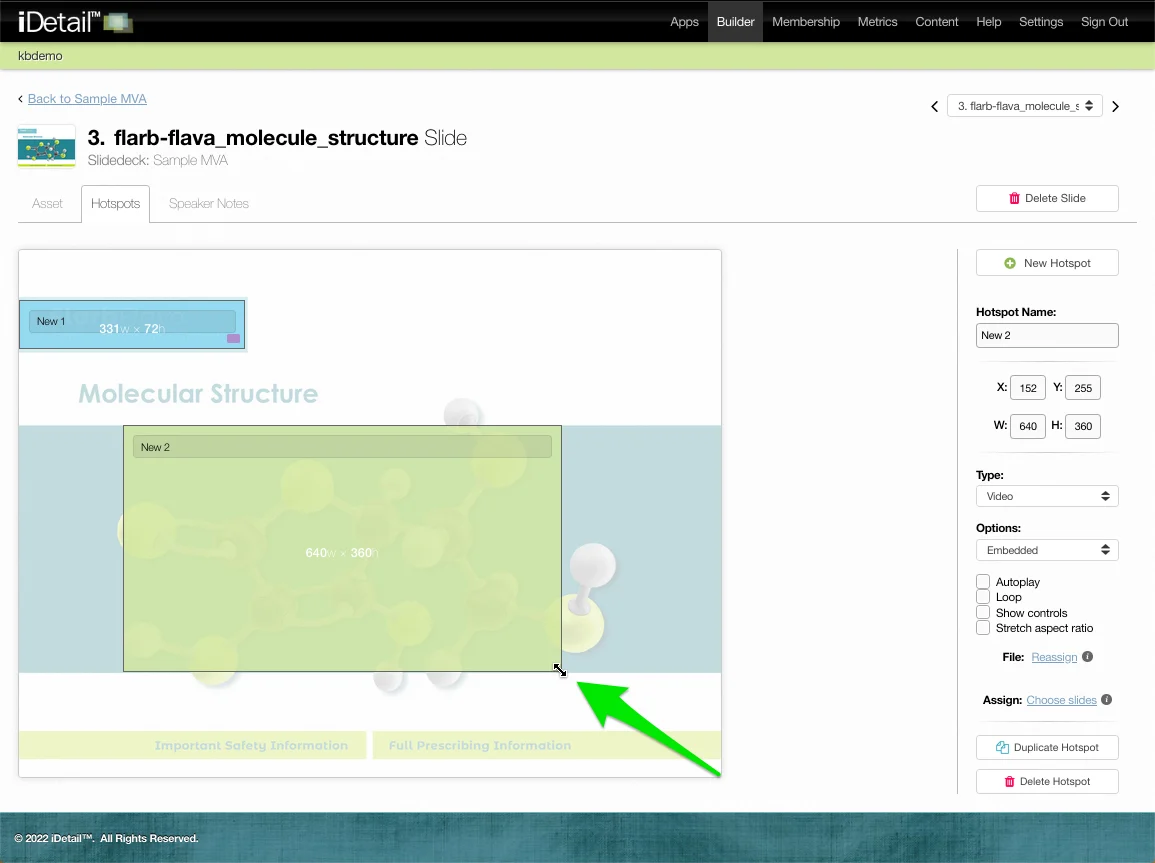
When you choose Embedded as the video Option, these additional settings appear:
Autoplay
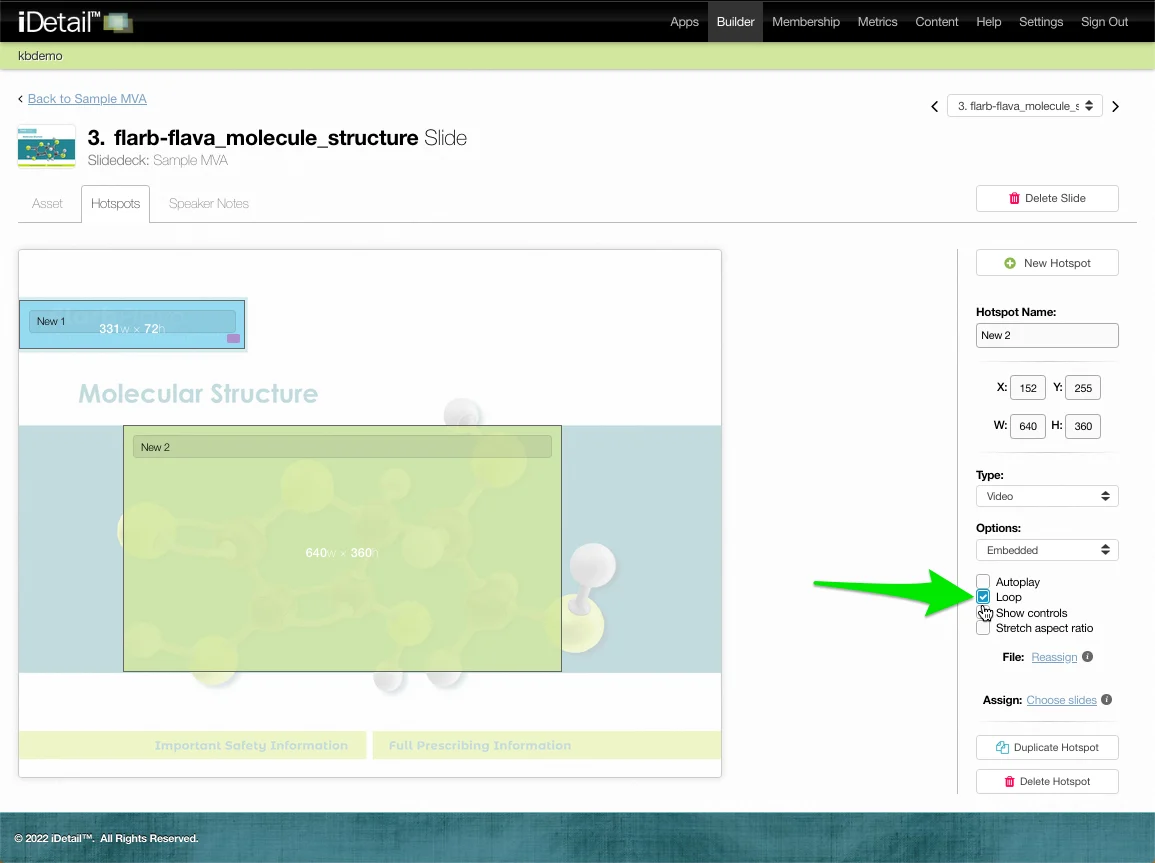
Loop
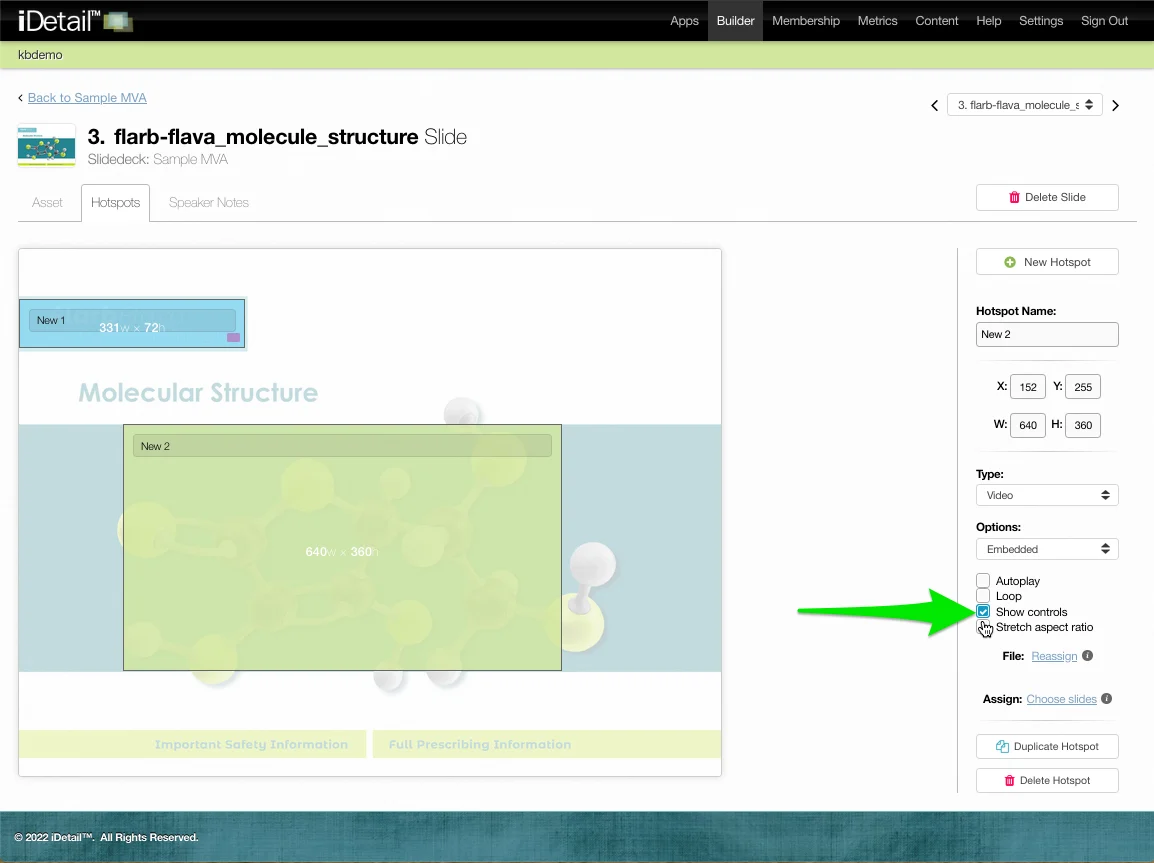
Show controls
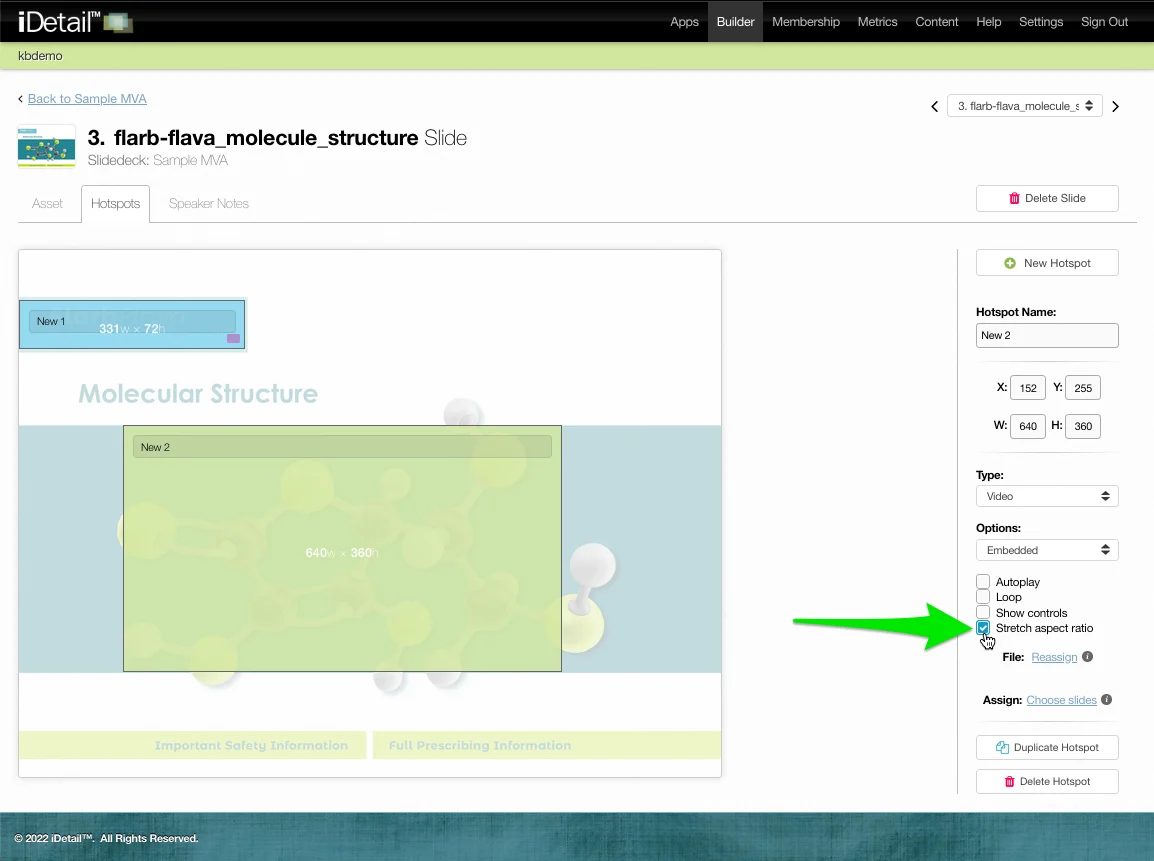
Stretch aspect ratio
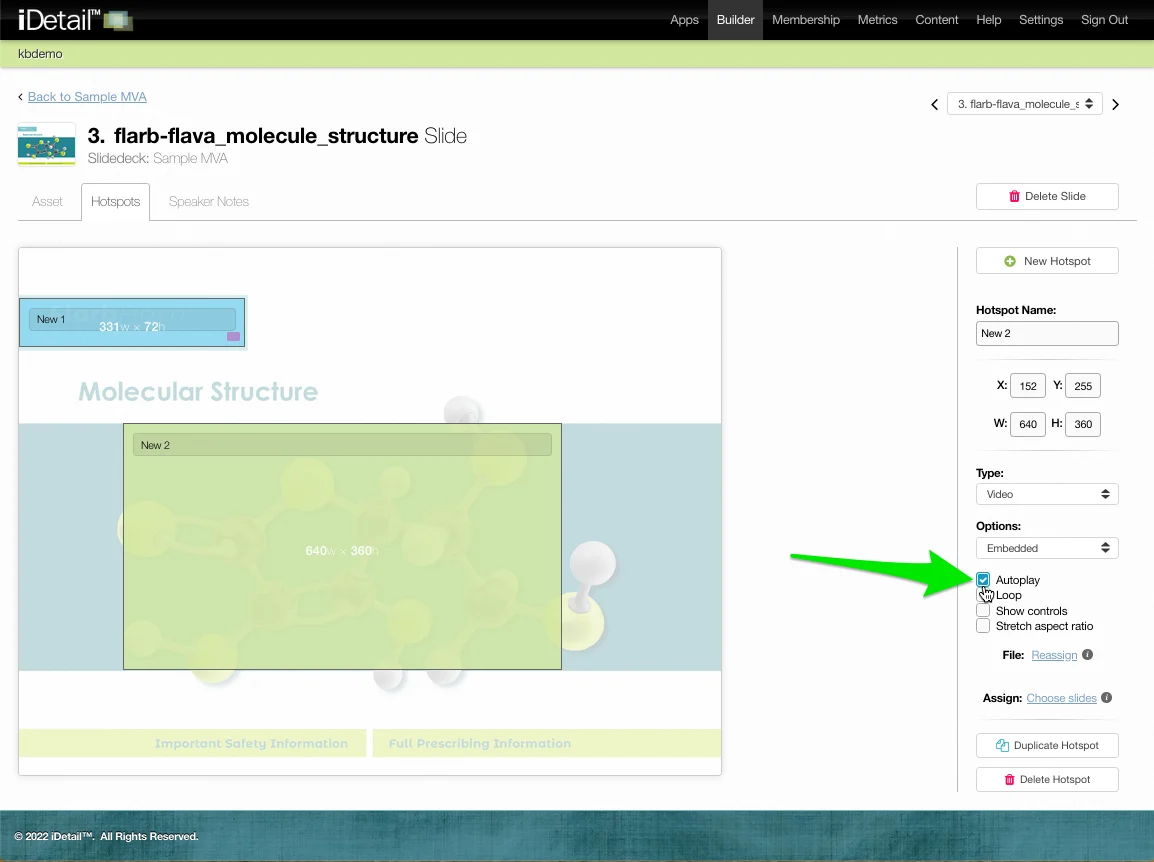
Autoplay
Choose Autoplay and the embedded video will play immediately after the user swipes to the slide, or it will play immediately after the slide deck is opened if the embedded video is on the first slide.
Loops
Choose Loop and the embedded video will restart each time after it finishes playing.
Show controls
Choose Show controls and the embedded video will display a standard video control menu at the bottom of the video. The control menu fades from view after a few seconds while the video is playing, but it reappears whenever the user taps on the video.
Stretch aspect ratio
Choose Stretch aspect ratio and the video will be stretched to fill the hotspot area when you change the width or height after selecting this feature.