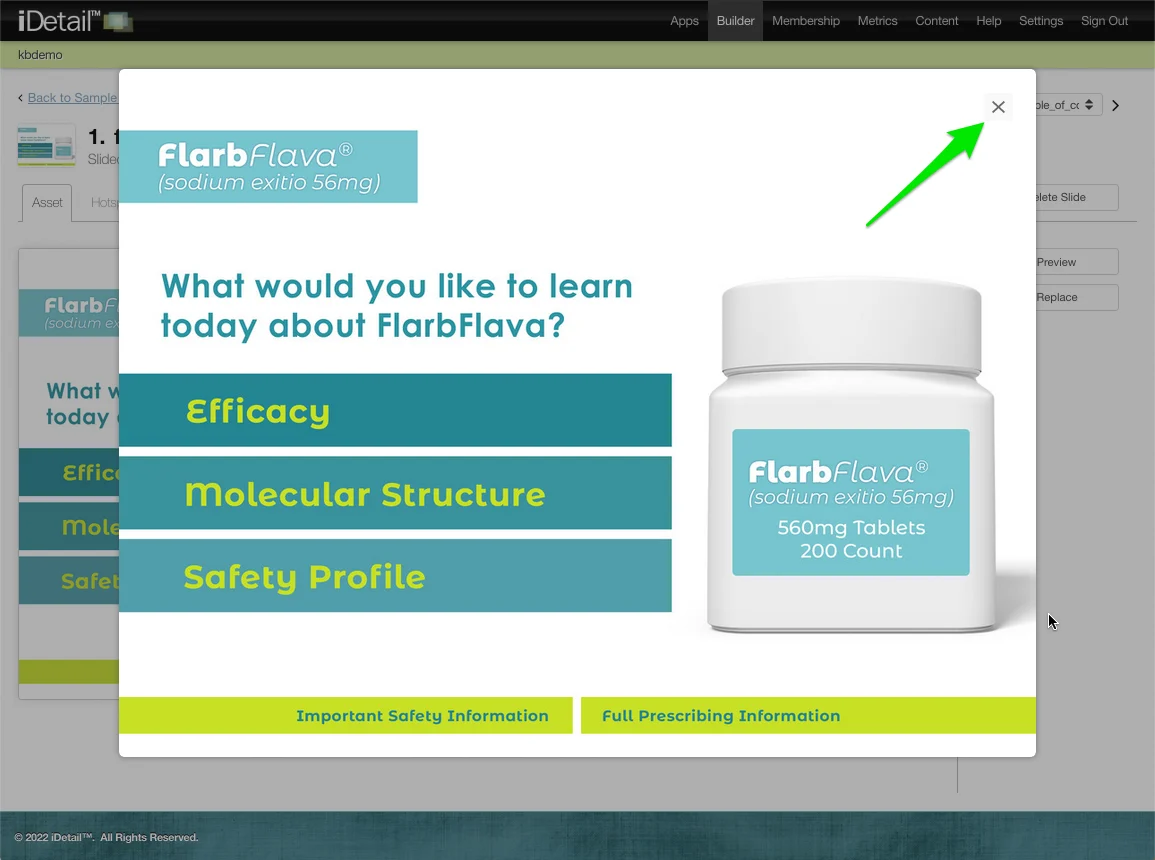

All content items in Builder (except slide decks) have a Resource tab with file specifications. For slide decks, each slide has its own Asset tab with file specifications.
How to find the Resource tab
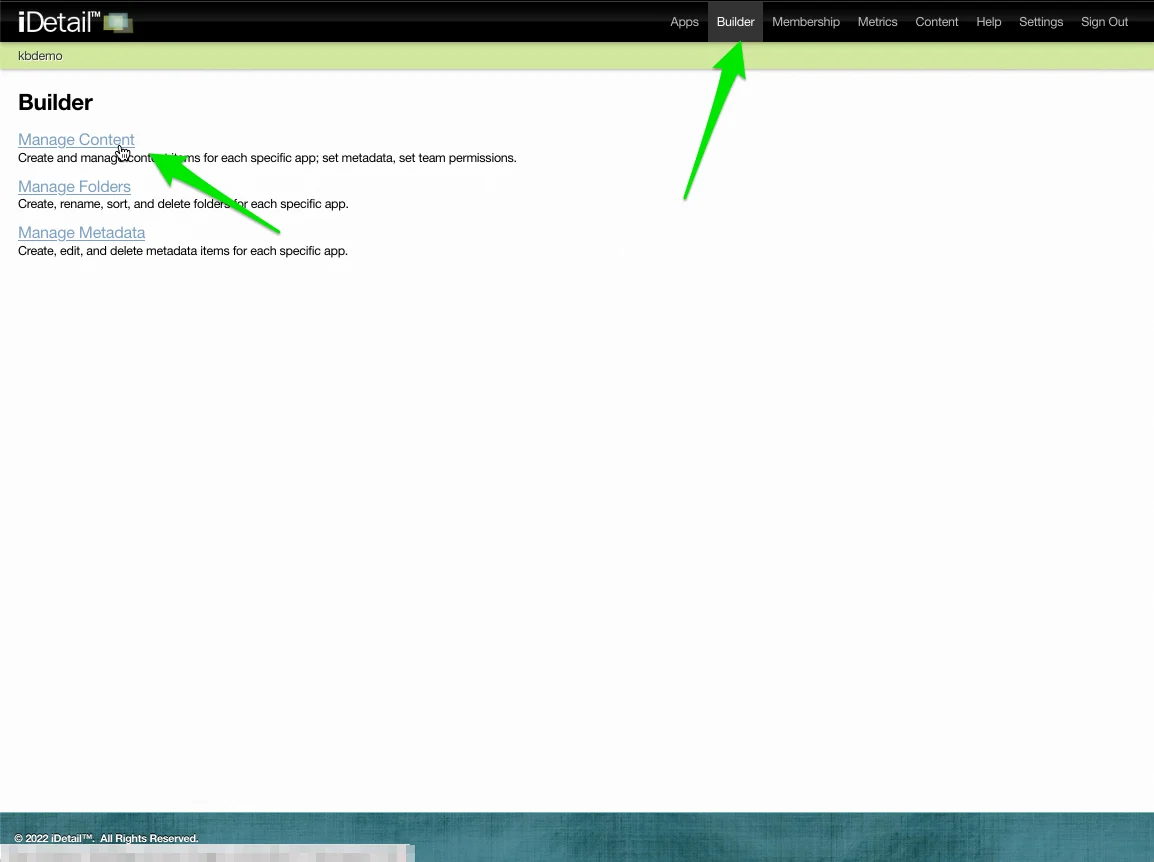
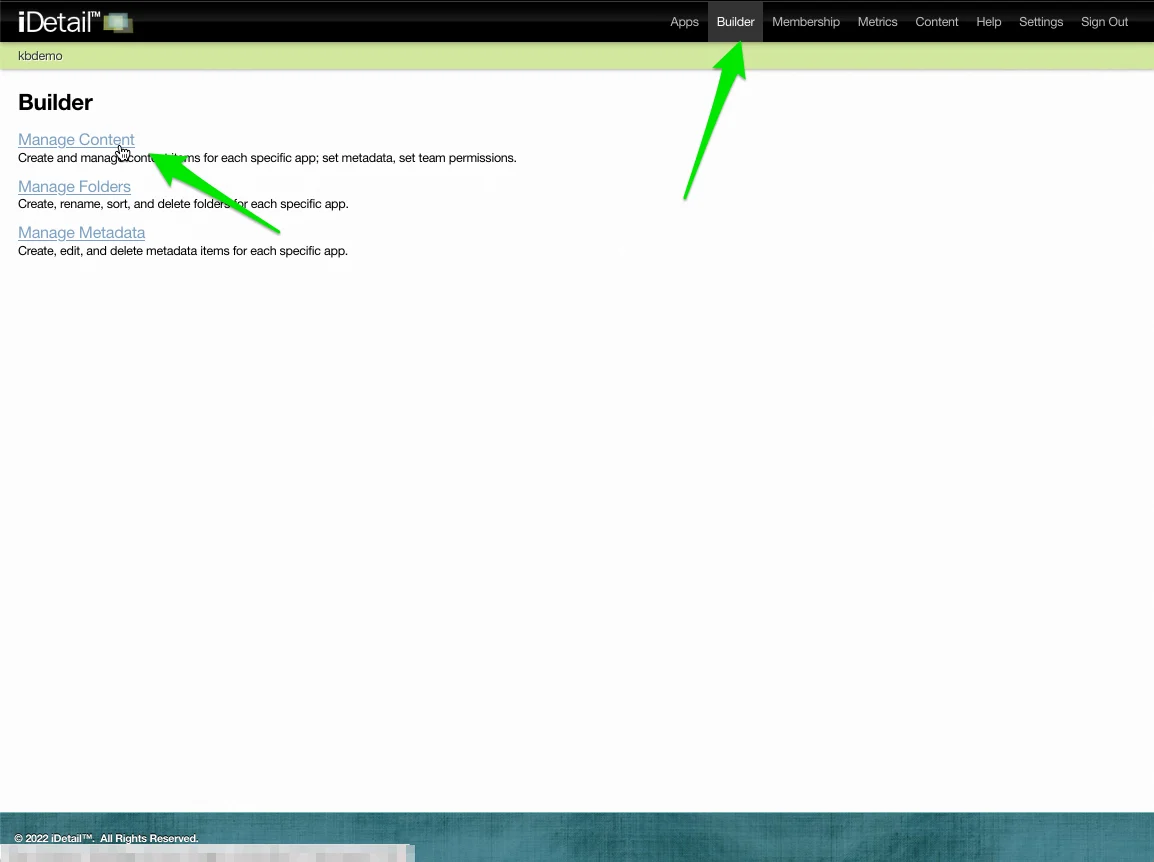
Click Builder in the main navigation menu then click the Manage Content link
Choose a content item thumbnail from the Grid View (or click the item filename if you are using the Search for Items View) that is not a Slidedeck
Grid View: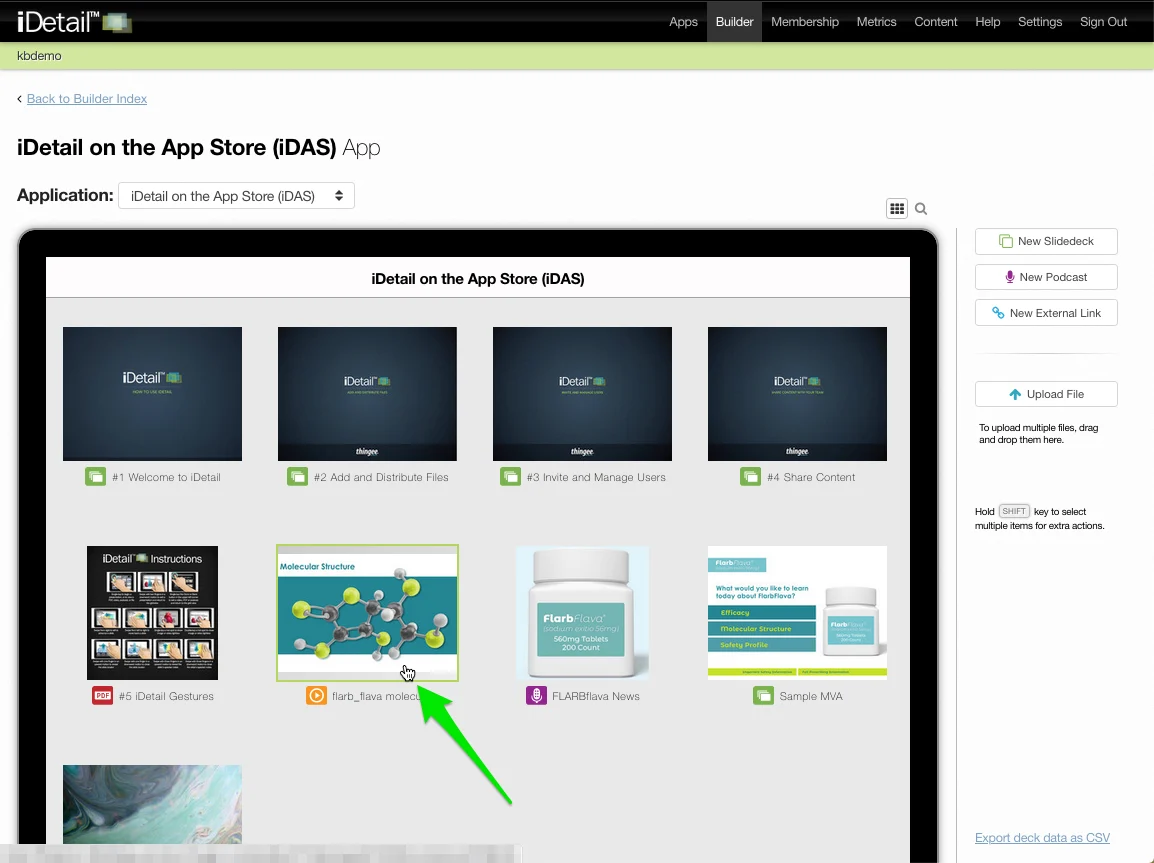
Search for Items View: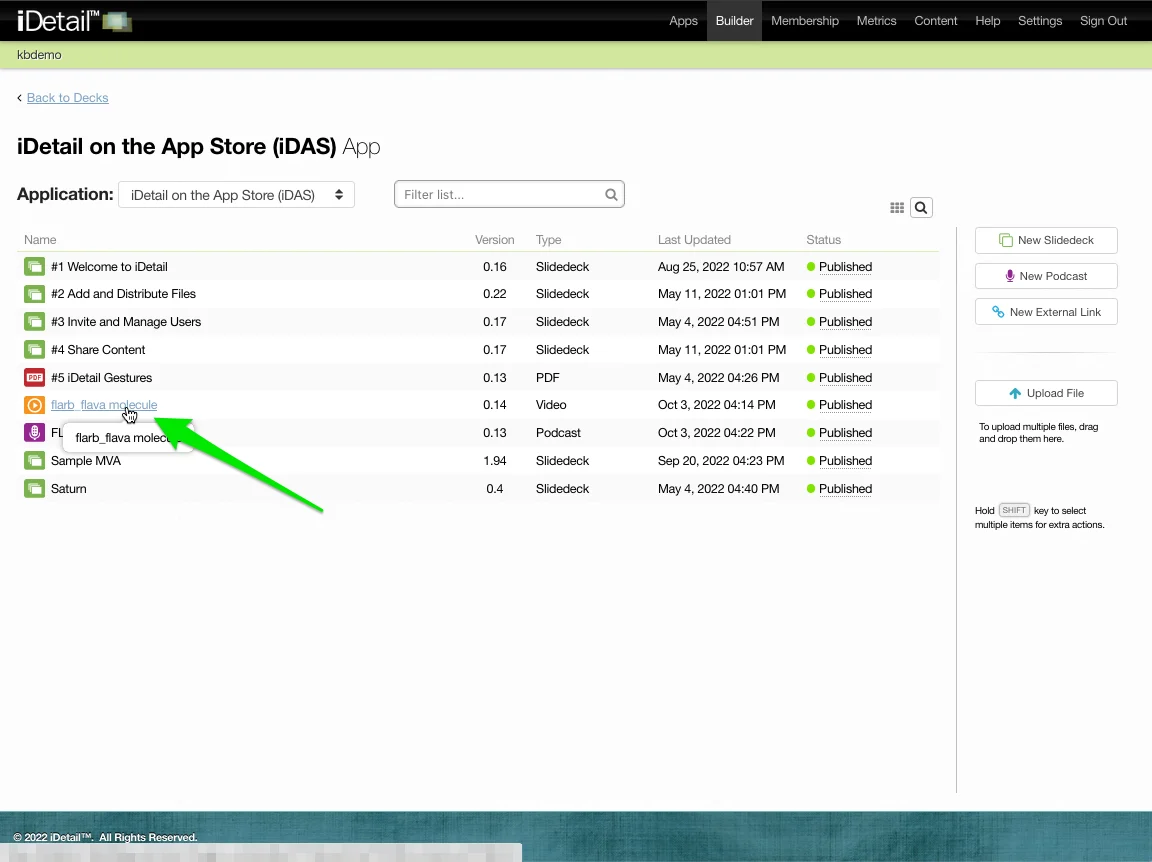
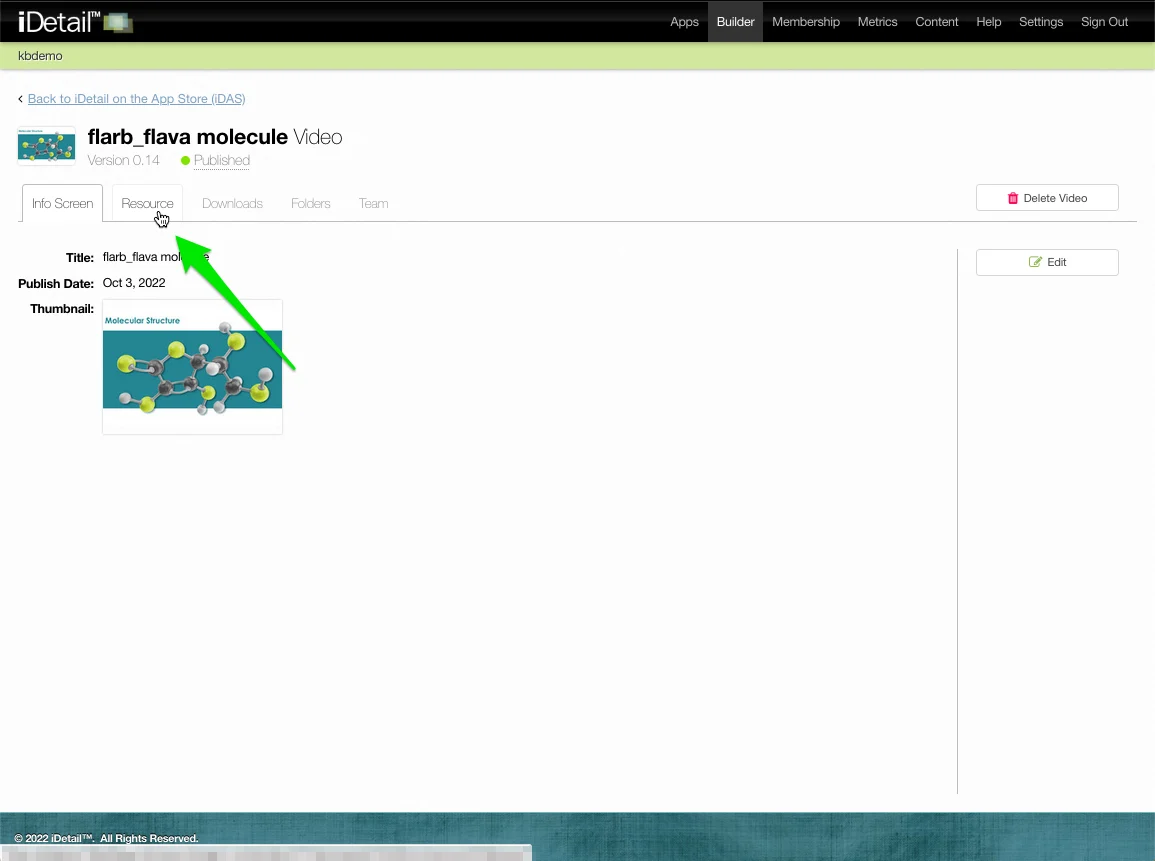
Click the Resource tab
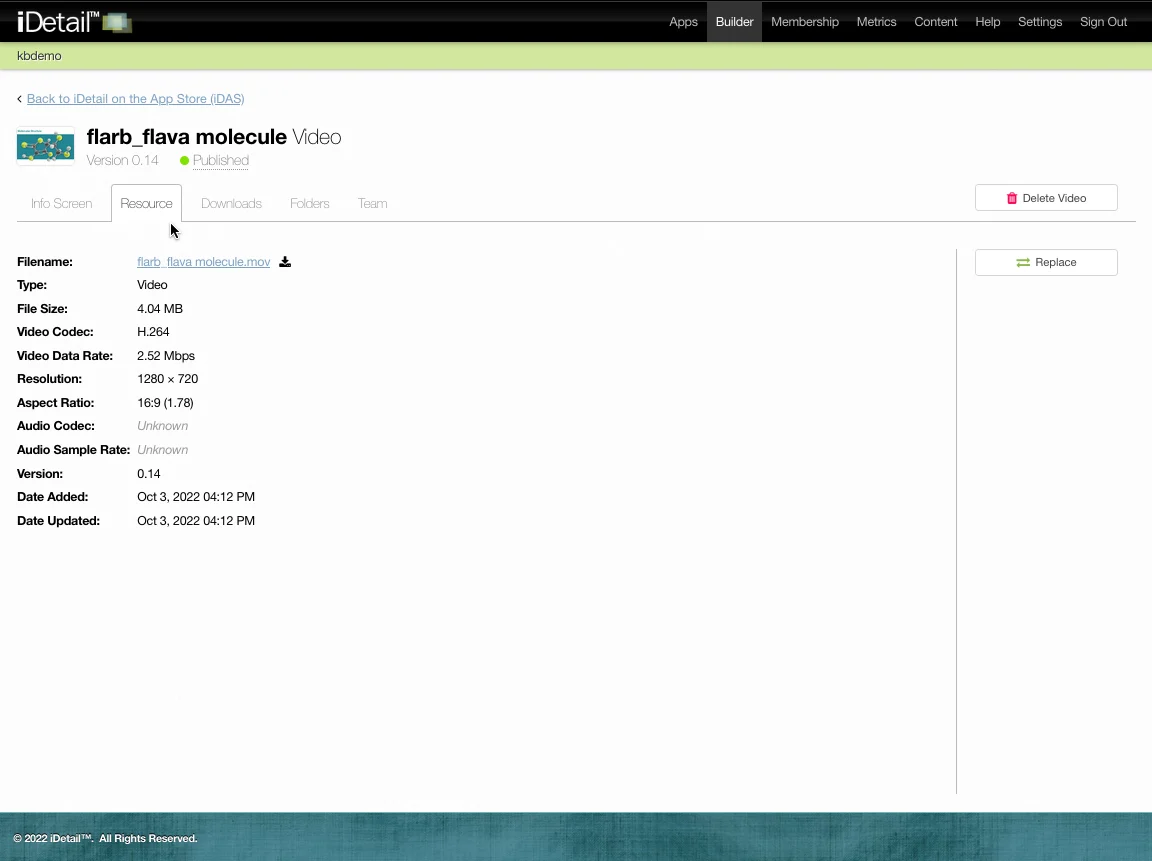
The file’s specifications appear on the Resource tab. You can click the Filename link to download a copy of the file.
How to find a slide Asset tab
Click Builder in the main navigation menu then click the Manage Content link
Choose a slide deck content item from the Grid View (or click the item filename if you are using the Search for Items View)
Grid View: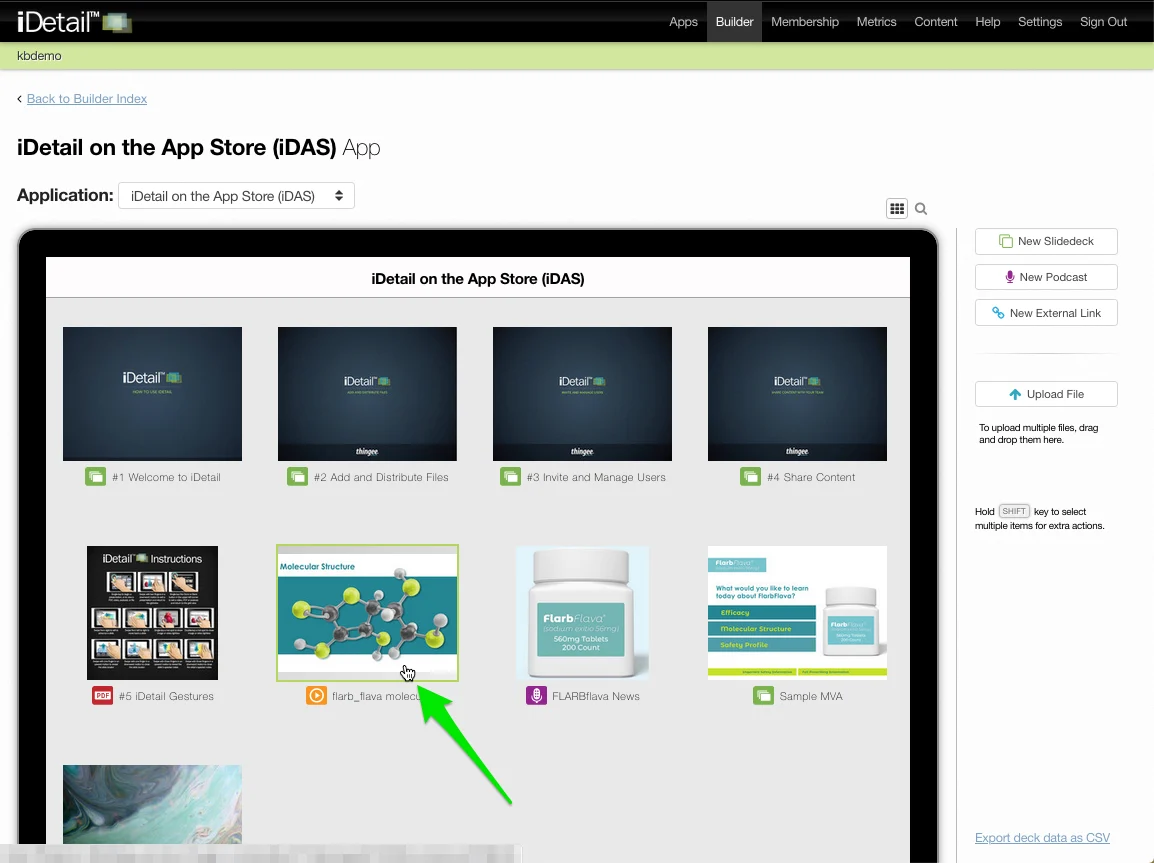
Search for Items View: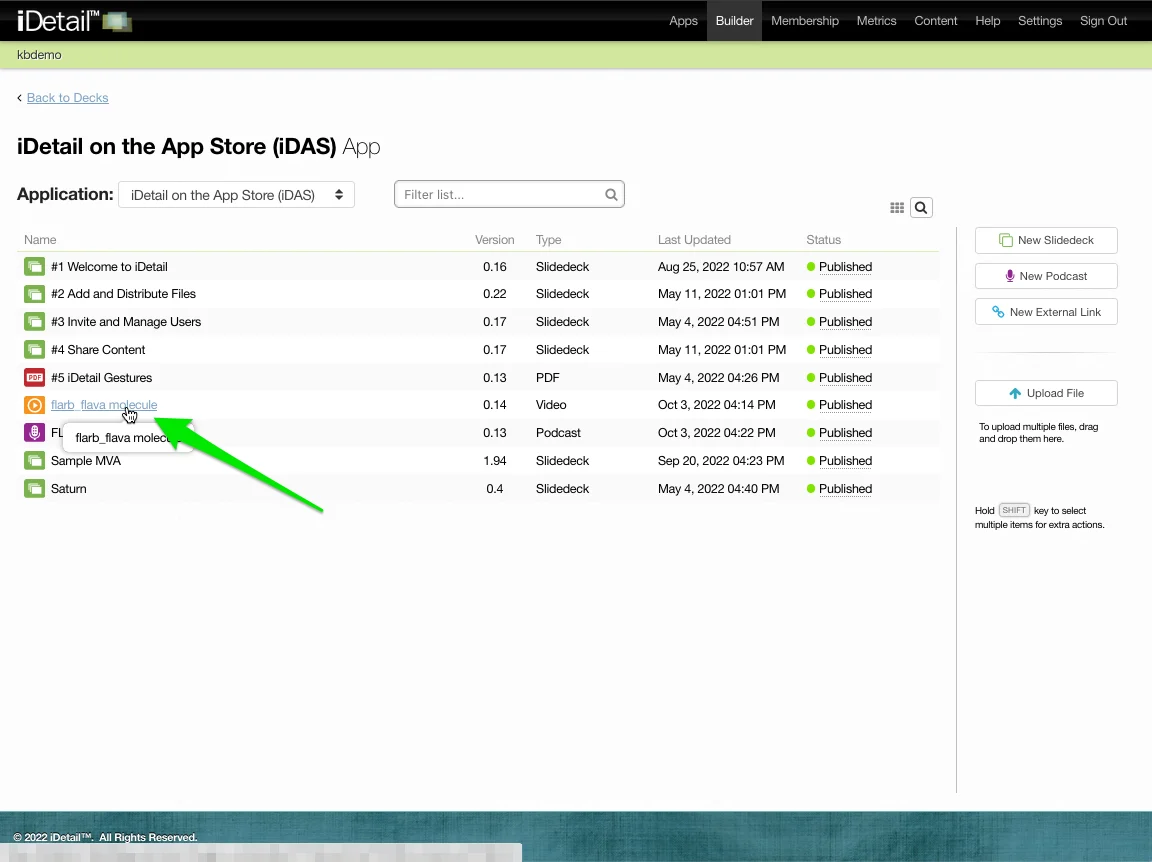
Click the Slides tab
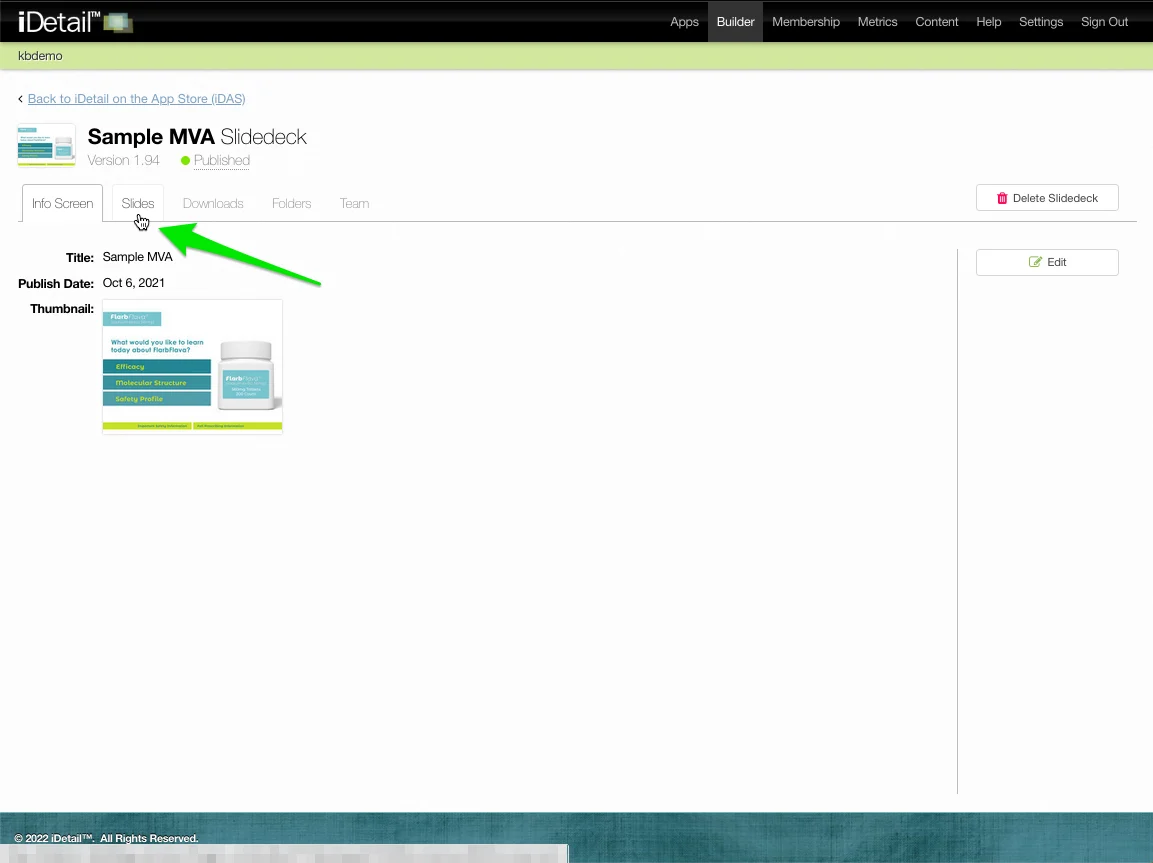
Choose a slide thumbnail and click (or click the Edit link if you are using the slide List View)
Slide Grid View: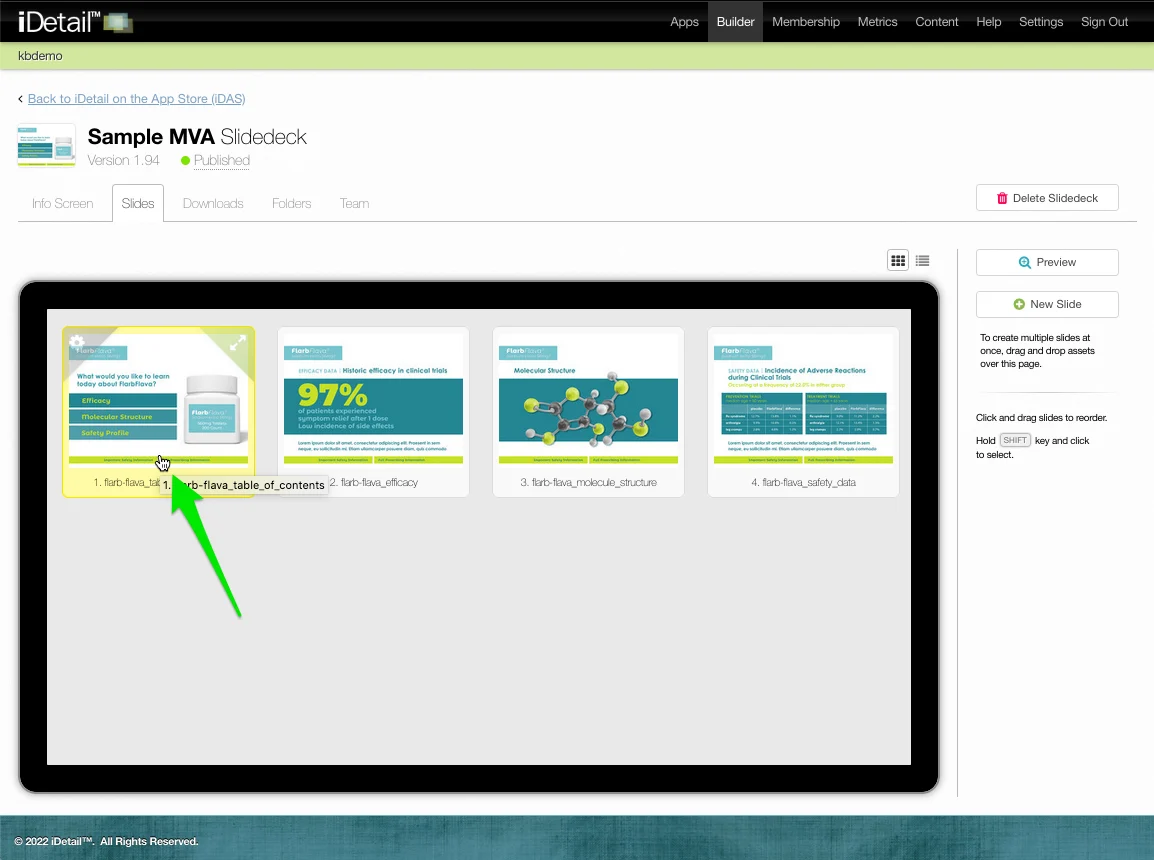
Slide List View: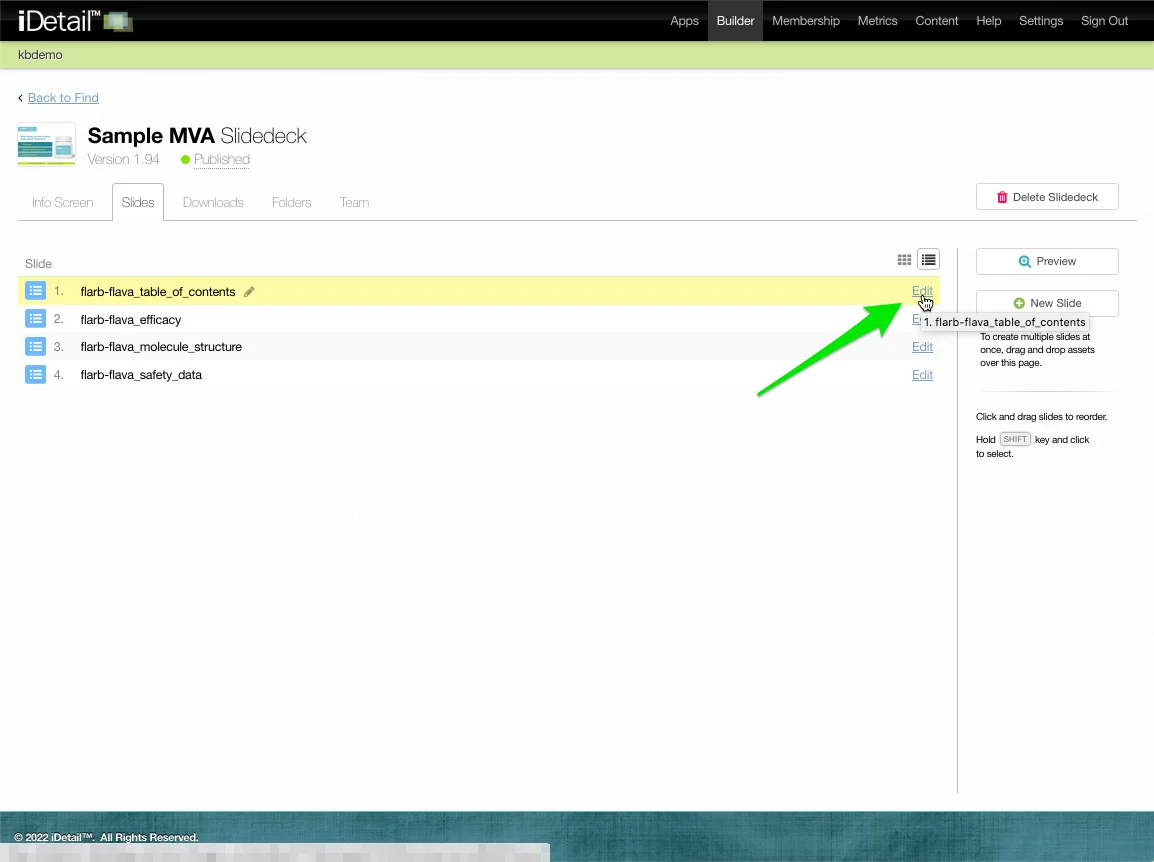
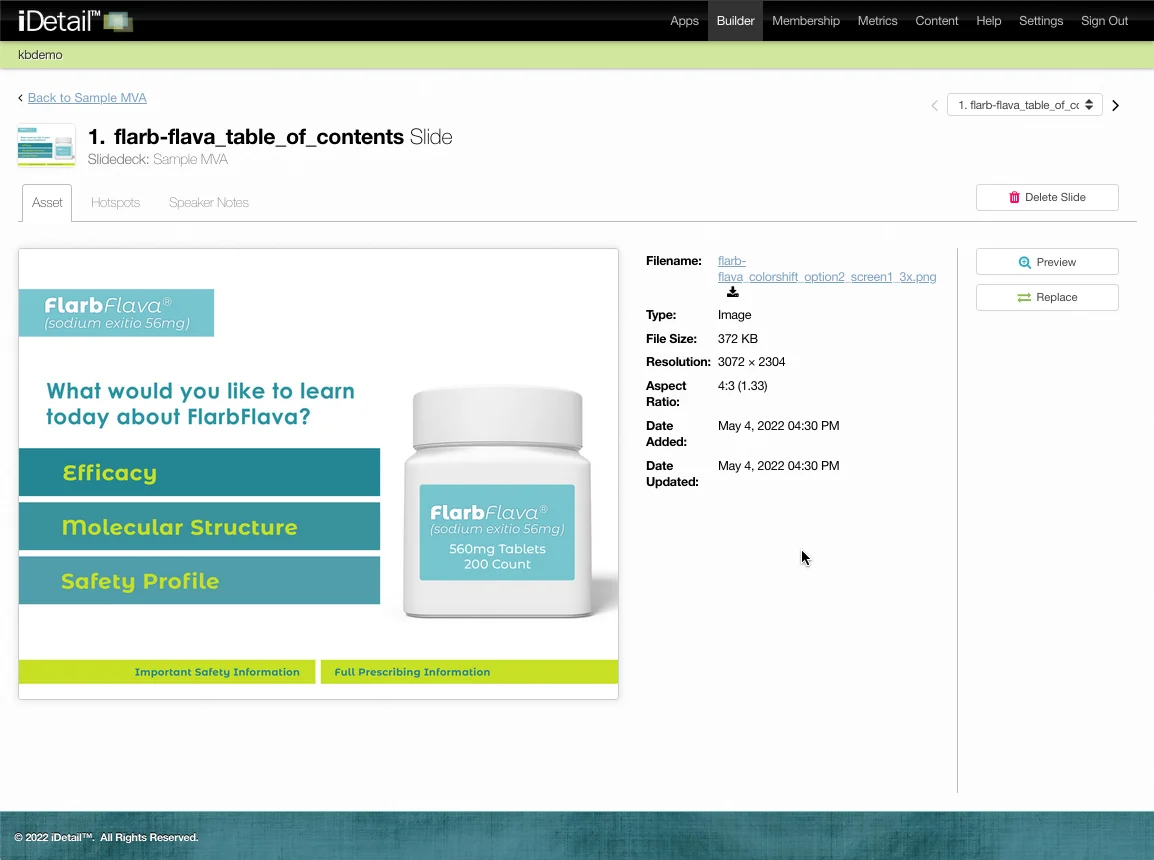
The Asset tab appears with an image of the slide and the file specifications. You can click the Filename link to download a copy of the file.
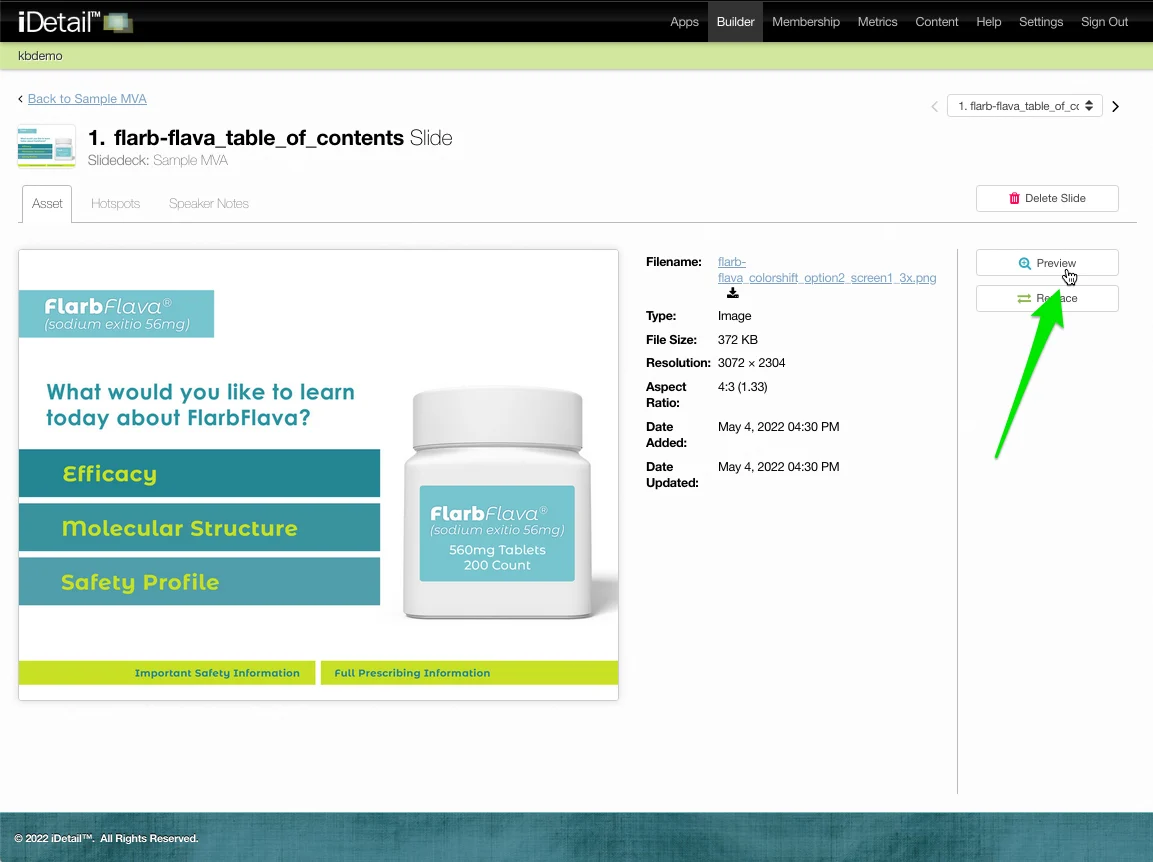
Click the Preview button to see a larger image of the slide:
Click "X" in the upper right of the image to close the preview: