

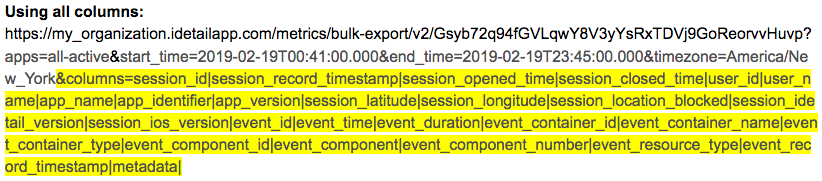
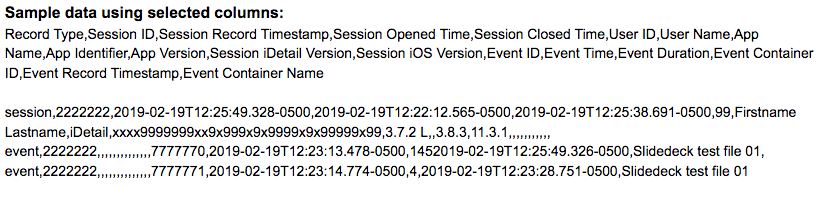
You can set your organization’s bulk metrics query to retrieve a subset of the total data collected by using the columns parameter to specify what data columns you want to include. All data columns are retrieved if the columns parameter is not included in the query.
The Example URL show a sample URL query using the columns parameter. Multiple data columns are concatenated using a pipe character “|”. The order of the data output will be the same as the order you put the columns in.
Note: In the Example URL, the apps parameter is using “all-active” instead of an api key. Setting this parameter retrieves data for all active apps in the organization.
Example URLs and Sample Data:
The first row of data returned is a header label, followed by data records.
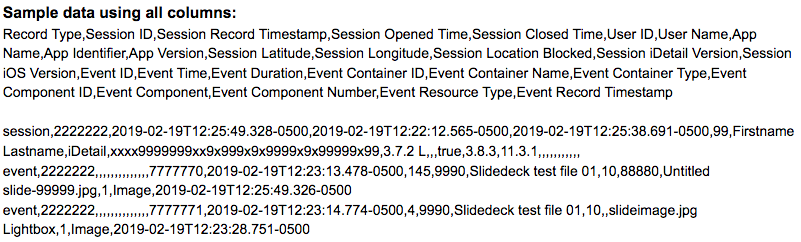

If no columns parameter is specified, the default order of the columns is listed below.
session_id
session_record_timestamp
session_opened_time
session_closed_time
user_id
user_name
app_name
app_identifier
app_version
session_latitude
session_longitude
session_location_blocked
session_idetail_version
session_ios_version
event_id
event_time
event_duration
event_container_id
event_container_name
event_container_type
event_component_id
event_resource_number
event_resource_name
event_resource_type
event_record_timestamp
metadata